If you want room to choose and room to grow, an Android TV box IPTV setup is the most flexible route we know. Boxes running Android TV or Google TV get their apps from the Google Play Store, many of them sit on a shelf with a proper network port behind, and their remotes range from palm-sized to full keyboards with number keys. That variety is the strength of the family and also its trap. Two boxes running the same system can feel very different once they sit under your TV, because the hardware around the system is not the same.
This guide is about turning that flexibility into a box that just works. We start with the two home screens and the back panel, then go through the first boot, a short tour of the Settings menus that matter, the player install and the login. After that we tune the player for a household, wire the box properly, deal with remotes and storage, and finish with a symptom table you can keep for later. Menu names vary slightly between brands, so we give you the most common path and tell you what to look for nearby when yours reads differently.
Android TV box IPTV: why this family gives you the most choice
When people ask us which box family leaves them the most options, the answer is nearly always this one. It is not about raw power: some sticks are quick and some boxes are slow. It is about what surrounds the system. Here are the advantages we see most often when we help owners of these boxes by e-mail and WhatsApp.
Widest player list
The Play Store on these boxes often lists several of the supported players at once.
Wired port
Many models have an Ethernet socket, the steadiest link a box can have.
Room to breathe
A box on a shelf stays cooler and hears the router better than a stick behind a panel.
Automatic updates
System and apps update through the official store, so players stay current.
Grid-guide players
Players built around a TV-style programme grid are at home on this family.
Phone as remote
The official remote app on your phone gives you a real keyboard for logins.
The catch is consistency. One brand ships a generous amount of storage and a full remote, another ships the bare minimum. One updates its system regularly, another rarely does. That is why the rest of this page keeps telling you to look at your own box: the system is shared, the experience is not. If you are still choosing hardware, compare this family with the others in the IPTV boxes overview or read our guide to the best IPTV box for your room.
Google TV or Android TV: reading the two home screens
Both systems are built on the same base, and for IPTV they behave the same once your player is installed. The difference is mostly what you see when you press Home, and where the store and the settings hide. If you have just unboxed and are not sure which one you have, this table helps you find your way.
| What you look for | Android TV | Google TV |
|---|---|---|
| Home screen | Rows of apps with a visible app row at the top | Recommendation tiles up front, apps in their own tab |
| Where the Play Store is | An icon in the app row, opened like any app | In the Apps tab, or reached through search |
| Where Settings is | Gear icon at the top right of the home screen | Your profile picture or gear icon at the top right |
| System update path | Settings, then Device Preferences, then About | Settings, then System, then About |
| Calmer home screen option | Hide channels and rows you never use | Apps only mode in your account settings |
| Restart | Settings, then Device Preferences, then Restart, on many models | Settings, then System, then Restart |
On Google TV, the apps only mode is worth knowing about if the box is mainly for IPTV. It strips the recommendation rows and leaves a simple grid of your installed apps, which is easier for the family and lighter for the box. You find it under your profile in the account settings on most models; the box warns you that some features turn off, and you can switch back at any time.
On Android TV, you get a similar calm by holding the select button on a row you never use and choosing to hide it, or by visiting the home screen customisation option in Settings. Either way, the goal is the same: when you press Home, your player should be in the first row, highlighted, one click away.
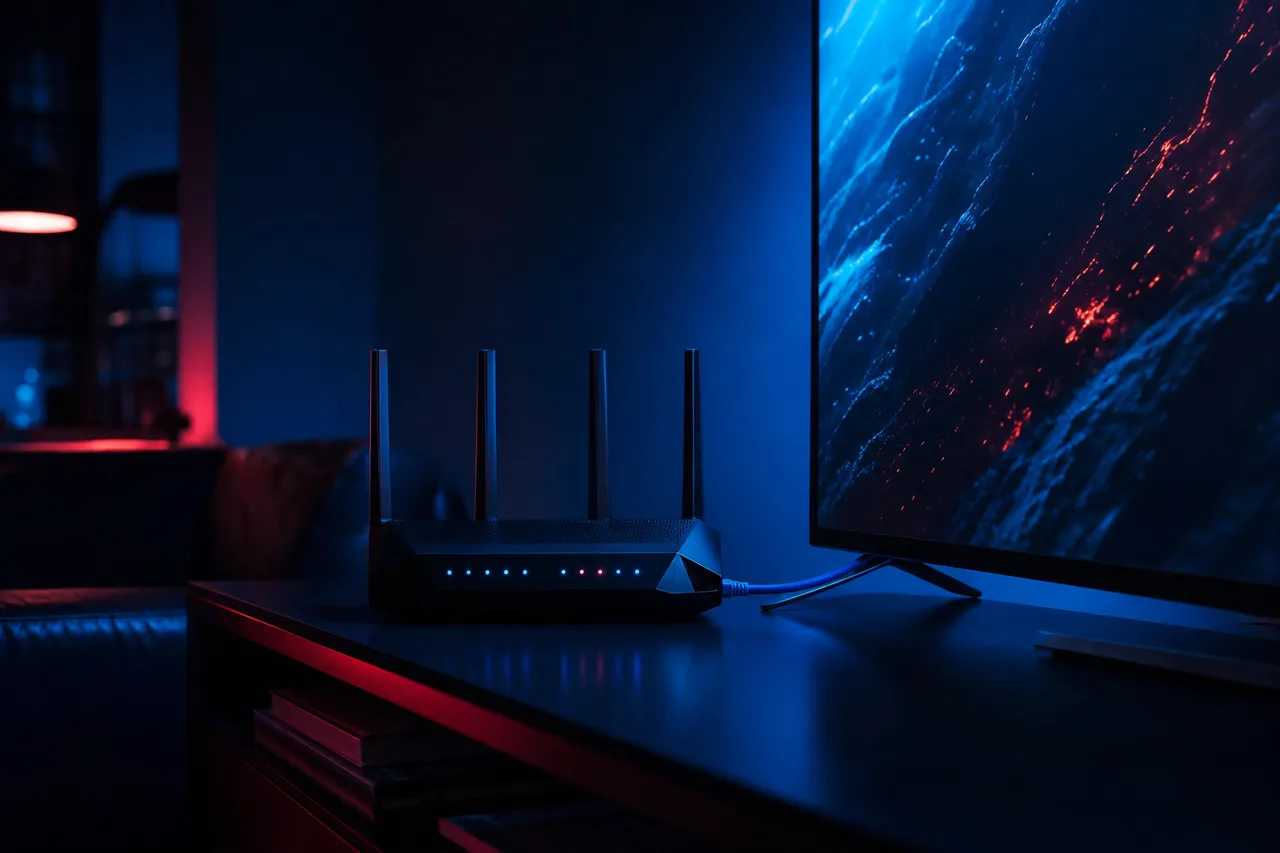
Reading the back panel before you wire anything
The sockets that matter for IPTV
HDMI out carries picture and sound to the TV. Ethernet is the square network socket, wider than a phone jack, and your best friend for a steady stream. Power takes the adapter from the carton. USB sockets are handy for a keyboard or an extra accessory, but you do not need them for IPTV.
Some boxes add an optical audio output or a memory card slot. Neither changes how a player works, so leave them for later.
- Ethernet socket present: plan a cable
- No Ethernet: plan a shelf in sight of the router
- HDMI cable rated for 4K if the TV is 4K
- Adapter from the carton, not a spare phone charger
A note on HDMI cables. For HD and Full HD, almost any cable in good condition will do. For 4K, use a cable sold for high-speed 4K signals, plug it into a 4K-labelled port on the TV, and keep it reasonably short. A tired old cable is one of the most common reasons a 4K box only offers Full HD in its menu. Our page on the 4K IPTV box chain covers the cable, the port and the TV settings in detail.
When you place the box, think about air and signal together. A shelf at the side of the TV, in the open, with a hand’s width of space around the box, is ideal. Inside a closed glass cabinet, the box warms up and the Wi-Fi weakens at the same time. If the cabinet is the only spot, run an Ethernet cable through the back and leave the door ajar for the first few evenings while you test.
Certified boxes and the official Play Store
The single most important thing to check on a new box is whether it ships with the official Google Play Store. You see it as an icon in the app row on Android TV, or in the Apps tab on Google TV. A box with the official store gets apps through the normal channel, receives app updates automatically and gives you access to the players that publishers list for this family.
Stay with the official store. Avoid any box that gets its apps only from outside the Play Store, or that asks you to change security settings to add a player. We support players installed from your device’s official app store and nothing else. If a box has no Play Store, return it to the retailer under its own policy and choose one that does.
You can confirm the store is the real one in a few seconds. Open it, press up to reach your profile, and look for the settings and updates sections that the official store always includes. If the store asks you to sign in with a Google account and shows the familiar app pages with publisher names and descriptions, you are in the right place.
The Play Store also scans the apps you install from it and flags problems. That is one more reason to stick to it: the version of a player you get there is the one the publisher maintains, and it is the version our support team knows how to help you with. Some players are paid or ask for a licence after setup. When that happens, check the current price on the app’s official website. BoxReady IPTV is independent from app publishers and does not sell or activate their licences.
First boot with the remote in your hand
Plug in HDMI, then Ethernet if you can, then power last. Switch on the TV, press Input or Source on the TV remote and choose the HDMI port you used. The box shows its logo and starts its setup. Here is the order we follow, with what to watch for at each stage.
- Stage one
Pair the remote
The box asks you to hold a pair of buttons, often Back and Home together, until the light on the remote blinks. Follow the on-screen picture.
- Stage two
Language and network
Choose English or French. On a wired box the network connects by itself; otherwise pick your 5 GHz Wi-Fi name.
- Stage three
Google account
Sign in so the Play Store works. Most boxes let you finish this on your phone by scanning a code shown on the TV.
- Stage four
Skip the extras
Decline suggested apps you will not use. Each one takes storage your player will want later.
- Stage five
System update
Open the About menu and run any update before installing a player. Leave the box plugged in until it restarts.
- Stage six
Update the store apps
Open the Play Store, go to your profile, then Manage apps, and update everything listed.
A brand-new box can take a while on the update stages, especially if it sat in a warehouse for months. Let it work. Pulling the power during a system update is the one thing that can leave a box in a bad state, and it is entirely avoidable. Use the waiting time to find your welcome e-mail on your phone, because you will need it soon.
One last habit for the first week: keep the carton and the receipt. If the Play Store on your box turns out not to list any supported player, or the remote is too awkward for the people who will use it every evening, you still have the option of returning the box to the retailer under its own policy. Make that call early, after a few evenings of real use, rather than months later when the box is part of the furniture. Write down the model name from the sticker underneath too, because support will ask for it.
The Settings tour: six menus to visit once
Before you install a player, spend a few minutes in Settings. These six stops cover what matters for IPTV. Paths follow the most common layout; if a label differs on your brand, look in the same area of the menu.
| Stop | Typical path | What to do there |
|---|---|---|
| Network | Settings, then Network and Internet | Confirm Ethernet, or that Wi-Fi uses the 5 GHz name |
| Resolution | Settings, then Display and Sound, then Resolution | Pick 4K on a 4K TV, otherwise the highest option offered |
| HDMI control | Settings, then Display and Sound, then HDMI-CEC | Turn it on so the box remote can switch the TV and set the volume |
| Date and time | Settings, then System, then Date and Time | Automatic, with your province’s time zone, so the guide lines up |
| Screensaver and sleep | Settings, then System, then Ambient mode or Energy | Long enough not to interrupt a paused show, short enough to save power |
| Storage | Settings, then System, then Storage | Note how much space is left before you add anything |
The time zone stop is the one people skip and later regret. Player guides read the box clock. If the box thinks it is in another province, every programme in the guide appears at the wrong hour, and it looks like a service problem when it is not. Set it now, and our TV guide setup page covers the player side of the same question.
HDMI-CEC is worth a word too. With it on, the box remote can turn the TV on and off and change the volume, and the TV switches to the right input when you press Home. Brands give it their own names on the TV side, so if the box setting alone does not work, look for an HDMI control option in your TV’s own settings and turn it on there as well.
Installing players from the Play Store
Our packs work with IPTV Smarters Pro, TiviMate, Smart IPTV, IBO Player, XCIPTV and GSE Smart IPTV. On Android TV and Google TV, several of these are commonly listed, but each publisher decides where its app appears, and the list on your box depends on your model and your region. Search by name, check the publisher, install what is there.
- Open the Play Store from the app row on Android TV, or from the Apps tab on Google TV.
- Select the search field and type the player name with the on-screen keyboard, or press the microphone button on the remote and say it.
- Check the listing: publisher name, screenshots and description should match the player you expected.
- Press Install and wait for the button to change to Open. Leave the box on while it works.
- Move it to the front. On Android TV, add it to your favourites row; on Google TV, hold select on the icon and choose Move.
- Open it once to check it starts, then press Home. You are ready for the login.
Keep one player installed at a time while you learn it. Each player builds its own cache of logos, posters and guide data, and two of them filling the storage side by side is a common reason a new box already feels slow in its second week. If you want to try another, uninstall the first one, then install the next.
Choosing a player for an Android TV box IPTV setup
All six supported players accept your access. On this family you often have the luxury of choice, so pick the one that suits how your household watches. These are the situations we hear about most and where we would point you first.
TiviMate opens on a programme grid with channels down the side and time across the top. It was built for this kind of box.
Then: read the TiviMate box guideIPTV Smarters Pro separates Live TV, Movies and Series into big tiles, which makes the libraries easy to browse.
Then: set up a favourites list for each sectionXCIPTV exposes the video engine, buffer size and stream format, so you can trade a little delay for a steadier picture.
Then: change one setting at a timeChoose the player with the fewest menus that your store lists, and hide every group they will never use.
Then: write the three buttons they need on a sticky noteOur in-depth guides take each of the main three player by player: TiviMate on a box, IPTV Smarters Pro on a box and XCIPTV on a box. If none of them is listed on your box, Smart IPTV, IBO Player and GSE Smart IPTV accept the same details, and the box apps hub compares all six.
Logging in and the first guide load
Your access arrives by e-mail within minutes of ordering. It contains Xtream Codes details, meaning a server URL, a username and a password, or an M3U link. Choose Xtream Codes when the player offers it: channel groups, the guide and the libraries usually arrive in a tidier shape.
Field names change slightly from one player to another; the three values from the e-mail never do.
This is where an Android TV box gives you a real advantage: the phone. Install the official Google TV remote app on your phone from its store, connect it to the box over the same Wi-Fi, and when a text field opens on the TV, type on the phone keyboard instead. A long server address that takes minutes with the remote goes in quickly, and you can paste from the e-mail if your phone allows it. Some boxes also accept a small USB keyboard plugged into the back.
- Type the server address exactly as written, with no space or extra slash at the end.
- Check capitals in the username and password; both are case-sensitive.
- Give the playlist a room name, so you know which box it belongs to later.
- Let the first load run to the end without pressing Back.
- Open one familiar channel and watch it for a minute before exploring.
If the login is refused, compare every character with the e-mail once more. If it still fails, try the M3U link in the same player: if that works, the issue was a typo in the Xtream fields. Our Xtream Codes guide lists the classic mistakes field by field.
Setting up your Android TV box IPTV player for the household
The settings that pay off every evening
Once you are logged in, open the player’s own settings. Five minutes here makes the box easier for everyone who picks up the remote.
- Guide refresh on start, so listings stay current
- Groups you never watch hidden from the list
- A favourites group with your usual channels, moved to the top
- A medium buffer value as a starting point on Wi-Fi
- A parental PIN on groups, if children use the box
The catalogue is large: the VIP Premium Pack alone carries 27,000+ channels. Scrolling all of that with a remote is no one’s idea of a relaxing evening, which is why hiding groups matters more than any other setting. Go through the group list once, keep the handful your household actually watches, and hide the rest. They are not deleted; you can show them again whenever you like.
The catalogue includes French-language and international content. If your household is looking for a specific language, ask support before ordering, so you know what to expect before you start building favourites.
Many boxes and players also offer an option to open the player automatically when the box powers on. For a box that is only used for IPTV, turn it on. Grandparents and children then see their channels as soon as the TV comes on, without learning the home screen at all.
Box wired, player installed
Choose your pack and duration, pay once in Canadian dollars, and your access arrives by e-mail within minutes.
Wiring and Wi-Fi for a steady picture
A box can only show what reaches it. If yours has an Ethernet socket and the router is in the same room, or even a room away with a cable route along the baseboard, wire it. You get the steadiest connection your internet can give, and most buffering complaints simply vanish.
On Wi-Fi, use the 5 GHz network name, keep the box on an open shelf rather than in a closed cabinet, and keep it a room or two from the router at most. Plan 10 Mbps for HD, 15 Mbps for Full HD and 25 Mbps for 4K on the screen the box drives, and add the figures together when other screens in your home stream at the same time. Two Full HD streams in the house need 30 Mbps between them, a 4K and an HD stream need 35 Mbps.
Plan this much for the box’s screen
Measure at the box, not at the router. Stand by the TV with your phone on the same Wi-Fi name and run a speed test at the time you usually watch. If the result is lower than your resolution needs, the fix is placement or a cable before it is anything in the player. Our page on Wi-Fi or Ethernet for an IPTV box shows how to lay a cable neatly and how to compare both options in your own room.
Picture and sound settings around the box
Once the stream is steady, the last stretch is between the box and your ears and eyes. Two sets of settings meet here: the box’s own display and sound options, and the picture and sound modes of your TV. A few changes on both sides make live TV look and sound the way it should, without any change in the player.
Hands-on check: open a channel you know well, then press the settings or menu button on the TV remote, not the box remote. Look at the picture mode. Modes called vivid or dynamic push colours too far for long evenings; a standard, cinema or filmmaker mode is closer to what the broadcaster intended.
On Google TV and many Android TV boxes, the display settings include an option to match the content frame rate, often under Display and Sound, then Advanced display settings. When it is on, the box adjusts its output to follow each stream rather than forcing one rate on everything. Movement in live sport and in films looks smoother. Some TVs show a black screen for a moment while they switch; that is normal and only happens when the stream changes.
On the TV side, look for motion smoothing, sometimes given a brand name of its own. Some people like it for sport, others find it gives films a strange, too-smooth look. Try it both ways on the same channel and keep what your household prefers. If the TV offers a separate setting for each HDMI input, change it only for the port your box uses, so your other devices keep their own settings.
Sound is simpler than it looks. If the TV speakers are your only speakers, leave the box audio on automatic. If you use a soundbar or a home theatre receiver, connect it to the TV’s ARC or eARC port and let the TV pass sound along. When some channels play silently through the soundbar but play normally on the TV speakers, open Settings, then Display and Sound, then Audio on the box and switch the output format from automatic to a compatible stereo option. That one change fixes most silent-channel complaints we receive from soundbar owners.
Remotes, phones and keyboards
This family has the widest range of remotes of any box. Some are tiny with a handful of buttons and a microphone, some have number keys and channel buttons, some even carry a small keyboard on the back. For IPTV, a few buttons do most of the work, and it is worth knowing how yours handles them.
Five buttons to learn on day one
Home gets you out of anything. Back steps back one screen and closes the keyboard. Select, in the middle of the ring, opens a channel; held down, it often opens extra options. Channel up and down, if your remote has them, zap in most players. Microphone searches the store by voice. Many remotes also open recent apps with a long press on Home and leave the player fully with a long press on Back: try them on yours, the gestures differ by brand.
If the remote that came with the box is too small for a parent or grandparent, you have options. With HDMI-CEC turned on, many TV remotes can drive the box: the arrows and OK button on the TV remote then move inside the player. The phone remote app helps for typing. And a USB or wireless keyboard plugged into the box makes logins and searches painless. Our remote control tips for IPTV list the shortcuts hidden in the main players.
Storage, cache and keeping the box quick
A box that felt fast in its first week and sluggish a few months later has usually not changed at all. Its storage has filled up. The system takes space for updates, each app keeps a cache, and a large catalogue means a large guide to store. The good news is that this is entirely in your hands.
- Check the space left once a month in Settings, then System, then Storage.
- Uninstall apps you have not opened in weeks, including the ones the box came with if your brand allows it.
- Clear the player cache in Settings, then Apps, then the player, then Clear cache, when the guide drags.
- Run system and Play Store updates when the box offers them.
- Restart from Settings every week or two instead of leaving the box in standby for months.
- Keep the vents clear: a warm box slows itself down.
Deep dive: Clear cache versus Clear storage
Clear cache removes temporary files: posters, logos, guide pages the player saved to show them faster. It is safe. Your login, favourites and settings stay, and the player rebuilds the cache over the next evening.
Clear storage, sometimes called Clear data, wipes the player back to its first screen. Your playlist, favourites and hidden groups disappear and you have to log in again. Use it only when support suggests it or when the player refuses to start. Before you do, take a photo of your settings screens so you can rebuild them quickly.
If the box still feels slow after a tidy, look at heat next. Our page on a box running hot or slow covers airflow, restarts and the habits that keep any box responsive over the long run.
Common Android TV box IPTV problems and first fixes
Most problems on this family have a short list of causes. Start with the cheapest check in the table and work along the row. Only after the third column fails is it time to write to support.
| What you see | Likely cause | First fix | Next step |
|---|---|---|---|
| Player missing in the Play Store | Not listed for this model or region | Search for another supported player | Ask support which player suits your box |
| Login refused | One character wrong | Retype using the phone keyboard | Try the M3U link in the same player |
| Guide hours shifted | Box time zone | Settings, then Date and Time | Guide time-shift in the player |
| Buffering in the evening | Wi-Fi at the box | Ethernet cable or 5 GHz name | Speed test at the TV, router placement |
| Only Full HD offered on a 4K TV | Port or cable | Move to the 4K-labelled port | Try a high-speed 4K HDMI cable |
| Box remote does not control the TV | HDMI-CEC off | Turn it on in Display and Sound | Turn on HDMI control in the TV settings too |
| Menus slow after a few months | Storage full | Uninstall unused apps, clear cache | Restart and keep vents clear |
When you do write to us, include the box brand and model, the system (Android TV or Google TV), the player name and a photo of what is on screen. With those four things support can usually answer on the first reply. The box troubleshooting hub and the buffering fixes page have longer step-by-step guides.
Matching a pack to your Android box
Every pack runs on every supported device. On a wired Android box with decent storage, you can comfortably pick by content rather than by what the hardware can handle. Here is how we usually suggest people think about it.
VIP Premium Pack
- 27,000+ channels
- 61,000+ series
- 155,000+ movies
- HD, Full HD and 4K
Ultimate 4K Pack
- 57,000+ 4K channels
- 47,000+ series
- 179,000+ movies
- 20 servers in Europe
The VIP Premium Pack is the natural partner for a wired Android box: the largest series library, and a box with room to cache the bigger guide. The Ultimate 4K Pack fits a box that offers 4K in its Resolution menu, on a 4K TV, with 25 Mbps reaching it all evening. The Premium Pack is the lighter choice for a box with tight storage or a household that mostly watches live channels.
Each pack includes one simultaneous connection: the same login works on your box, your phone and your tablet, one at a time. More screens playing together are available only on request through the contact page, where support gives the conditions and price. Packs run for 1, 3, 6 or 12 months with a one-time payment in Canadian dollars by card or PayPal, no contract and no automatic renewal. See current prices on the plans page, or read about the 12-month plan if your box is already set up and staying put.
Related guides for Android box owners
Your box is wired, updated and logged in. These pages pick up from here, whether you want a different view of the hardware or a deeper look at the player and the guide.
Need a hand with your box
Support replies 7 days a week by e-mail and WhatsApp, in English and French. Send the box model and a photo of the screen.
FAQ
Is Google TV better than Android TV for IPTV?
Neither is better on its own. Both install players from the Play Store and play the same streams. Choose the box whose hardware, remote and home screen suit your room.
Which player should I install first on an Android box?
TiviMate if you like a grid guide, IPTV Smarters Pro if you mostly watch films and series, XCIPTV if you want to adjust the video engine. Install one that your Play Store lists, and keep only one installed while you learn it.
My box has no Play Store. What can I do?
Choose a box that ships with the official store. We only support players installed from your device’s official app store, and a box without it is a poor fit for IPTV.
Can my Android box show 4K?
Yes, if it lists a 4K option under Resolution, the TV is 4K, the HDMI port and cable accept 4K, and 25 Mbps reaches that screen.
Why is my guide showing the wrong times?
The box time zone is usually off. Set Date and Time to automatic with your province’s time zone, then use the player’s guide time-shift if needed.
Is it worth using the Ethernet port?
Yes, whenever the router is within reach. A cable gives the steadiest connection and ends most evening buffering.
How do I type the server address faster?
Use the official remote app on your phone and its keyboard, or plug a USB keyboard into the box. Check every character before you confirm.
Can I use the same login on my phone?
Yes, one device at a time. Each pack includes one simultaneous connection; more screens together are available on request through support.
How long until my login arrives?
Your access is e-mailed within minutes of ordering: Xtream Codes details or an M3U link.
Who can help me set up my box?
Support answers 7 days a week by e-mail and WhatsApp at +33 6 44 65 43 13, in English and French.