
The spinning circle in the middle of a match or the last scene of a film is the complaint we hear more than any other. The reassuring part is that IPTV buffering nearly always has a physical cause you can find with your own eyes and your remote. The stream is a steady flow of data from the server to your box. When that flow slows for a moment, the player empties its small reserve of video and pauses to refill it. Your job is to make the flow steadier, or to give the player a little more reserve, and this guide shows you how, starting with the fixes that cost nothing.
BoxReady IPTV is a hardware-first site, so we work from the wall outwards: the speed reaching your home, the router, the path to the box, the box itself and finally the player settings. Along the way you will learn to read the pattern of your buffering, test speed in the right spot, place the router, run a cable, tune the buffer and plan an evening test. If your menus are slow before any stream starts, that is a different problem, covered on our page about a box running hot or slow.
What IPTV buffering really is
Picture a garden hose filling a bucket. The server is the tap, your internet and home network are the hose, and the player’s buffer is the bucket at the end. The player drinks from the bucket at a steady rate to show you the picture. As long as water arrives at least as fast as the player drinks, the bucket stays full and the picture never stops.
When the hose gets pinched anywhere along the way, less water arrives. The player keeps drinking, the bucket empties, and the picture stops while it refills. That stop is buffering. A bigger bucket lets you ride out short pinches, but it cannot make the hose carry more water. That is why player settings help with small dips and do nothing for a connection that is simply too slow.
In a home, the hose gets pinched in four main places: the internet line itself, the Wi-Fi link between router and box, other devices using the same line, and a box that is too busy or too warm to keep up. The first three are network questions. The last one is a box question. The fixes below tackle them in that order, because the network is where most buffering starts.
Read the pattern before you fix anything
When and where the picture pauses says more about the cause than any speed test. Spend one evening noticing the pattern, then match it to this table.
| Pattern you notice | Most likely cause | Where to start |
|---|---|---|
| Every channel pauses, all the time | Not enough speed reaching the box | Test speed where the box sits |
| Pauses only in the evening | Other devices sharing the line at peak time | Pause big transfers, then consider Ethernet |
| 4K pauses, Full HD plays smoothly | Speed limit for 4K on that screen | Check for 25 Mbps at the box, or use a cable |
| Pauses in one room only | Weak Wi-Fi path to that room | Move the router or run a cable |
| Only one channel pauses | That stream and the player engine | Switch the internal player |
| Pauses start after the box has been on for hours | Box warm or short on memory | Restart and give it open air |
| Pauses when someone starts watching elsewhere | Your single connection is in use | Stop the other stream first |
Most homes recognise themselves in one or two rows. Write down which ones before you change anything. It keeps you from making three changes at once and never knowing which one helped, and it gives our support team a head start if you write to us later.
One pattern deserves a special mention: buffering that starts suddenly after weeks of smooth viewing. Ask what changed. A new router, a moved TV stand, a new games console, a neighbour’s new Wi-Fi network, a player update. The answer is usually in that list.
Also note how long each pause lasts and how the picture behaves around it. A short pause every so often, with a quick recovery, usually means a link that dips now and then; a slightly larger buffer or a better router spot sorts it. Long pauses, or a picture that drops to a blurrier quality before stopping, point to a line that simply cannot keep up with that screen. A picture that freezes on one frame while the sound carries on is more often a player engine question than a network one.
IPTV buffering and bandwidth: what each screen needs
Speed needs are counted per screen and they add up. A box playing a 4K channel needs about 25 Mbps of steady speed for itself, on top of whatever else the household is doing online at the same moment.
Steady speed per screen
| Playing at the same time | Speed to plan for | Comfortable link at the box |
|---|---|---|
| One screen in HD | About 10 Mbps | Good 5 GHz Wi-Fi or Ethernet |
| One screen in Full HD | About 15 Mbps | Good 5 GHz Wi-Fi or Ethernet |
| One screen in 4K | About 25 Mbps | Ethernet strongly preferred |
| One HD and one 4K screen | About 35 Mbps | Ethernet for the 4K box |
| One Full HD and one 4K screen | About 40 Mbps | Ethernet for the 4K box |
| Two screens in 4K | About 50 Mbps | Ethernet for both boxes |
The rows with two screens only apply if you have arranged more simultaneous screens with support; each standard pack includes one simultaneous connection. They are still useful for planning, because your internet line also carries phones, laptops and consoles. A household with a 4K box and a busy evening of video calls needs headroom above the 25 Mbps the TV uses.
The key word in all of this is steady. A line that peaks high but dips every few seconds buffers more than a slower line that never wavers. That is why Ethernet so often fixes buffering on connections that look plenty fast on paper.
Upload speed, the data leaving your home, matters less for watching than the speed coming in, but it still plays a part. When someone at home is sending large files or on a video call, the upload side of the line fills up, and on some connections that slows everything else down too, including the small messages your player sends back to the server. If buffering lines up with uploads, pausing them is the quick test.
Test speed where the box actually sits
A speed test on your phone next to the router measures the phone next to the router. It says nothing about the box behind the TV two rooms away. Test where the stream happens, at the time it buffers.
- Go to the box’s spot. Stand or sit exactly where the box is, with your phone joined to the same Wi-Fi network name the box uses.
- Run a test at buffering time. Use a speed test app from your phone’s official store, in the evening if that is when the pauses happen.
- Check the box’s own signal. On the box, press Home, go to Settings, then Network or Network and Internet, and select your connection to see its signal level and band.
- Test on the box if you can. Some official app stores offer speed test apps for TV boxes. Install one and run it on the box itself.
- Compare with the table. If the speed at the box is below what your screen needs, the network is your bottleneck, not the player.
Run the test two or three times, a few minutes apart. Wi-Fi speeds wander, and a single result can mislead you. If the numbers swing widely from one test to the next, the link is unsteady, and that unsteadiness is often the real cause of buffering even when the average looks good.
Hands-on tip: if your phone struggles on Wi-Fi at the box’s spot, the box will too. Move the router before you move the TV. The router is usually the easier thing to shift, and a better router spot helps every device in the home.
The household competing for your line
Your box shares the internet line with everything else in the home. At nine in the evening, that can be a lot. The picture that was smooth at noon starts pausing because the line is busy, not because anything is broken.
Game updates can take a large share of the line for a long time, often without anyone noticing.
Then: schedule console updates for overnightCloud backups send large amounts of data and can choke the line in both directions.
Then: pause the backup during viewing hoursCalls need steady speed in both directions, just like your stream.
Then: wire the box so Wi-Fi is left for the callA phone joining the Wi-Fi may start sending a day’s videos at once.
Then: set phones to sync while charging overnightThe quickest way to confirm this cause is simple: on a buffering evening, ask everyone to pause their big jobs for a few minutes and watch the same channel. If the pauses stop, you have found the culprit without touching the box. The long-term fix is either more headroom on your internet plan, or moving the heavy jobs to times when nobody is watching.
Some routers let you give priority to particular devices. If yours does and you are comfortable in its settings, giving the TV box priority can help on a busy line. It is optional; the habits above do most of the work.
Wi-Fi placement: small moves, big results
Wi-Fi signals dislike metal, water and thick walls. Unfortunately, the back of a TV is metal, an aquarium is water, and plenty of Canadian homes have brick, concrete or a stone fireplace between the router and the living room. A few practical moves make a real difference.
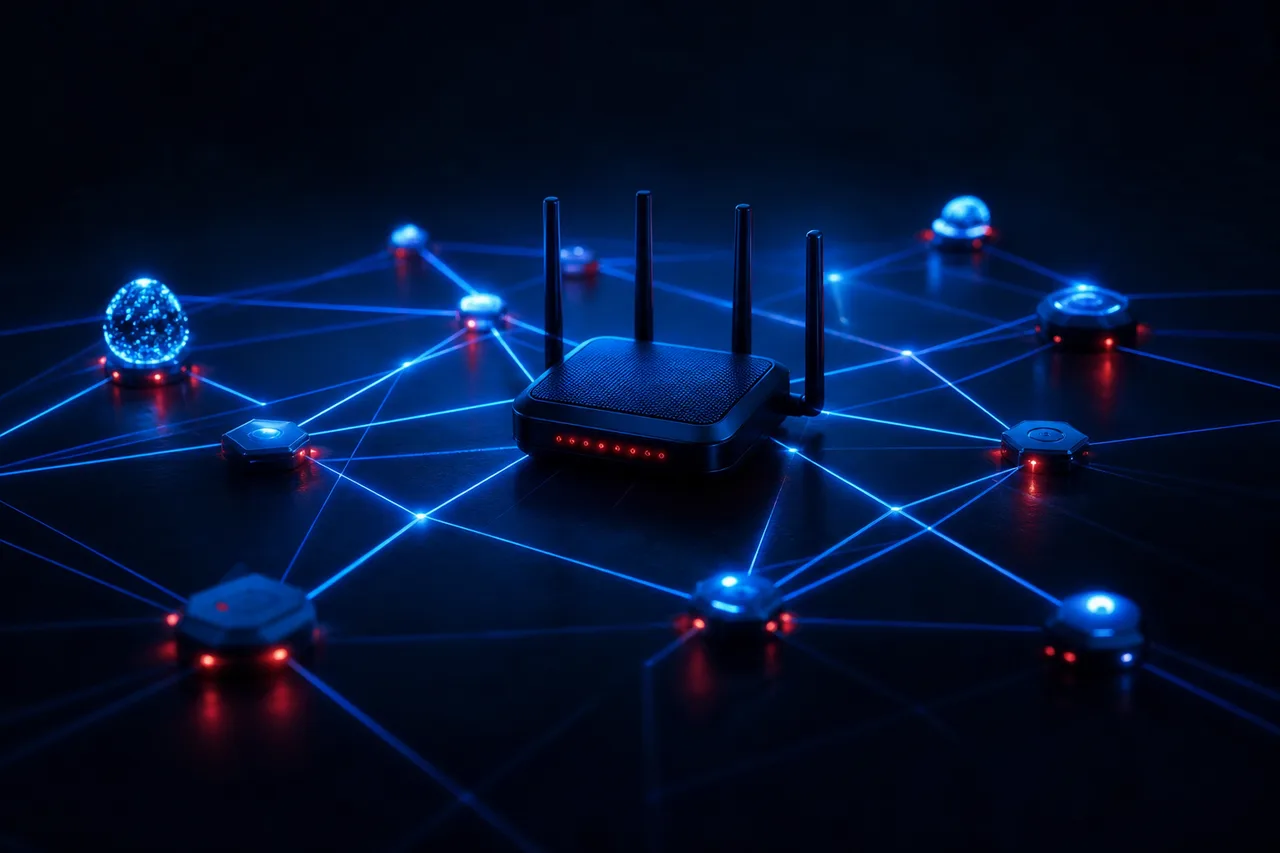
Router and box placement
Small moves often beat a new router. Try them one at a time and retest the same channel after each.
- Take the router out of the cabinet or closet and put it at shelf height in the open
- Point the router’s antennas upright if it has any
- Hang a stick on its HDMI extender, away from the back of the TV
- Keep the box away from microwaves, cordless phone bases and large mirrors
- Restart the router after moving it, then retest
The basement router is a classic Canadian setup: the internet line comes in downstairs, the router sits on the floor beside it, and the TV is two floors up. Every floor and every joist between them weakens the signal. If you can, move the router to a more central spot, even with a longer cable from the wall jack. If you cannot, the sections on Ethernet and on alternatives below are for you.
A box hidden inside a cabinet is the other classic. The cabinet walls and the electronics around it block the signal before it arrives. Bringing the box into the open helps its Wi-Fi and its temperature at the same time.
2.4 GHz or 5 GHz for your box
Most routers broadcast two bands, often with two network names, one ending in 5G or 5GHz. Which one the box joins makes a real difference to buffering.
5 GHz: the first choice
- Carries more data, which suits Full HD and 4K
- Usually less crowded, especially in apartments
- Best when the box is in the same room or the next one
- Weakens faster through walls and floors
2.4 GHz: the fallback
- Reaches further through walls and floors
- Carries less data per second
- Shared with many neighbours’ networks and devices
- Workable for HD when 5 GHz drops out
To switch, press Home on the box, go to Settings, then Network, choose the 5 GHz network name and type the Wi-Fi password. Then tell the box to forget the 2.4 GHz name, so it does not drift back to it when the signal wobbles.
If your router uses one name for both bands, it decides which band each device uses. That usually works, but a box at the edge of the 5 GHz range may bounce between bands and buffer each time it does. If you see that, a cable or a better router position is a more reliable answer than fiddling with router menus. Our full comparison of Wi-Fi or Ethernet for an IPTV box covers each room in detail.
Ethernet: the most reliable fix for IPTV buffering
A network cable removes almost every Wi-Fi variable at once. No walls, no neighbours on the same channel, no dip when someone walks between the router and the TV. If your box has an Ethernet port, and most full-size Android TV boxes and many Apple TV models do, this is the first upgrade to make.
- Measure the run. Measure from the router to the box along the baseboards, not in a straight line, and add a little for corners and slack.
- Plug in both ends. One end into an empty LAN port on the router, the other into the box’s Ethernet port. A small light on the port should come on.
- Switch the box to wired. Press Home, go to Settings, then Network. Most boxes switch to Ethernet by themselves; if not, select Ethernet in the list.
- Turn off Wi-Fi on the box. In the same menu, switch Wi-Fi off so the box cannot wander back to it.
- Retest the problem channel. Open the player and play the channel that buffered before, in 4K if your TV supports it.
Route the cable tidily: along the baseboard with clips, under a rug runner, or along the top of a door frame. Avoid pinching it in a door or bending it sharply behind furniture. Fire TV Sticks have no built-in Ethernet port, but some models accept an official adapter that combines power and network in one block. Our guide to IPTV on Firestick covers that option.
If you are buying a cable, an ordinary Ethernet cable of a sensible length is all a box needs. Flat cables slide under rugs and along door frames more easily than round ones. Keep a spare short cable in a drawer: it is the quickest way to run the cable test from our troubleshooting hub when you need to know whether Wi-Fi is the culprit.
Network sorted, ready to watch
Pick a pack and a duration, pay once in Canadian dollars, and your access arrives by e-mail within minutes.
When a cable cannot reach the TV
Sometimes there is no sensible route for a cable: the router is in the basement, the TV is upstairs, and you rent the place. There are in-between options that carry the network part of the way without drilling holes.
Three common in-between options
Powerline adapters send the network through your home’s electrical wiring: one adapter beside the router, one beside the TV, with a short cable to the box. Results depend on the wiring. A mesh Wi-Fi system places extra units around the home so the box is close to one of them; some units have an Ethernet port you can cable the box into. A Wi-Fi extender repeats the signal, which can help a weak spot but often carries less than the original link.
Whichever you try, test it the same way: speed at the box’s spot, at the time of day you usually watch, a few times in a row. If the speed is steady and above what your screen needs, you are set. If it swings widely, try a different socket for a powerline adapter, a different spot for a mesh unit, or a different option altogether.
Keep powerline adapters plugged straight into wall sockets rather than power strips, which can weaken the signal. And remember that the box itself still needs its own wall adapter and open air, whatever carries its network.
Router habits that help
The router is the busiest device in your home and the one people think about least. A few habits keep it from becoming the weak link.
- Restart the router every so often, and always after moving it: unplug it, count to thirty, plug it back in and let the lights settle.
- Keep it ventilated. A router in a closed cupboard can run warm and slow down, just like a box.
- Accept router software updates if your router or internet provider offers them.
- Use separate names for the 2.4 GHz and 5 GHz bands if your router allows it, so you can choose the band for the box.
- Change the Wi-Fi password if you suspect a neighbour or an old device is still connected and using your line.
- Keep the router away from the TV’s metal back and other electronics.
If your router came from your internet provider and you are unsure about its menus, leave the settings alone and focus on placement and cables. Those two changes deliver most of the benefit with no risk of locking yourself out of your own network.
Player buffer settings: use them wisely
Most players let you choose how much video the box keeps in reserve before and during playback. A larger reserve absorbs short dips in speed. It does not create speed you do not have, and on a small box it costs memory.
The names vary by app, but most players group these options under playback or player settings.
- Start at medium: the best balance between smooth playback and quick channel changes.
- On Wi-Fi, raise it one step if small pauses remain after you have improved placement.
- Leave the player with Back and reopen it after each change, then test the same channel.
- If only the largest setting works, the network is the real problem; go back to the earlier sections.
Do not jump to the largest buffer. On a stick or an older box, a maximum buffer fills the memory, makes channel changes slow and can make the app close by itself. It hides a network problem for a while instead of fixing it.
Player engine and stream format
Many players include more than one internal video engine, and some let you choose the stream format too. These settings matter most when buffering affects certain channels and not others.
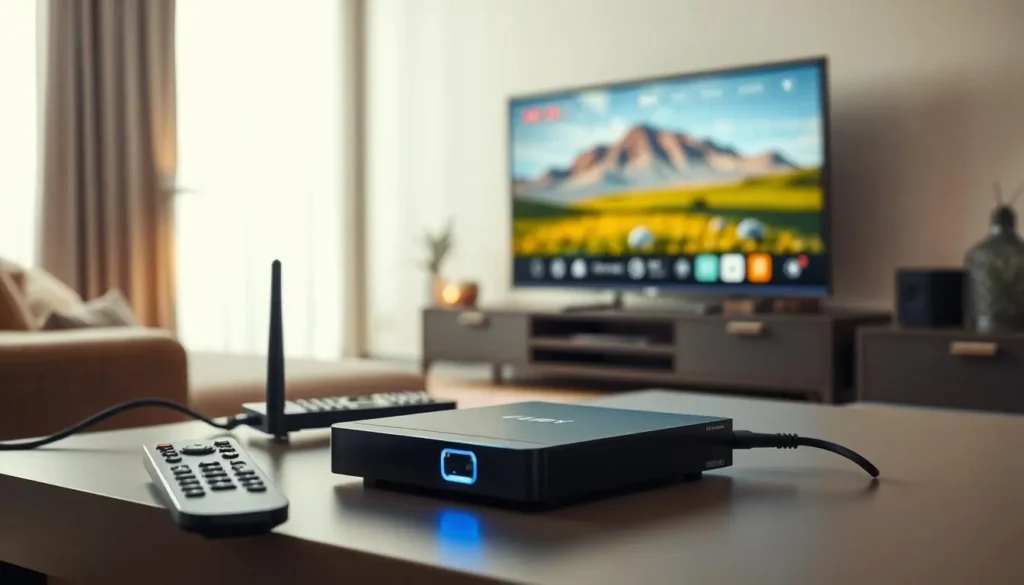
When to try another engine
If a channel stutters, freezes on a frame or loses sound while others play smoothly, switch the engine and test again. Different engines handle some streams better than others on the same box.
Change one setting at a time, note what you changed, and go back if it makes no difference. Our guide to XCIPTV on a box shows where each option lives, and TiviMate on a box covers its own playback settings.
If your player offers a stream format option, the same approach applies: try the alternative on the channel that misbehaves, test for a few minutes, and keep whichever plays more steadily. There is no single right answer for every box; what matters is what works on yours.
After a player update, check these settings again. Some updates return them to default, and buffering that suddenly reappears after an update is sometimes nothing more than an engine that switched back. A second supported player from the official store, logged in with the same details, is also a useful comparison: if the same channel plays smoothly there, the first app’s settings are the place to look.
4K without the spinning circle
4K is where buffering shows up first, because it asks the most of every link in the chain. A setup that is comfortable in Full HD can sit right at its limit in 4K.
Speed at the box
About 25 Mbps of steady speed for each 4K screen, measured where the box sits.
A steady link
Ethernet is the comfortable choice; strong 5 GHz Wi-Fi in the same room can work.
A capable box
A box that outputs 4K, with memory to spare and open air around it.
The HDMI chain
A TV port marked for 4K and a cable that supports HDMI 2.0 or newer.
A simple test tells you whether 4K is at its limit: play the same channel in Full HD. If Full HD plays smoothly and 4K pauses, nothing is broken; that screen simply does not have the steady 25 Mbps 4K needs, and a cable is the most likely fix. If both pause, go back to the earlier network sections.
Check the box’s own display settings too. A box that outputs 4K to a Full HD television gains nothing, and a 4K channel on a box set to 1080p still uses the bandwidth of a 4K stream. Match the box’s resolution to your TV under Settings, then Display, and choose the stream quality that suits the screen and the speed at the box.
If you are planning a 4K setup, the Ultimate 4K Pack lists 57,000+ 4K channels, and our page on the 4K IPTV box: what you need goes through box, cable, port and settings in detail.
When only one channel buffers
If one channel pauses while every other channel plays smoothly on the same box at the same moment, your network is very likely doing its job. The cause sits with that particular stream or with how the player handles it.
The player engine may not suit that stream on your box.
Then: switch the internal player and test againIt may be temporarily unavailable, or the list may be out of date.
Then: refresh the channel list in the playerThe 4K stream needs more speed than that screen receives.
Then: watch in Full HD, or wire the boxSomething specific to that stream needs a closer look.
Then: tell support the channel name and the timeTrying a second player is the quickest way to narrow it down. Install another supported player from the official store, such as IPTV Smarters Pro, TiviMate or XCIPTV, log in with the same details and play the same channel. If it plays there, the first player’s settings are the cause. If it pauses in both, let us know which channel and at what time, so we can look at it.
When the box is the bottleneck
Sometimes the network is healthy and the box itself cannot keep up. A box that is warm, short on memory or nearly full cannot refill its buffer as quickly, and that looks exactly like a network pause.
- Restart the box from Settings, then System or Device, then Restart.
- Clear the player’s cache under Settings, then Apps; your login stays.
- Uninstall apps nobody uses, so the box has storage and memory to spare.
- Move the box into open air, off other devices and out of closed cabinets.
- Power it from its wall adapter, not a TV USB port.
The tell-tale sign is the timing. If the picture is smooth when the box has just been switched on and starts pausing after a few hours, especially with the menus also feeling slow, the box is a strong suspect. Our page on a box running hot or slow covers the full routine, from airflow to the factory reset.
One connection and forgotten streams
Each pack includes one simultaneous connection. If two devices try to play at once, one of them will stop or refuse to start, and that can look a lot like buffering.
Check the other rooms first
A box in the bedroom left on a channel with Home pressed instead of Back may still be streaming in the background. A tablet with a paused film may still hold the connection. Before you blame the network, walk around the house, open the player on each device and press Back until you are out. Then play again on the screen you want.
Keep your login within your own household. If it has been entered on a device in another home, that device competes with yours for the single connection, and your evening viewing keeps stopping for no visible reason. If your household needs more screens at once, write through the contact page and support will explain the conditions and price.
A one-evening IPTV buffering test plan
If buffering comes and goes, a planned evening of testing beats random changes over weeks. Here is a plan you can run in one sitting.
- Before you start
Note the baseline
Pick one channel that often buffers. Write down the box, the player, the quality and whether it is on Wi-Fi or Ethernet.
- Early evening
Test speed at the box
Run speed tests at the box’s spot, a few minutes apart. Compare with 10, 15 or 25 Mbps for your quality.
- Peak time
Watch and log
Play the test channel during the busiest hour. Note every pause and what else was happening in the home.
- One change
Make a single fix
Move the router, switch to 5 GHz or plug in a cable. Restart the box and play the same channel again.
- Compare
Keep what worked
If the pauses dropped, keep the change. If not, undo it and try the next fix on another evening.
The single-change rule is what makes this work. Changing the router spot, the band and the buffer at the same time may fix the problem, but you will not know which change mattered, and you may keep a setting that actually makes things worse. One change, one test, one note.
IPTV buffering words in plain language
Network menus and player settings use a lot of jargon. Here is what the terms on this page mean when you are standing in front of a TV with a remote.
- Buffer
- The small reserve of video the player keeps ahead of what you are watching.
- Buffering
- The pause while the player refills that reserve because data arrived too slowly.
- Bandwidth
- How much data your line or link can carry each second, counted in Mbps.
- Steady speed
- The speed that holds up minute after minute, not the brief peak a test may show.
- 5 GHz and 2.4 GHz
- The two Wi-Fi bands. 5 GHz carries more over short distances; 2.4 GHz reaches further but carries less.
- Ethernet
- A network cable from the router to the box, the steadiest link a box can have.
- Powerline
- Adapters that carry the network through your home’s electrical wiring.
- Mesh
- A Wi-Fi system with several units placed around the home so every room is close to one.
- Player engine
- The internal video software a player uses to decode streams; many players offer more than one.
When you write to support, using these words helps us understand your setup quickly. “The box is on 2.4 GHz in the basement and the buffer is on maximum” tells us more than a page of description.
What to send support, and where to go next
Still buffering after the test plan? Write to us with the details below. Support answers 7 days a week by e-mail and on WhatsApp at +33 6 44 65 43 13, in English and French.
- The e-mail address used for your order.
- Your box model and your player app.
- Wi-Fi or Ethernet, and the speed measured at the box.
- Whether every channel buffers or only some, and which ones.
- The times it happens, and anything else running in the home then.
- What you have already changed, in order.
If you are choosing a pack at the same time, compare durations on the plans page: 1, 3, 6 or 12 months, paid once in Canadian dollars, with no contract and no automatic renewal.
Still seeing the spinning circle
Send us your box, your player and your test notes. We answer every day of the week in English and French.
FAQ
Why does IPTV buffering get worse in the evening?
Your home connection is busiest then, with phones, laptops and consoles all sharing the same line. Pause big transfers during viewing and move the box to Ethernet if you can.
Will a faster internet plan stop buffering?
Only if the line itself is the limit. If the Wi-Fi signal at the box is weak, a faster plan changes little. Fix placement or use a cable first, then test again.
What buffer size should I choose?
Medium suits most boxes. Raise it one step on Wi-Fi if small pauses remain. Avoid the maximum on sticks and older boxes.
Is 2.4 GHz or 5 GHz better for my box?
5 GHz carries more data and is usually less crowded, so use it when the box is close to the router. 2.4 GHz reaches further but carries less.
Only one channel buffers. Is that my network?
Probably not. Switch the player engine, refresh the channel list, try a second player, and if it still pauses, tell support which channel and when.
Does 4K need a cable?
Not always, but 4K needs about 25 Mbps of steady speed at the box. Ethernet is the most comfortable way to keep that up all evening.
How fast should my internet be for two screens?
Add the per-screen figures: for example, 15 Mbps for Full HD plus 25 Mbps for 4K makes about 40 Mbps, on top of other use. Each pack includes one simultaneous connection; more screens are available on request.
Do powerline adapters or mesh systems help?
They can, when a cable cannot reach. Test the speed at the box’s spot at viewing time, a few times in a row, and keep the option only if it stays steady.
Can a slow box cause buffering?
Yes. A warm box or one short on memory refills its buffer more slowly. Restart it, clear the player’s cache, remove unused apps and give it open air.
Why does the picture stop when someone else starts watching?
Each pack includes one simultaneous connection. Stop playback on the other device, pressing Back until you leave the player, then start again.