Some people want a player that just works. Others want to open the bonnet. XCIPTV sits in the second group: clean menus on the surface, and underneath, a settings screen that lets you swap the video engine, change the buffer and choose how streams are delivered. On a box connected over Wi-Fi in a busy home, those switches can make a real difference. This guide walks you through installation and sign-in with nothing but the remote, then spends most of its time on the part that makes XCIPTV special: what each switch does, when to touch it, and how to test changes without getting lost.
Even if you prefer another player day to day, XCIPTV is worth knowing. As a second app on your box, it is one of the quickest ways to work out whether a stubborn channel problem comes from the app, the box or the network. Keep your welcome e-mail open on your phone; you will need the server URL, username and password at the sign-in step.
What makes XCIPTV different on a box
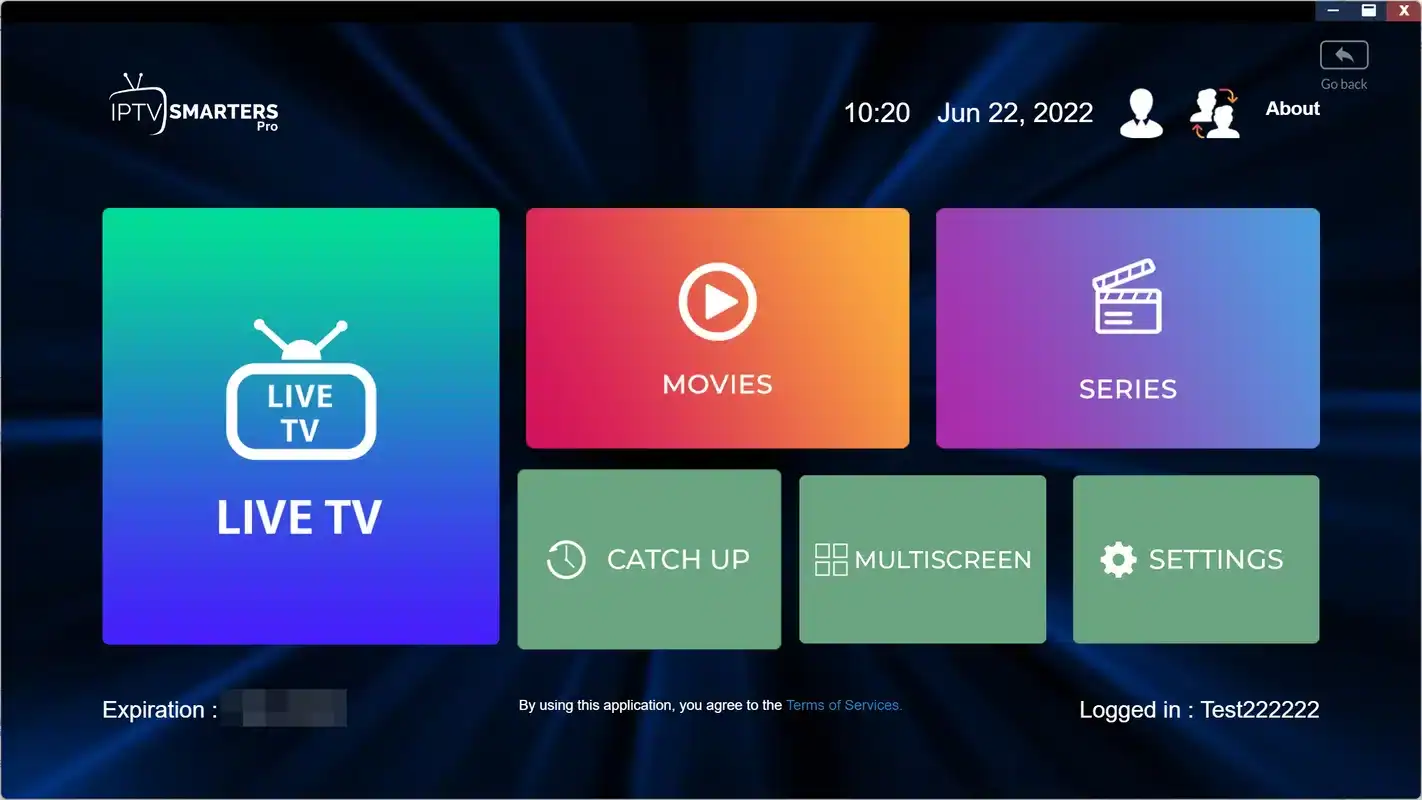
At first glance, the home screen looks like many others: Live TV, Movies, Series, a search icon and a settings gear. The difference is under the hood. Where most players hide their technical choices, XCIPTV shows them in plain menus. You can pick which internal player decodes the stream, set how much video the box keeps in reserve, and switch the stream type when a channel misbehaves.
Choice of engine
Two or more internal players. Switching one often cures a black screen or missing sound.
Buffer control
Set how much video is held in reserve to ride over short dips in speed.
Stream format
Choose between two ways of delivering the stream when a channel will not start.
Familiar sections
Live TV, Movies and Series on the home screen, sorted from your Xtream Codes login.
Guide offset
A simple setting to line the guide up with your clock when times drift.
Parental lock
A PIN and hidden categories for homes where children use the remote.
That openness is both its strength and its risk. With the right switch, a channel that stuttered for weeks can play smoothly in seconds. With too many switches changed at once, a box that worked well can start misbehaving, and nobody remembers what was changed. The method later in this guide, one change at a time with a short test after each, avoids that trap.
It is built for Android-based devices, so you will mostly find it on Android TV boxes, Google TV boxes and Fire TV Sticks. The publisher decides where it is listed. Press Home, open your store and search for it before you plan your setup around XCIPTV.
Main player or diagnostic tool
People use XCIPTV in two ways. Some make it their everyday player, because they like knowing exactly how playback is set up. Others keep it as a second app, opened only when a channel misbehaves in their main player. Both work, and the choice depends on who uses the TV most.
As your main player
- You like to tune playback to your box and network
- Your household is comfortable with a plain menu
- You want one app for live channels, films and series
- Your box is Android-based and listed in the store
As a second app
- Someone at home prefers big tiles or a timeline grid
- You want a quick second opinion on a stubborn channel
- You rarely change settings in your daily player
- You like to keep diagnosis separate from everyday viewing
As a second app, it is especially handy. When a channel stutters in your daily player, open the same channel in XCIPTV. If it plays smoothly there, the issue is how the first app decodes that stream, and switching its engine is worth a try. If the channel stutters in both, the problem is upstream: the box, the Wi-Fi or the router. That simple comparison saves a lot of guesswork, and it works whichever main player you use, whether it is TiviMate on a box or IPTV Smarters Pro on a box.
Both apps can use the same login. Just remember that your pack includes 1 simultaneous connection, so close one app properly before you open the other.
Which devices run XCIPTV
XCIPTV is designed for Android-based devices. On other platforms, pick another supported player. This table shows where to look and what to use instead.
| Device | Designed for XCIPTV | Where to look | Alternative if absent |
|---|---|---|---|
| Android TV or Google TV box | Yes | The official app store on the box | TiviMate or IPTV Smarters Pro |
| Fire TV Stick | Yes | The official Appstore on the stick | TiviMate or IPTV Smarters Pro |
| Android phone or tablet | Yes | The phone’s official store | IPTV Smarters Pro |
| Apple TV | No | Not applicable | IPTV Smarters Pro or GSE Smart IPTV |
| Samsung or LG smart TV | No | Not applicable | Smart IPTV or IBO Player |
Even on a device marked “yes”, availability depends on the publisher, the device and the region, and it can change over time. Search by name before you count on it. If your box family is still undecided, our guides to the Android TV box for IPTV and IPTV on Firestick explain both stores, and our box apps hub compares all six supported players.
On a phone or tablet, XCIPTV can be handy as a pocket test bench. If a channel misbehaves on the box, open it on the phone over the same Wi-Fi. If it plays smoothly on the phone, the box or its placement is the more likely cause. Just remember to stop playback on the box first, since both devices share your single connection.
Preparing the box before you install XCIPTV
Because XCIPTV lets you change how the box decodes and buffers video, you want the box itself in good shape first. Otherwise you may spend an evening adjusting settings to compensate for a problem that lives in the power supply or the Wi-Fi.

Before you open the store
- Box on its own wall adapter rather than a TV USB port
- Ethernet, or 5 GHz Wi-Fi with no thick wall to the router
- Latest system update installed and the box restarted
- Some storage left; unused apps removed
- Date, time and time zone correct in the box settings
- Welcome e-mail open with the server URL, username and password
The power point is easy to overlook. Many TV USB ports supply too little power for a box or stick, and an underpowered device can stutter or restart at random moments, which looks exactly like a playback problem. Using the wall adapter that came with the box removes that variable before you begin.
Restarting after the system update matters too. It clears memory and makes sure the box starts the app in a clean state. If you skip it, the first impression of XCIPTV may be coloured by an update that had not finished settling.
One last preparation tip: decide where XCIPTV will live on your Home screen before you install it. If it is the main player, it belongs in the front row. If it is your diagnostic app, put it in a folder or at the end of the row. That small decision keeps the household from opening the “technical” app by mistake and wondering why the menus look different from usual.
Installing XCIPTV from the official store
With the box ready, installation takes a few minutes. Follow these steps with the remote and your welcome e-mail open on your phone.
- Open the store. Press Home, then select your device’s official app store from the top row or the Apps section.
- Search. Select the magnifying glass and type “XCIPTV”. Hold the microphone button instead if your remote has one.
- Check the listing. Look at the name, publisher and screenshots before installing, so you get the app you meant.
- Install. Select the app, press Install, wait for the progress bar, then press Open.
- Allow what the app asks. If a permission prompt appears, read it and accept only what you are comfortable with. Storage access is usually requested for the app’s cache.
- Choose the login type. Depending on the version, you see a login screen directly or an Add user button. Pick the Xtream Codes option when it is offered.
- Enter your details. Type a profile name, then your username, your password and the server URL, exactly as they appear in the e-mail. Include the port after the colon if there is one.
- Sign in. Press Sign in or Login. The app loads Live TV, Movies and Series. The first load can take a moment.
Fewer typos: select each field, then press the Menu or Options button on your remote to see whether the keyboard offers a “.com” or “/” key. On long server addresses, it saves a lot of arrow presses. Pairing your phone as a keyboard through the box maker’s official remote app is even quicker.
Once you are in, pin XCIPTV to the front row of your Home screen if it will be your main player. If it is your diagnostic app, leave it further back so nobody in the house opens it by accident and wonders why it looks different.
The XCIPTV sign-in screen
If the app shows an error at sign-in, the cause is almost always a typing slip. Here is what the screen looks like and where people usually go wrong.
The fields may appear in a different order in your version; the content is the same.
The four usual slips
Capital I typed for lower-case l, or the other way round. Zero typed for the letter O. A space added at the end of the password by the on-screen keyboard. The port missing from the end of the server URL. Check those four and most sign-in errors disappear. Our Xtream Codes guide covers the fields in more depth.
Some versions also accept an M3U playlist link. It works, but on a remote one long address is slower to type and easier to get wrong, and the guide may need extra steps. Xtream Codes is the better choice here; see our page on the M3U playlist on your box if you need the link for another reason.
If the details are definitely right and sign-in still fails, check the box’s date and time. A clock far from the real time can upset secure connections in some apps. Then restart the box and try once more before writing to us.
The XCIPTV settings map
Press the gear icon on the home screen. Menu names change a little between versions, so look for the closest match. These are the settings we adjust first, what they do, and when to change them.
| Setting | Options you may see | Our starting point | When to change it |
|---|---|---|---|
| Video player | Two or more internal engines | The default engine | A channel shows black, has no sound or stutters |
| Buffer size | Small, medium, large, or a number of seconds | Medium | Raise one step on Wi-Fi if the picture pauses |
| Stream format | TS or HLS | Default | Try the other format if a channel will not start |
| EPG time shift | Plus or minus hours | Zero | The guide is early or late after you check the box clock |
| Parental control | PIN and hidden categories | Set a PIN | Children use the box |
The first three rows are where XCIPTV differs from simpler players, and each has its own section below. The last two are comfort settings you set once and forget. If you only remember one thing from this page, make it this: the starting point column is where every box should begin. Move away from it only when you see a specific symptom, and only one row at a time.
The video engine: choosing a decoder
The video engine is the part of the app that turns the incoming stream into a picture and sound. Different engines take slightly different approaches, and some streams suit one better than another. Switching engines does not change what you watch, only how the box decodes it.
The signs that point to the engine are specific: a black screen while the sound plays, sound missing while the picture plays, a picture that freezes on its first frame, or stuttering on one channel while every other channel is smooth. In those cases, the engine is the first switch to try, before the buffer or the network.
The default engine may not handle that stream well on your box.
Then: switch to the other engine and retestThe engine is unlikely to be the cause when the problem is everywhere.
Then: check speed and Wi-Fi firstEach engine has its own strengths on your box.
Then: keep the engine that suits the channels you watch mostDeep dive: why engines behave differently on different boxes
Boxes decode video partly with dedicated hardware and partly with software. Each engine leans on these differently. On one box, the engine that uses the hardware decoder most may be the smoothest; on another, with a different chip, the software-heavy engine might cope better with a particular stream. That is why we cannot tell you in advance which engine will suit your box. The test method below finds out in a few minutes.
Buffer size in XCIPTV: enough, not too much
The buffer is a reserve of video the box keeps ahead of what you are watching. When your connection dips for a moment, the box plays from the reserve and you never notice. A bigger buffer covers longer dips, but it takes longer to fill when you change channel, and it uses more of the box’s memory.
Medium suits most boxes. On Wi-Fi, try one step higher. On Ethernet, medium is usually more than enough, and some people find a smaller setting makes channel changes snappier without any pauses.
Do not max out the buffer. A huge buffer can hide small dips, but it also fills the memory of a small box and makes channel changes slow. If you need the largest setting to get a stable picture, the real fix is the network: move the box closer to the router or use Ethernet.
A useful way to think about it: the buffer is a cushion, not a cure. It absorbs short bumps on a connection that is mostly fast enough. It cannot make a slow connection fast. If your box sits where the Wi-Fi only gives it half of what a 4K channel needs, no buffer will keep that channel steady through a whole evening.
Stream format: TS or HLS
XCIPTV may offer two ways to receive live channels, often labelled TS and HLS. They are two different ways of packaging the same stream for delivery over the internet. Most of the time the default works well and you never need to think about it.
Why would one format work better than the other on a given box? The two packagings handle the stream in slightly different ways, and some boxes, routers or network conditions favour one over the other. You do not need to understand the details to use the switch well. What matters is that it is a targeted tool for one symptom, a channel that will not start, and not a general way to improve the picture.
Change the format only when a channel refuses to start or drops after a few seconds, and only after trying the other engine. If switching the format fixes the channel, test a few others to make sure they still play. If it makes things worse, switch back. As with every setting in XCIPTV, write down what you changed so you can undo it.
A one-switch-at-a-time testing method
Change one setting at a time, then test three channels before you move on. If you change everything at once and the picture improves, you will not know which switch did the work. If it gets worse, you will not know which one to undo. This routine takes a few minutes per change and saves hours of confusion.
- Before
Pick three test channels
One that misbehaves and two that play well. Use the same three for every test.
- Change
Adjust one setting
Engine first, then buffer, then format. Never two at once.
- Test
Play all three
Watch each for a couple of minutes and change channel a few times.
- Decide
Keep or undo
Better: keep it. Worse or no change: put it back before trying the next setting.
- Record
Note the result
A photo of the settings screen on your phone is enough for later.
Run the test at a normal time of day, not at three in the afternoon when the house is quiet. Problems linked to Wi-Fi often only appear when several people are online at once. A setting that looks perfect at midday may still pause at peak time.
Starting points for different XCIPTV boxes
Every box is different, but some situations come up often enough that we can suggest where to begin. Treat these as first positions for the switches, not final answers. The test method above decides what stays.
| Your situation | Engine | Buffer | Stream format | What to watch for |
|---|---|---|---|---|
| Recent Android TV box on Ethernet | Default | Medium, or one step lower for quicker changes | Default | Rarely needs any change at all |
| Fire TV Stick on 5 GHz Wi-Fi | Default | One step above medium | Default | Pauses at peak time point to Wi-Fi placement |
| Older box with little memory | Default, then the other if a channel struggles | Medium; avoid the largest setting | Default | Slow menus mean clear the cache and restart |
| Box far from the router | Default | One step above medium | Default | Consider Full HD rather than 4K in that room |
| 4K box on Ethernet | Default | Medium | Default | Check the box outputs 4K in its display settings |
Notice how often the answer is “default”. That is deliberate. The defaults are chosen to work on a wide range of devices, and most boxes play well on them once the network is sound. The switches exist for the exceptions: the channel that misbehaves, the box with an unusual chip, the room at the far end of the house. Use them with a purpose and you will rarely need more than one or two changes.
If your box sits at the far end of the house and you have tried everything on this page, it may simply be time for a cable, or for a different box. Our guide to the best IPTV box in Canada explains what to look for in network ports and memory before you buy.
Box tuned and ready
Choose a pack and a duration, pay once in Canadian dollars, and sign in to XCIPTV with the details we e-mail you.
Network first: the speed every XCIPTV setting depends on
Every switch in XCIPTV works within the limits of your connection. Plan for about 10 Mbps per screen for HD, 15 Mbps for Full HD and 25 Mbps for 4K. If two screens play at once in your home, add the figures together.
Steady speed per screen

Measure where the box sits
Stand at the box, connect your phone to the same Wi-Fi name and run a speed test. That number, not the one on your internet bill, is what the box really gets. If it is below what your chosen quality needs, change the network before changing settings.
Move the router up and into the open, take the box out of a closed cabinet, or run a cable. Our comparison of Wi-Fi or Ethernet for an IPTV box helps you choose for each room.
Speed is especially important for 4K. With the Ultimate 4K Pack, which includes 57,000+ 4K channels, 47,000+ series and 179,000+ movies across 20 servers in Europe, a wired connection is the most comfortable way to enjoy the full picture. Check the box and cable side too; our page on the 4K IPTV box: what you need covers the port, the cable and the display settings.
A quick XCIPTV checklist for a smooth picture
Run through this list once after installation, and again any time the picture changes for the worse. It puts the settings in the right order, network first, app second.
- The box is on Ethernet, or on 5 GHz Wi-Fi with no thick wall between it and the router.
- Your connection gives about 10 Mbps per screen for HD, 15 Mbps for Full HD and 25 Mbps for 4K at the box’s spot.
- Only one device is using your IPTV connection at a time.
- The buffer is on medium, or one step higher on Wi-Fi.
- You have tried the second engine on any channel that misbehaves.
- You have tried the other stream format only after the engine.
- The box has been restarted from its menu in the last few days.
If the list is all ticks and a channel still pauses, our box buffering fixes go deeper into bandwidth, Wi-Fi placement and router settings. And if the box itself feels slow or warm, read about a box running hot or slow; a box that overheats throttles itself, and the picture is the first thing to suffer.
Everyday XCIPTV with the remote
Once the setup is behind you, a few habits make XCIPTV feel quicker in daily use. They are the same habits that keep any player tidy, adapted to this app’s menus.
Favourites
Highlight a channel, press and hold OK, and add it to Favourites. Open Favourites first each evening.
Search inside a section
Open Movies or Series before searching. Results stay in that section and load faster.
Catch the guide
While watching, press OK or Up to show the channel bar with the current and next programme.
Leave properly
Press Back until you exit the player before switching the TV off. Home alone can leave the stream running.
Movies and Series in XCIPTV work much like in other players: open the section, pick a category, then a title. Long titles and posters take a moment to appear on older boxes, so give the screen a second after each move rather than pressing Right repeatedly. If you stop a film part way through, leave with Back so the app can remember the position.
The remote buttons that matter most are OK, Back and the Menu or Options button. Our page of remote control tips for IPTV covers long presses and typing from your phone in more detail. If the guide in XCIPTV is blank or shifted, the routine on our TV guide setup page applies: box clock first, app offset second.
One connection, several boxes with XCIPTV
You can install XCIPTV on more than one of your devices with the same access, then watch on one at a time. Your pack includes 1 simultaneous connection. This matters a little more with a diagnostic app, because it is easy to leave a test stream running and forget about it.
XCIPTV may still be playing the test channel in the background.
Then: open XCIPTV and press Back until you leave the playerAnother box is probably still streaming on your single connection.
Then: stop playback there firstExtra simultaneous screens are available only on request.
Then: ask support for the conditions and priceA simple habit helps here: when you finish a test in XCIPTV, press Back until you reach the app’s home screen, then Home. Make it automatic, the same way you would close a door behind you. It costs two seconds and saves the “my main player will not start” message later in the evening.
For more simultaneous screens, write to us through the contact page. Please keep your credentials within your household; using them in another home stops your own screen and breaks the terms of your pack.
XCIPTV troubleshooting table
When something looks wrong, find the closest symptom below and follow the row from left to right. Each column is the next thing to try if the previous one did not help.
| Symptom | First try | Then try | Last resort |
|---|---|---|---|
| Sign-in error | Retype the server URL with its port | Show the password and compare | Check the box clock, restart, try again |
| Black screen, sound plays | Switch the video engine | Switch the stream format | Open the channel in another player |
| Pauses every few seconds | Buffer one step higher | Move the box or use a cable | Test speed at the box’s spot |
| Channel will not start | Switch the engine | Switch the stream format | Refresh the channel list |
| Slow channel changes | Buffer one step lower | Clear the app’s cache | Restart the box from its menu |
| Guide early or late | Check the box time zone | Set the app’s time shift | Refresh the guide |
If a channel works in one app but not in XCIPTV, or the reverse, that is useful information rather than a contradiction. Each app uses its own engine and settings. Switch the engine or format in XCIPTV and try again, and tell us which combination worked if you write in; it helps us help the next person with the same box.
Mistakes we see when people tune XCIPTV
XCIPTV rewards a careful hand. Most of the trouble we help with comes not from the app but from the way it was adjusted on the first evening. Here are the patterns we see most, so you can avoid them from the start.
Five habits to avoid
Changing everything at once. The picture improves or worsens and nobody knows why. Pushing the buffer to the top. It hides a weak network for a while, then makes every channel change slow. Switching format before engine. The engine is more often the answer and is easier to judge. Testing at a quiet hour. Wi-Fi trouble shows up at peak time. Forgetting the second app. A test stream left running in XCIPTV blocks your main player on the same connection.
If several of these sound familiar, the cleanest way back is to reset the switches to the starting points in the settings map, restart the box from its menu, and run the one-switch test again from the beginning. It takes a quarter of an hour and usually leaves the box better than before.
Another quiet mistake is ignoring updates. When the official store offers an update for XCIPTV, install it. Updates fix playback bugs that can look exactly like network problems. After an update, check your settings, since some versions reset them, and restore your notes from the photo you took.
XCIPTV or another player
XCIPTV suits people who like to tune. If you prefer something simpler, IPTV Smarters Pro opens on big friendly tiles. If you love a full-screen programme grid, TiviMate is built around exactly that. You can keep two on your box with the same access and use each for what it does best.
A pairing we see work well on Android TV and Fire TV is TiviMate for daily channel surfing, with XCIPTV kept beside it for the evenings a channel needs attention. Households built around films and series often pair IPTV Smarters Pro with XCIPTV in the same way. Whatever the pairing, both apps read the same Xtream Codes login, so there is nothing new to remember.
Settings are a cushion for a good connection, never a replacement for one. Fix the network first, then tune the app.
- Video engine
- The internal player that decodes the stream. XCIPTV lets you choose between several.
- Buffer
- Video held in reserve so short dips in speed do not interrupt the picture.
- TS and HLS
- Two ways of packaging a live stream for delivery. Switch only if a channel will not start.
- EPG time shift
- An offset for guide times. Leave at zero once the box clock is right.
- Profile
- A saved sign-in inside the app, named by you.
- Cache
- Stored images and guide data. Clearing it can speed the app up without removing your sign-in.
When you are ready to choose a duration, the plans page lists current prices for 1, 3, 6 and 12 months, paid once in Canadian dollars by card or PayPal, with no contract and no automatic renewal. The catalogue includes French-language and international content; for a specific language, ask support before ordering. For a lighter catalogue on an older stick, have a look at the Premium Pack.
A channel still misbehaving
Send us your box model, the XCIPTV settings you tried and a photo of the screen. We answer 7 days a week.
FAQ
Is XCIPTV available on Apple TV or smart TVs?
It is designed for Android-based devices. On Apple TV or a Samsung or LG smart TV, use another supported player such as IPTV Smarters Pro, Smart IPTV, IBO Player or GSE Smart IPTV.
Which video engine should I choose?
Start with the default. If a channel shows black, has no sound or stutters, switch to the other engine in Settings and test again.
What buffer size is best?
Medium suits most boxes. On Wi-Fi, try one step higher. If you need the largest setting, improve the network instead.
Should I change the stream format?
Only if a channel will not start or drops after a moment, and only after you have tried the other engine. Switch back if it makes things worse.
Can I log in with the M3U link?
Some versions accept a playlist link. On a remote, Xtream Codes is easier to type and sorts your content for you.
Is XCIPTV part of my subscription?
No. We are independent from app publishers. You install XCIPTV from your device’s official app store; for any paid option, check the current price on the app’s official website.
Why does a channel work in one app but not in XCIPTV?
Each app uses its own engine and settings. Switch the video engine or the stream format in XCIPTV, then try the channel again.
Can I keep XCIPTV next to my main player?
Yes. Both can use the same login. Just leave one app fully before opening the other, because your pack includes 1 simultaneous connection.
Why are channel changes slow after I raised the buffer?
A larger buffer takes longer to fill each time you change channel. Lower it one step, and improve the network if pauses come back.
How quickly can I sign in after ordering?
Your Xtream Codes details arrive by e-mail within minutes, ready to type into the XCIPTV sign-in screen.