Your box is the hardware. The app is what turns it into a TV. Picking the right IPTV app for box setups comes down to three things: which store your box runs, how the app feels with a remote in your hand, and how your household likes to find something to watch. This hub walks you through those choices the way we would if we were sitting on your couch, remote in one hand and the welcome e-mail open on your phone in the other. By the end you will know which player to search for first, how to get it onto the box, how to log in without a typo, which settings to touch on the first evening, and where to go when something looks wrong.
We are independent from app publishers. We do not make these players, we do not sell them and we cannot activate their licences. What we do know is how each of them behaves on the boxes our customers plug in behind their TVs every day, and that is what this section is about. When you have picked a player, follow the detailed guide for it: each one goes menu by menu with the remote.
How an IPTV app for boxes turns a login into television
Think of a player app as an empty programme guide waiting for its listings. When you open it for the first time there is nothing inside: no channels, no movies, no series, no guide. It fills up only when you hand it your access details. That is why every player, whatever its colours and menus, opens on the same kind of screen asking for the same few things.
When you order, we send you an e-mail within minutes. Inside you find Xtream Codes details (a server URL, a username and a password) or an M3U link. The app uses those details to fetch the channel list, the movie and series library and, when it is available, the programme guide. Your box then plays each stream over your home network and passes the picture to the TV through the HDMI cable.
So the work splits in two halves. The app handles the menus, the guide, the favourites and the playback engine. The box and the network handle the picture and the speed. When something looks wrong, knowing which half to check saves you an evening. A tidy app on a weak Wi-Fi signal still stutters. A strong signal paired with a cluttered app still feels clumsy. Most of the questions we answer by message come down to working out which half is at fault, and the sections below give you the same tools we use.
The six players that open our packs
Every player on this list reads Xtream Codes, an M3U link, or both, so your access works in any of them. They differ in layout, in how much they let you adjust, and in where their publishers have chosen to list them. Here is how we describe each one to someone holding a remote for the first time.
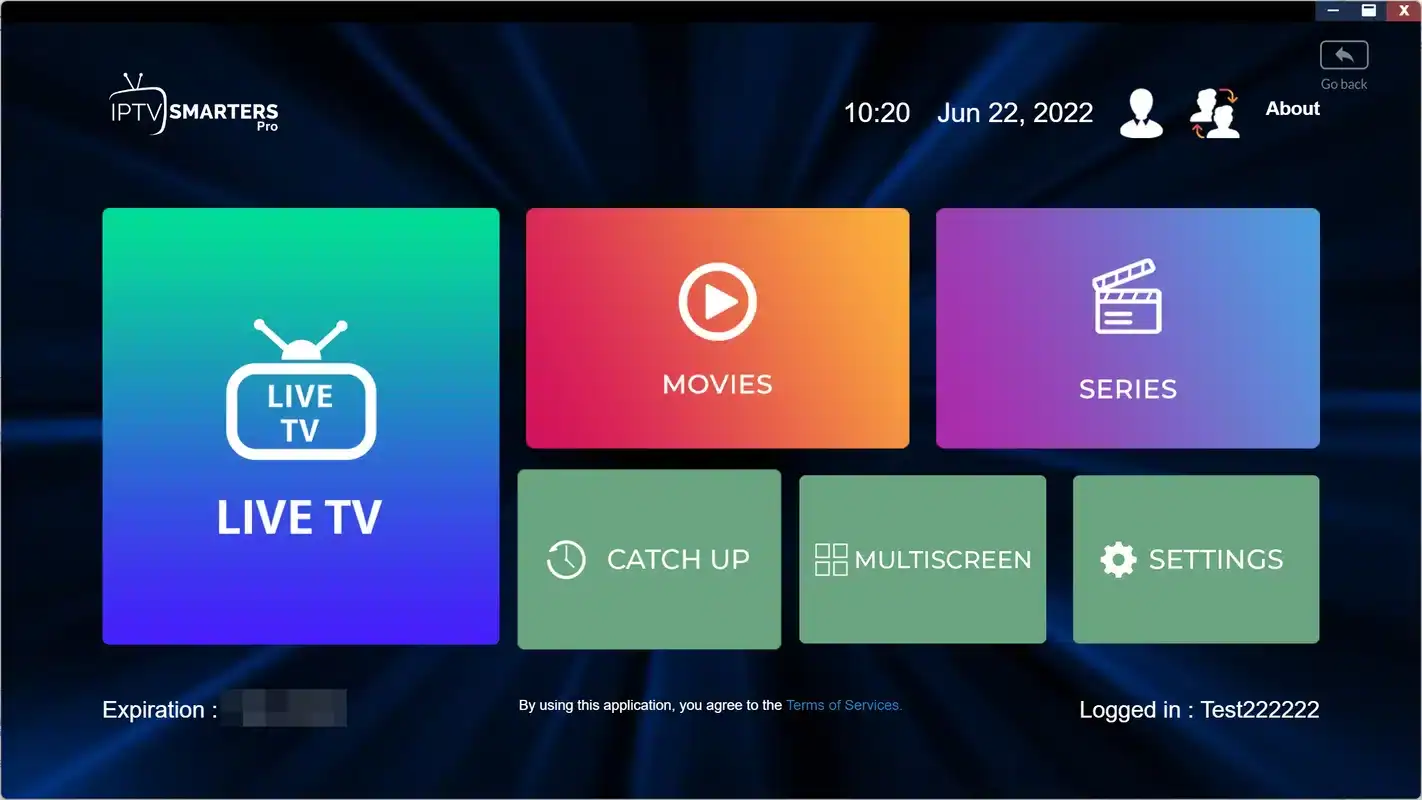
IPTV Smarters Pro
Big tiles for Live TV, Movies and Series. Easy for the whole family, and found on many box families.
TiviMate
Opens on a full-screen programme grid. Made for Android TV, Google TV and Fire TV devices.
XCIPTV
Plain menus on top, and underneath, switches for the video engine, buffer and stream format.
Smart IPTV
A player people often find in the app store of Samsung and LG smart TVs.
IBO Player
Another option worth searching for on smart TV stores and boxes alike.
GSE Smart IPTV
A player many people search for first on Apple TV, iPhone and iPad.
Some of these players offer a paid licence or a premium version from their publisher. If one does, check the current price on the app’s official website. We have no part in that purchase and do not set those prices.
Our three in-depth player guides
Three players come up again and again on boxes, so each one has its own hands-on guide. Open the one that matches your hardware and your taste. You can always come back and try another with the same access.
If none of the three appears in your store, nothing is lost. Smart IPTV, IBO Player and GSE Smart IPTV also accept your details. The login screens look different, but every one of them asks for the same information you already have in your e-mail. The steps on this page apply to all six.
Matching the IPTV app for box hardware you already own
The box picks the store, and the store picks the apps. Publishers decide where they list their players, and that list can change by device and by region. Before you build your evening around one name, press Home, open your store and search for it. The table below is the order in which we would search on each kind of device.
| Your device | Where apps come from | Search for these first | Remote habit worth learning |
|---|---|---|---|
| Android TV or Google TV box | The official app store on the box | TiviMate, IPTV Smarters Pro, XCIPTV | Hold Home on many models to reach quick settings |
| Fire TV Stick | The official Appstore on the stick | TiviMate, IPTV Smarters Pro, XCIPTV | Press the three-line Menu button inside an app for extra options |
| Apple TV | The App Store on tvOS | IPTV Smarters Pro, GSE Smart IPTV | Swipe on the touch surface, then click it to select |
| Samsung or LG smart TV | The TV’s own app store | Smart IPTV, IBO Player | Use the coloured buttons when the app shows them on screen |
| Android phone or tablet, iPhone or iPad | The phone’s official store | The same player you use on the box | Keep it for the occasional room the box does not reach |
Treat the third column as a starting point, not a promise. If a name does not come up, move to the next one. If you are still choosing hardware, our IPTV box section explains which families give you the widest choice, and the Android TV box guide covers the store with the longest list of players.
A word on processing power. Guide-heavy apps like a box with memory to spare. Lighter apps feel quicker on an older stick. If your box already feels sluggish in its own menus, begin with a lighter player, keep the number of installed apps short, and read our page on a box running hot or slow before blaming the player.
Choosing a player by the way your household watches
Feature lists are less useful than you might think. What matters is who holds the remote at nine o’clock on a weeknight and how they look for something to watch. We usually ask three questions: does anyone flip channels by time slot, does anyone mostly watch movies and series, and does anyone like to tinker with settings. The answers point to a player faster than any comparison chart.
They want to see what is on now and next across many channels at once. A grid guide feels familiar to them straight away.
Then: start with TiviMate on an Android-based boxBig tiles and separate sections for films and shows make browsing easy, even for a guest.
Then: start with IPTV Smarters ProYou want to change the video engine or buffer when a channel acts up, without hunting through hidden menus.
Then: keep XCIPTV installed alongside your main playerThe TV’s own store may list a supported player, which saves you a device and a cable.
Then: search for Smart IPTV or IBO Player, and read our box vs smart TV comparisonMost homes end up with one main player and one backup. That is a healthy setup. The backup costs you nothing but a little storage, and it gives you a second opinion whenever a channel misbehaves. We come back to this idea further down. If you are torn between using the TV’s built-in store and adding a box, our comparison of an IPTV box vs smart TV app walks through a one-evening test you can run at home.
How the main players feel with a remote
This table compares the three players we cover in depth on the points you notice from the couch, rather than on technical claims. Exact menu names shift between versions, so read it as a description of each app’s character.
| Point | IPTV Smarters Pro | TiviMate | XCIPTV |
|---|---|---|---|
| First screen | Dashboard of big tiles | Full-screen programme grid | Simple home menu with sections |
| Best for | Movies, series and easy browsing | Channel surfing by time slot | Testing and tuning playback |
| Android TV and Google TV | Yes, when listed in your store | Yes, when listed in your store | Yes, when listed in your store |
| Fire TV Stick | Yes, when listed in your store | Yes, when listed in your store | Yes, when listed in your store |
| Apple TV | Often listed on tvOS | No | No |
| Reads Xtream Codes | Yes | Yes | Yes |
| Paid option from the publisher | Check the app’s official website | Premium version: check the official website | Check the app’s official website |
The last row is deliberately vague on price. Publishers set and change their own terms, and we are not in a position to quote them. What we can say is that every player on our list lets you add your access and watch, and that you should only ever buy an upgrade through the publisher’s own channels.
Notice what the table leaves out: picture quality. With the same box, the same network and the same channel, the players show the same stream. Where they differ is in how they decode it and how much buffering they keep in reserve, which is why switching the internal player is such a useful trick when a single channel misbehaves.
Installing your IPTV app for box use, remote in hand
The installation routine is almost identical on every box. Only the name of the store changes. Here is the order we use, written for a remote rather than a mouse. Keep your welcome e-mail open on your phone; you will not need it until the very last step, but it saves a trip back to the couch.
Before you open the store
Plug the box into the TV with the HDMI cable and into the wall with its own power adapter. Join your network: Ethernet if the router is close, the 5 GHz Wi-Fi name if it is not. Then run the system update so the store and the player start on current software.
- Box powered from the wall, not from the TV’s USB port
- Network connected and tested with a short video
- System software up to date
- Some storage left for the app and its guide
- Press Home and open the store. On most boxes the store icon sits in the top row or under an Apps section. On a Fire TV Stick it is the official Appstore; on Apple TV, the App Store.
- Select the magnifying glass. Type the player’s name with the on-screen keyboard. If your remote has a microphone button, hold it and say the name instead.
- Open the app’s page. Check the publisher name and the screenshots match the player you meant to install. Similar names exist.
- Press Install or Get. Wait for the progress bar to finish. Do not press Home in the meantime on older sticks; let the install complete.
- Press Open. If the app asks for permissions, read each prompt and accept only what you are comfortable with.
- Pin it to the front row. Back on the Home screen, highlight the new app, hold Select and move it to the start of the row. You will press it every evening.
Typing tip: long passwords are slow on a remote keyboard. Many box makers offer an official remote app for your phone that works as a keyboard. If yours does, pair it before you reach the login screen and type your details with your thumbs instead of the arrow keys.
For the box-specific version of these steps, with the exact menu names, see our guides to IPTV on Firestick and IPTV on Apple TV. The wider order of operations, hardware first, player second, login last, is laid out in our box setup hub.
Logging in: Xtream Codes or the M3U link
Your welcome e-mail gives you your access in one of two formats. Most players accept both, but the experience on a remote is not the same.
Xtream Codes is the one we suggest first. You type three short items: the server URL, the username and the password. The app then splits everything into Live TV, Movies and Series by itself, and it usually brings in the programme guide without further effort. When the list changes on our side, the app picks it up the next time it refreshes.
The M3U link is one long address that holds the whole list. It suits players that only read playlists. On a remote it is slower to type and easier to get wrong, so check every character before you press Enter. Our page on the M3U playlist on your box shows how to tidy the channel list afterwards.
The four fields you will see in some form in every player. Only the order changes.
Xtream Codes on a box
- Three short fields instead of one long address
- Live TV, Movies and Series sorted for you
- The guide usually loads without extra steps
- Easier to retype when you change box
M3U link on a box
- One long address, slow with arrow keys
- A single wrong character breaks the whole link
- Some players need the guide added separately
- Useful when a player reads playlists only
Our step-by-step guide to Xtream Codes on your box covers the three fields in detail, including what to do when the app says the details are wrong.
Typing long details without a single slip
A failed first login is almost never a problem with the service. It is nearly always one character in the wrong place. Remote keyboards make that easy: you move a cursor letter by letter, the box auto-capitalises when you did not ask it to, and the display shows dots instead of the password. A few habits remove most of the risk.
Characters that trip people up
A capital I and a lower-case l look the same in many fonts. So do a zero and a capital O. Usernames and passwords are case-sensitive, so a single letter typed in capitals by mistake is enough to block the login. If your e-mail shows a colon followed by digits at the end of the server URL, that is the port, and the app needs it.
- Type the server URL exactly as written, including the start of the address and any port after a colon.
- Look for an eye icon next to the password field and press it to show what you typed.
- Check there is no space at the end of the username or password; some keyboards add one.
- Give the profile a plain name such as “Bedroom” so you know which box you are on later.
- Wait for the first load to finish before you press anything. A large library takes a moment the first time.
Keep your details to yourself. Your credentials are for your household only. If they are typed into someone else’s box, your single connection gets used there and your own screen stops. Never post them in a group chat, a forum or a comment.
Day-one settings for any IPTV app for boxes
Out of the box, most players play it safe. Ten minutes in the settings makes the app feel built for your room. Menu names change from one app to another and from version to version, so look for a gear icon or press the Menu button on your remote, then find the closest match to the items below.
Internal player
Many apps include two or more engines. If a channel stutters or stays black, switch the engine and try again.
Buffer length
A slightly larger buffer smooths small dips on Wi-Fi, at the cost of a short pause when you change channel.
Guide and time offset
Turn the guide on and make sure its times match your clock. A guide one hour off is fixed here.
Parental lock
Hide categories behind a PIN before younger viewers find the remote.
Automatic refresh
Let the app update channels and guide on its own so lists stay current.
Favourites first
Build a short favourites group and make it the first thing you see.
Change one setting at a time and test three channels after each change. If you change four things at once and the picture improves, you will not know which switch did the work. If it gets worse, you will not know which one to undo. This one habit is the difference between a ten-minute fix and a lost evening.
Deep dive: why the guide drifts by an hour
The programme guide is a list of start and end times. The player compares those times with the clock on your box. If the box’s time zone is wrong, or if the app applies its own offset on top, every programme slides by the same amount. Start with the box: open its settings, find Date and Time, and make sure the time zone matches where you live in Canada. Then open the player’s guide settings and set its offset to zero. Only adjust the offset if the guide is still wrong after that. Our TV guide setup page walks through the full routine.
Speed per screen: what no app can fix
Settings shape how the app behaves, but speed sets the ceiling. Plan for about 10 Mbps per screen in HD, 15 Mbps in Full HD and 25 Mbps in 4K. When two screens in your home play at the same time, the figures add up: a 4K screen and a Full HD screen together need 25 plus 15, which is 40 Mbps of steady bandwidth.
Steady speed to plan per screen

Test from the box’s own spot
Stand where the box sits, connect your phone to the same Wi-Fi name and run a speed test. If the phone sees less than 25 Mbps there, a 4K stream will struggle on the box too, whichever app you use. Move the router into the open, move the box, or run a cable.
A box tucked behind the TV or inside a closed cabinet loses signal and gathers heat. Both show up as a stuttering picture that no setting can cure. Our comparison of Wi-Fi or Ethernet for an IPTV box covers each room of the house.
If the speed is there and the picture still pauses, then it is time to look at the app: switch the internal player, raise the buffer one step, and test again. The full order is in our box buffering fixes.
Picked your player
Choose a pack and a duration, pay once in Canadian dollars, and your login arrives by e-mail within minutes.
Running two players on one box
Keeping a second player installed is one of the most useful habits we can suggest. It takes a few minutes, uses a little storage and gives you an instant second opinion. When a channel misbehaves in your main app, open the same channel in the backup. If it plays smoothly there, the issue is the first app’s engine or settings. If it stutters in both, look at the network or the box instead.
Why a backup player helps
- Tells you in seconds whether the app, the box or the network is at fault
- Gives a different layout to the person who dislikes the main one
- Keeps you watching while you adjust the main app’s settings
- Uses the same login, so nothing new to remember
What to watch for
- Only one app may stream at a time on your single connection
- Each app keeps its own cache, so storage fills faster on small sticks
- Favourites do not move between apps; you set them in each
- Leave one app fully before you open the other
A combination that works well on Android TV and Fire TV is TiviMate for daily channel surfing and XCIPTV for diagnosis. On Apple TV, people often pair IPTV Smarters Pro with GSE Smart IPTV. Whatever you pick, press Back until you leave the player in the first app before you open the second. Pressing Home alone can leave a stream running in the background, and that uses your one connection.
One connection, several boxes: an evening routine
Every pack includes 1 simultaneous connection. In practice, that means you can install your player on the living-room box, the bedroom stick and your tablet, and log in on all of them with the same details. You simply watch on one at a time. A short routine stops the most common mix-up, a second room finding the stream blocked because the first one never really stopped.
- Early evening
Watch in the living room
Open your main player on the living-room box and watch as usual.
- Switching rooms
Leave the player properly
Press Back until you reach the app’s home screen, then Home. Do not just turn off the TV with the stream still running.
- A minute later
Start the bedroom stick
Open the same player on the second device. It uses the same login and picks up the connection.
- Before bed
Put the box to sleep
Leave the player again, then let the box sleep. The next morning starts clean.
Need more screens at the same moment? That is available on request. Write to us through the contact page and support will give you the conditions and the price for extra simultaneous screens. Please do not share your login with another household to get around the limit: their viewing stops yours, and it breaks the terms of your pack.
When the app misbehaves: a triage order
Most problems fall into a handful of patterns. Work through them in this order. The first steps take seconds and fix a surprising number of cases. Our wider box troubleshooting hub has a full symptom table if none of these match.
| What you see | Most likely cause | First thing to try | If that does not work |
|---|---|---|---|
| “Invalid login” or nothing loads | A typing slip | Retype the server URL slowly, port included | Show the password with the eye icon and compare |
| One category empty | List not refreshed | Use the app’s refresh option, then reopen the category | Log out and back in |
| Picture freezes every few seconds | Wi-Fi dips | Raise the buffer one step | Move the box nearer the router or use a cable |
| Black screen with sound, or no sound | Engine mismatch | Switch the internal player | Try the same channel in your backup app |
| Guide shows the wrong times | Time zone or offset | Check the box clock first | Adjust the app’s guide offset |
| Menus feel slow | Full cache or low storage | Clear the app’s cache from the box settings | Uninstall apps you never open, then restart |
If you have been through the table and something still looks wrong, write to us. Tell us which box you have, which player and version, and what you see on screen. A photo of the screen helps more than a long description. Support answers 7 days a week by e-mail and WhatsApp at +33 6 44 65 43 13, in English and French.
Licences, premium versions and staying official
Some players are entirely usable as they are. Others ask for a licence after a while, or offer a premium version with extra features. Those decisions belong to each publisher, and they change. We do not sell licences, we cannot activate them for you, and we do not set their prices. If a player asks for one, check the current price on the app’s official website and follow the purchase steps the publisher describes there.

Why official copies matter on a box
Your box sits on your home network and often has your store account signed in. A modified copy of a player passed around online can carry unwanted software and put both your box and your login at risk. The official store version gets updates, and updates fix bugs that show up as freezes and crashes.
If anyone offers you a “ready-made” version of a player, or a box with apps already loaded from elsewhere, say no. A clean box with a player from the official store is all you need.
The best player is the one your household can use without calling you into the room.
On the question people ask most after licences, legality, here is the neutral answer: the technology is legal; whether a service is legal depends on the broadcasting rights it holds, so check before subscribing. Our guide on whether IPTV is legal in Canada goes into more detail.
Which pack suits the player you chose
Every pack opens in every supported player. What changes is how much the app has to load and how hard your box and network work to show it. A bigger catalogue means a longer first load and a larger guide, which a box with more memory handles more comfortably.
The Premium Pack brings 20,000+ channels, 24,000+ series and 100,000+ movies in HD, Full HD and 4K, a comfortable size for an older stick. The VIP Premium Pack raises that to 27,000+ channels, 61,000+ series and 155,000+ movies; a grid player like TiviMate earns its keep here, because you will jump between groups rather than scroll. The Ultimate 4K Pack carries 57,000+ 4K channels, 47,000+ series and 179,000+ movies across 20 servers in Europe, and it is happiest on a 4K box wired to the router.
The catalogue includes French-language and international content. If you are looking for a specific language, ask support before ordering. Payment is one-time, in Canadian dollars, by card or PayPal, with no contract and no automatic renewal. See current prices on the plans page.
Player terms you will meet in menus
App menus use the same handful of words again and again. Here is what they mean in plain language, so you know what you are changing before you press OK.
- Xtream Codes
- A login made of a server URL, a username and a password. The app sorts your content from it.
- M3U link
- A single address containing the whole playlist. Used by players that only read playlists.
- EPG
- The electronic programme guide: what is on now and next, by channel.
- Buffer
- A few seconds of video the box keeps in reserve to ride over small speed dips.
- Internal player or engine
- The part of the app that decodes the stream. Switching it often cures a black screen.
- Profile
- A saved login inside the app, usually with a name you choose such as “Kitchen”.
- Cache
- Stored posters, guide data and thumbnails. Clearing it can make a slow app quick again.
- Simultaneous connection
- One stream playing at a given moment. Each pack includes one.
Where to go next with your box apps
You now know how to pick a player, install it and log in. From here, the detailed guides take you menu by menu through each app, and the setup and help sections cover everything around it: the remote, the guide, the network.
Stuck on a login screen
Send us your box model, the player name and a photo of the screen. We answer 7 days a week in English and French.
FAQ
Which IPTV app should I install first on my box?
Search your box’s official app store for TiviMate, IPTV Smarters Pro or XCIPTV. Install the first one you find that suits how you watch, log in with your details, and only try another if the menus do not suit you.
Do you sell or provide the player apps?
No. We are independent from app publishers. You install each player from your device’s official app store. If an app has a paid licence or premium version, check the current price on the app’s official website.
Can I install the same app on more than one box?
Yes. Use the same credentials on as many of your own devices as you like, as long as you watch on one at a time. For more simultaneous screens, contact support for the conditions and price.
My player is not in the store. What now?
Publishers choose where their apps appear, and that varies by device and region. Pick another supported player: Smart IPTV, IBO Player and GSE Smart IPTV also accept your access details.
Should I use Xtream Codes or the M3U link?
Use Xtream Codes when the app offers it. It sorts Live TV, Movies and Series for you and usually loads the guide on its own. Keep the M3U link for players that only read playlists.
How fast does my internet need to be?
Count about 10 Mbps per screen for HD, 15 Mbps for Full HD and 25 Mbps for 4K. If several screens play at once, add the figures together.
Is it worth keeping two players on one box?
Yes. A backup player tells you quickly whether a problem comes from the app or from the network, and it uses the same login. Just make sure only one app is playing at a time.
Why does a channel play in one app but not in another?
Each app decodes streams with its own engine and settings. Switch the internal player or raise the buffer in the app that struggles, then try the channel again.
How quickly do I receive my login after paying?
Your access arrives by e-mail within minutes: Xtream Codes details or an M3U link, ready to type into the player you installed.
Which languages does the catalogue include?
The catalogue includes French-language and international content. If you need a specific language, ask support before ordering and you will get a straight answer.