Some players greet you with three neat fields. Others just ask for a playlist. If yours is the second kind, you need your M3U IPTV link, and you need to get a very long address into a box whose remote has no keyboard. It is doable, it only has to be done once, and there are two or three tricks that turn it from a chore into a short job.
This guide explains what the link is, when it is the right choice over Xtream Codes, how to enter it on the players that rely on it, what the player does during the first load, and how to tidy the result so the channel list is pleasant to browse from the couch. If you are still placing and connecting the box, start with our box setup overview and come back once the player opens on its first screen.
What an M3U IPTV link really contains
An M3U link is a web address that points to a playlist. The playlist is a long text list: one entry per channel, movie or episode, each with a name, a group, often a logo and the address of its stream. When you hand the link to a player, it fetches that list, reads it line by line and builds menus from the group names.
Your access e-mail contains Xtream Codes details (server URL, username and password) or an M3U link. Both open the same catalogue. The M3U link simply packs everything into one line. That is handy for players built around playlists and for setup pages you fill in from a phone, and less handy for typing on a TV with the arrow ring.
Because the list is fetched as a whole, the player knows the full catalogue the moment the load ends. That is why the first load takes longer than an Xtream Codes login on some players, and why the result can feel crowded until you tidy it. Both points have simple answers, which the rest of this page covers.
Reading the link without exposing it
You do not need to understand the link to use it, but knowing roughly what is inside it explains why you should treat it like a password and why one wrong character stops everything.
The address part
Where the player should go. It usually starts with the letters http and ends before the first question mark.
Your account part
In most links your username and password are written inside the address itself.
The format part
Short words near the end that tell the server which kind of list to send back.
Every character counts
One missing letter in any part and the player gets nothing, or an error.
Treat it like a password
Since the link carries your account details, anyone who has it can use your access. Keep it in your e-mail or a private note on your phone, enter it only on your own devices, and never post it in a forum or a group chat to ask for help. If you need help, write to support: we already know your account and never need you to send the link back to us in public.
Sharing the link with another household is not allowed, and it also causes trouble for you: each pack includes 1 simultaneous connection, so a second home playing on your link stops your own stream. You can use the link on several of your own devices, one at a time.
One more reason to keep the link private: if it ever leaks, the fix involves new details and a fresh setup on every one of your devices. Five seconds of care with a screenshot or a shared note saves an evening of re-entering playlists later. When you take a photo of your TV to send to support, check that the link field is not in the frame, or crop it out before sending.
When M3U IPTV beats Xtream Codes
If your player offers both, Xtream Codes is usually quicker to set up with a remote. Our guide to Xtream Codes on your box covers that path. M3U wins in a handful of clear situations, and it is a useful second route in others.
| Situation | Better choice | Why |
|---|---|---|
| Player only accepts playlists | M3U | There is no Xtream option to fill in |
| Player adds playlists through its own setup page | M3U | You paste the link on a phone or computer, not with the remote |
| Xtream login refused and you have checked every character | M3U as a second route | The same account, entered another way, rules out a typing fault |
| You want three short fields on the TV | Xtream Codes | Less typing with arrow keys |
| You want series and movies sorted automatically | Xtream Codes, in most players | The player reads categories directly |
| You want the guide with no extra step | Xtream Codes, in most players | The guide usually comes with the login |
Where M3U shines
- Playlist-first players with a phone setup page
- One line to paste instead of three fields
- A quick cross-check when a login is refused
- Players that let you manage several playlists side by side
Where it asks more of you
- Very long to type with the arrow ring
- First load heavier on small boxes
- Movies and series sorting depends on the player
- The guide may need its own setting
Neither format changes the content or the picture quality. The pack you chose decides the catalogue, and your network decides how smooth it plays.
Players that take a playlist, and how
Playlist-friendly players fall into two families. Some show a URL field on the TV where you type or paste the link. Others display an identifier on screen and ask you to add the playlist from a phone or computer, following the instructions shown in the app. Check which family yours belongs to before you start, because the steps differ.
| Player | How it takes a playlist | Where to start |
|---|---|---|
| IPTV Smarters Pro | Playlist or M3U option among its login choices | First screen after opening |
| TiviMate | Add playlist, then a playlist link type | Add playlist |
| Smart IPTV | Its own setup process, using an identifier shown in the app | Follow the instructions on screen |
| IBO Player | Its own setup process, using an identifier shown in the app | Follow the instructions on screen |
| GSE Smart IPTV | Remote playlists or a similar menu | Playlist section of the menu |
Labels change with app updates, so treat the table as pointers rather than exact menu names. Install players only from your device’s official app store. We are independent from app publishers; if a player asks for a licence or an activation, check the current price on the app’s official website. For a wider view of each player’s menus, the box apps hub compares them on a box.
A practical rule: if your player offers both a link field and an Xtream Codes option, you can choose either, and the next sections still apply. If it offers only an identifier and a setup page, skip straight to the setup-page route below. Either way, the content you see at the end is the same catalogue.
Getting ready: phone, note and network
A minute of preparation saves a lot of backtracking with the remote. Run through this list with the box on and the player installed.
- Your access e-mail is open on your phone or computer, with the M3U link visible.
- The link is copied into a note on your phone, on one clean line.
- Your player is installed from your device’s official app store and opens without errors.
- You know which family your player belongs to: URL field on the TV, or setup page with an identifier.
- The box is online, ideally on Ethernet or on 5 GHz Wi-Fi close to the router.
- No other device is playing with the same access right now.
Hands-on tip: copy the M3U link into a note on your phone before you start. Long links often break across two lines in an e-mail, and some mail apps add a space where the line breaks. A note keeps it on one clean line that is easy to read and to paste.
If your box is new, make sure system updates are done and the box has been restarted. An update that starts in the middle of the first playlist load is the most frustrating way to lose ten minutes. The remote control tips show how to pair your phone as a keyboard, which you will want for the next section.
Plan the evening, too. A first playlist load at a quiet hour, with nobody else streaming or gaming on the line, finishes faster and gives you a fair first impression of the box. Starting during the busiest hour of the household is the most common reason people think a playlist is slow when it is really the network that is busy.
Adding your M3U IPTV link on the TV
This is the route for players that show a URL field on the TV. Keep the note open on your phone and follow the steps in order.
- Open the player. Press Home, select the player on your home screen or apps row, and press OK.
- Find the playlist menu. Look for Add playlist, Playlists, M3U URL or a plus sign. Highlight it and press OK.
- Pick the right type. If the player asks, choose M3U URL, Playlist URL or Remote, not File or Local.
- Open the URL field. Select it and press OK. The on-screen keyboard appears, and the phone remote app shows its own keyboard if it is paired.
- Paste the link. Paste from the note on your phone. If you must type with the arrow ring, go slowly and use the keyboard’s shortcut keys for dots and slashes.
- Check both ends. Look at the start of the field, then scroll to the end and compare the last characters with your note.
- Name the playlist. Give it a short label, such as Living room, so you recognize it later.
- Confirm and put the remote down. Press Next, Add or OK, then wait until the list appears. Open a channel and a movie to confirm both work.
If the player also asks for a guide address, leave it empty for now unless support has told you what to enter. Our guide to the TV guide on your box covers that step once the playlist is in.
A typical playlist screen. The link field is the only one that comes from your e-mail.
Adding a playlist through a player’s setup page
Some players, such as Smart IPTV and IBO Player, do not show a link field on the TV. Instead, they show an identifier for your device and explain how to add your playlist from a phone or computer. The exact steps are set by the publisher and shown in the app, so always follow what your screen says. The general rhythm looks like this.
- On the box
Open the player and note the identifier
The first screen shows a code tied to your device. Take a photo of it with your phone so you cannot mistype it.
- On the phone
Follow the instructions shown in the app
The app tells you where to add the playlist. Enter the identifier exactly as shown on the TV.
- On the phone
Paste your M3U link
Paste it from your note, check the last characters and confirm.
- On the box
Restart the player
Close the app fully and reopen it. The player picks up the playlist on launch.
- On the box
Wait for the first load
Leave the remote on the table until channels appear, then test a channel and a movie.
This route is the easiest of all for long links, because you never touch the on-screen keyboard. The identifier is the only thing that can go wrong: a zero read as the letter O, or two characters swapped. The photo trick removes that risk. Some of these players ask for an activation after a while; that is between you and the publisher, and the current price is on the app’s official website.
The first load: what the player is doing

Why it takes a moment
The playlist covers live channels, movies and series in one long list. The player has to fetch all of it, read every line, sort entries into groups and save the result on the box. On a full-size box this is quick. On a small stick with modest storage it takes longer.
While it works, the screen may show a loading bar, a spinning circle or nothing at all. Every one of those means “wait”.
- Remote on the table until channels appear
- No Back or Home presses during the load
- Box on Ethernet or strong 5 GHz if possible
Presses made during the load are queued and can fire all at once when the player wakes up, sending you into a random menu or closing the app. If that happens, nothing is broken: reopen the player and let it finish. If the load never ends, the link is the first suspect, then the network. The fault table further down lists the checks in the right order. Later loads are lighter, because the player only refreshes what changed.
Typing a long link with the arrow ring
Sometimes there is no phone at hand and no setup page, just you, the remote and a long address. It can be done in one sitting if you work methodically.
Use it. Most box keyboards keep common web characters on the first page or one press away.
Then: save the trips to the symbol page for rarer charactersDo not start again. Move the cursor to the end of the field and compare what you have with the note, in blocks of five characters.
Then: carry on from the first differenceParts of the link may be case-sensitive. Switch the keyboard to capitals only for the letters that need it.
Then: switch back straight awayLook for a stray space at the very start or end. It is invisible but enough to stop the load.
Then: delete the first and last character and retype themHonestly, though, a phone is the better tool. Most boxes can be controlled from the device maker’s official remote app, which shows a real keyboard when a text field is selected on the TV. Ten minutes of arrow work become a paste and a check. If you have never paired a phone with your box, our remote control tips for IPTV walk through it.
Playlist ready to load
Pick a pack and a duration, pay once in Canadian dollars by card or PayPal, and your M3U link arrives by e-mail within minutes.
Tidying a big M3U IPTV playlist
A playlist gives you everything at once, so the first view can feel like a phone book. Spend a quarter of an hour on these settings on the first evening and every evening after that gets easier. Exact labels vary by player; the long-press on OK or the menu button opens most of them.
Hide groups
Highlight a group you never watch, long-press OK or press Menu, and choose Hide.
Build favourites
Mark the channels you watch most. Many players add a Favourites group at the top.
Reorder groups
Where the player allows it, move your usual categories to the top of the list.
Check languages
The catalogue includes French-language and international content. For a specific language, ask support before ordering.
Start with hiding, not with favourites. Removing twenty groups you will never open shrinks the list dramatically and makes everything else quicker, including the guide. Then build favourites from what remains. Hiding is reversible in every player we know: a Show hidden or Manage groups option brings them back, so you lose nothing by being bold.
Hide first, favourite second. A short list is what makes a big catalogue feel easy.
Families sharing one box can go a step further. Some players let you create a second playlist entry with the same link and a different name, each with its own favourites. Check your player’s menus; if it offers profiles, that is the cleaner way to give each person their own list.
Movies and series from a playlist
How the sorting works
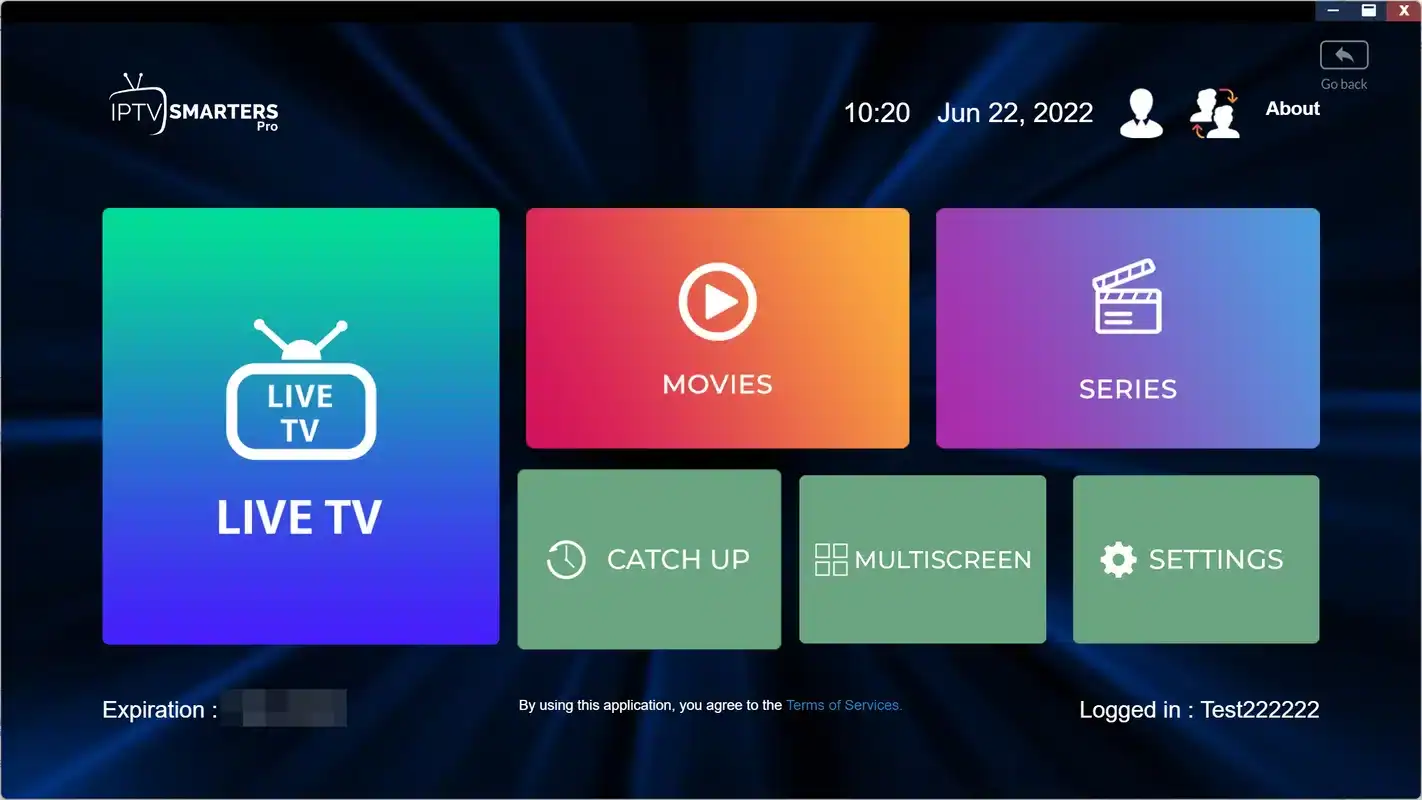
In a playlist, movies and episodes are entries like any other, with their own group names. Some players read those groups and build separate Movies and Series sections with posters. Others place them in the same long list as live channels, under their group names.
If your player mixes everything together, the on-demand side is still there: look for groups whose names suggest films or shows, and add the ones you like to favourites.
If browsing movies and series is what your household does most, the way your player handles them matters more than any setting. Players that offer both login types often sort on-demand titles more neatly through Xtream Codes, so try those details from the same e-mail if the M3U view feels cluttered. The catalogue does not change between the two, only the presentation. A good test is to open the same movie through both routes on one evening: the picture is identical, and whichever menu your family finds easier to browse is the one to keep. The VIP Premium Pack suits households that spend most evenings in the series and movie menus, with 61,000+ series and 155,000+ movies.
Adding the TV guide to an M3U setup
With an Xtream Codes login, most players fetch the guide along with the channels. With a playlist, it depends on the player. Some read guide data automatically; others have a separate field or menu for it, often called EPG, TV Guide or Guide source.
- Open the guide view first and wait a minute: some players fill it in on their own after the first load.
- If it stays empty, look in the player’s settings for an EPG or guide section.
- Ask support what applies to your player before you type anything into a guide field.
- Set the box clock and time zone before judging the result.
Our page on the TV guide on your box explains the clock side in detail, with a table of every Canadian zone. If your player gives you the choice and the guide matters to you, the simplest answer is often to use the Xtream Codes details in the same player and keep the M3U link as a second route.
Whatever you choose, judge the guide only after the box clock is right. A grid that is an hour off with a playlist would be an hour off with any login, because the clock lives on the box and not in the link. Fix the time zone first, restart the player, and then decide whether the guide setting needs attention.
Keeping the playlist fresh
The catalogue changes over time: titles arrive, channels move between groups. Players refresh the playlist from your link from time to time, and most let you ask for a refresh by hand. Look for Update playlist, Refresh or Reload in the playlist menu or the player’s settings.
Deep dive: refresh, re-add or clear cache
A refresh asks the player to fetch the list again from the same link. It keeps your favourites and hidden groups in most players, and it is the first thing to try when a channel seems to be missing.
Clearing the player’s cache in the box settings removes stored logos, posters and guide pages. It makes room on the box and fixes sluggish menus; your playlist entry and favourites stay.
Removing the playlist and adding it again starts from zero, with a full first load and no favourites. Keep it for the case where support asks you to, or where the player behaves strangely after an update.
If your access is renewed with a new duration, check your e-mail for any change in the details. When they stay the same, the playlist keeps working without any action on your side. When they change, edit the playlist entry rather than adding a second one beside it, so your favourites stay in one place.
A sign that a refresh is overdue: a channel you watched yesterday sits in a different group today, or a new series you heard about is missing from the list. Run a refresh, wait for it to finish, and look again before you write to support. If the player offers an automatic refresh interval, leaving it on its default is usually the right call on a box that is switched on most days.
When the M3U IPTV playlist will not load
If the player shows an error, an empty list or a load that never ends, run these checks in order. The cheapest comes first.
| What you see | Likely cause | First thing to try | If that fails |
|---|---|---|---|
| Error right after Add | Typo or stray space in the link | Compare both ends of the field with your note | Paste again from the note on your phone |
| Error about the format | File or local type chosen instead of URL | Pick M3U URL or Playlist URL | Delete the entry and add it again |
| Load never ends | Weak network or very busy small box | Move to Ethernet or 5 GHz, wait longer | Restart the box, then retry at a quiet hour |
| Empty list, no error | Load interrupted by button presses | Close and reopen the player | Refresh the playlist from its menu |
| Identifier player shows nothing | Identifier mistyped on the setup page | Compare with your photo of the screen | Restart the player after correcting it |
| Playing stops when someone else watches | Same access on two devices | Stop the other stream first | Ask support about extra screens |
Watch out: big playlists take time to load on small boxes, and pressing buttons during the load can freeze the player. Once you press OK, put the remote down and wait. If it never loads after these checks, try the Xtream Codes details from the same e-mail; if those work, the link was mistyped somewhere.
Open another online app on the box to confirm the internet works at all before you blame the link. For a stutter after a successful load, our box buffering fixes cover bandwidth, placement and cables.
What each pack puts in your playlist
The link works the same way in every pack. What changes is how long the list is and how much there is to tidy. A bigger catalogue is a reason to spend those first fifteen minutes on hiding groups.
The Premium Pack is an easy start for a single box, with 20,000+ channels, 24,000+ series and 100,000+ movies. The VIP Premium Pack adds depth to the on-demand side. The Ultimate 4K Pack brings 57,000+ 4K channels, 47,000+ series and 179,000+ movies, and needs 25 Mbps for each 4K screen. There is no contract and no automatic renewal; see current prices on the plans page.
If you are unsure which size suits your household, start with how you watch rather than with the numbers. A home that mostly opens a few live channels in the evening rarely needs the biggest list, and a smaller catalogue is quicker to tidy. A home that lives in the movie and series menus gets more from the larger on-demand libraries. Our page on the 1-month IPTV plan suggests a simple way to test a pack on your own box before committing to a longer duration.
M3U IPTV on each kind of device
The link is the same everywhere, but the device you paste it into changes the experience. Small sticks feel the first load more, smart TVs often lean on playlist-first players, and an Apple TV pairs naturally with an iPhone keyboard. Here is what to expect on the hardware we see most.
| Device | What helps with a playlist | Watch out for |
|---|---|---|
| Fire TV Stick | Phone remote app for pasting, HDMI extender for steadier Wi-Fi | Modest storage: keep one player and clear its cache when menus drag |
| Android TV and Google TV boxes | Ethernet port for a quick first load, more room for a big list | Several players installed side by side, each holding its own copy |
| Apple TV | An iPhone works as a remote with a keyboard | Players offered in the store vary; pick one from our list that is there |
| Samsung and LG smart TVs | Playlist-first players with a setup page you fill in from a phone | The TV’s own Wi-Fi may be weaker than a box on a shelf |
| Phones, tablets and PC | A real keyboard, so pasting the link is trivial | The same one-at-a-time rule as every other device |
If you are still deciding which hardware to use, the comparison of an IPTV box vs smart TV app explains when the TV’s own store is enough. For a stick, the Fire TV Stick guide covers storage and placement in more depth. A playlist is where those hardware differences show most clearly, because the whole list arrives in one go.
One link, several rooms and profiles
Once the living room works, adding the same link to a bedroom stick or a tablet is quick: same steps, same note on your phone, a different name for the playlist entry so you can tell them apart. Each device keeps its own favourites and hidden groups, so the tidy-up you did on the first box does not follow you. That is an advantage as much as a chore: the kitchen tablet can show a short list for breakfast while the living-room box keeps the full evening line-up.
- Name each entry after the room: Living room, Bedroom, Kitchen tablet.
- Hide groups on each device separately; it only takes a few minutes the second time.
- Stop the stream on one device before pressing play on another.
- Keep the note with the link on your phone, not on a shared family tablet.
Each pack includes 1 simultaneous connection. The same link can live on several of your own devices, used one at a time. If your household often watches on two screens at once, write to support before you order: they give the conditions and the price for extra screens. Our IPTV box guide explains how one login, several devices and a busy home fit together without surprises.
Playlist words decoded
Playlist menus borrow a few terms that are worth knowing before you go hunting in the settings.
- M3U
- A plain-text playlist format. Each entry names a channel or title and points to its stream.
- Playlist URL
- The address of that list. Your M3U link is one.
- Group
- The category an entry belongs to, used by the player to build menus.
- Device identifier
- A code some players show on screen so you can add a playlist from a phone or computer.
- Refresh
- Fetching the list again from the same link, keeping your favourites in most players.
- Hidden group
- A category you removed from view. It can be shown again at any time.
- EPG
- The programme guide, which some playlist players configure separately.
Where to go from your playlist
Your playlist is in and tidy. These pages help with the next steps, from the guide to a steadier picture and a second room.
Playlist refusing to load
Write to support by e-mail or WhatsApp at +33 6 44 65 43 13, 7 days a week, in English or French. Tell us your box, your player and the exact error on screen.
FAQ
Is M3U IPTV content different from the Xtream Codes content?
No. Both open the same catalogue. Only the way you enter the access changes: one link for M3U, three fields for Xtream Codes.
Where is my M3U link?
In your access e-mail, sent within minutes after payment. If it is not in your inbox, check the spam or promotions folder.
Can I use the M3U link on more than one device?
Yes, on your own devices, one at a time. Each pack includes 1 simultaneous connection. For more screens at once, ask support for the conditions and the price.
Why does my player show a device identifier instead of a link field?
Some players, such as Smart IPTV and IBO Player, add playlists through their own setup process. Follow the instructions shown in the app, then restart it on the box.
The list loads but there is no TV guide. Is that normal?
With M3U, some players need a separate guide setting. See our TV guide page for the steps, or use the Xtream Codes details, which often load the guide automatically.
Which players accept an M3U link?
IPTV Smarters Pro, TiviMate, Smart IPTV, IBO Player and GSE Smart IPTV can work with playlists. Check your player’s first screen for an M3U or playlist option, and install it from your device’s official app store.
Why does the first load take so long?
The player reads the whole catalogue at once and builds every menu. On a small box that takes a moment. Put the remote down and wait; later loads are lighter.
Will hiding groups remove channels from my access?
No. Hiding only changes what the player shows. A Show hidden or Manage groups option brings them back at any time.
Can I post my link in a forum to get help?
Please do not. The link contains your account details. Write to support instead; we can help without you sharing it anywhere.
Why are movies mixed in with live channels?
Some players place on-demand titles in the same list as live channels, under their own group names. Look for those groups, add your favourites, or try the Xtream Codes details in the same player for separate Movies and Series sections.
Can I add the same link on my phone and my box?
Yes. Paste it into a supported player on each of your devices and give each entry its own name. Watch on one device at a time, since each pack includes 1 simultaneous connection.
Should I refresh or re-add the playlist when something is missing?
Refresh first: it keeps your favourites in most players. Remove and re-add the playlist only if support asks you to or the player misbehaves after an update.