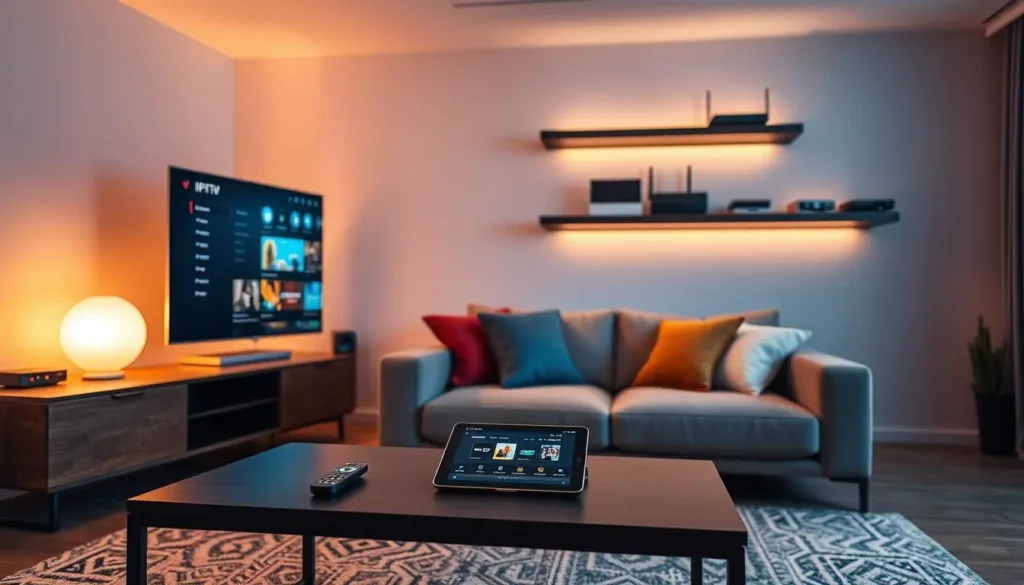
The remote is the only tool you hold every evening, yet most people use a third of its buttons. A few habits turn it from a clumsy pointer into a quick controller: jumping between channels, opening the guide, adding favourites and typing logins without a hundred presses of the arrow keys. This page gathers practical IPTV remote tips for box players, from the buttons that matter to the phone apps that replace the on-screen keyboard.
We wrote it with three remotes on the coffee table: the slim one that comes with a stick, the slightly larger one of an Android TV box and the touch remote of an Apple TV. The buttons have different shapes and sometimes different names, but they do the same jobs. Where a remote differs, we say so. If your player is not installed yet, start with our box setup page, then come back with the remote in hand and try each tip as you read.
The IPTV remote buttons that do the heavy lifting
Remotes differ from one box to another, but the same few buttons carry most of the load in every player. Learn these six and you can find your way around any player we support without opening a manual.
Arrow ring
Moves the highlight around menus. During playback, Up and Down often change channel.
OK, the centre button
Selects. During playback, a short press usually shows the channel list or the info bar.
Back
Steps back one screen. Press it repeatedly to leave a list or close the player.
Home
Returns to the box’s home screen. The player often keeps running in the background.
Menu or options
Three lines or three dots. Opens extra choices for the highlighted item.
Play and pause
Pauses movies and episodes. On live channels, its effect depends on the player.
Some remotes also carry a Guide button, channel up and down keys, number keys or a microphone button for voice search. Use them if your player responds to them; if not, the arrows and OK still get you everywhere. The point of this page is not to memorize every key, but to know which one to reach for when you want something done quickly.
A good first exercise takes two minutes. Open your player, start a channel, and press each of the six buttons once, watching what happens on screen. Then press Back until you are on the box’s home screen again. You now know how your player reacts, which is worth more than any general rule, because each publisher makes its own choices about what each button does.
Three remotes you are likely to hold
Most homes we help have one of these three remotes, or the TV’s own remote driving the box through HDMI-CEC. Here is where the key functions live on each. Models and system versions vary, so treat the table as a starting point and look for the matching symbol on yours.
| Function | Stick remote | Android TV or Google TV box remote | Apple TV remote |
|---|---|---|---|
| Move and select | Ring with a centre button | Ring or arrow keys with a centre button | Touch or click surface; press to select |
| Go back | Back arrow key | Back arrow key | Back or Menu key, depending on the model |
| Extra options | Menu key with three lines | Long press on OK, or a menu key if present | Long press on the surface in many apps |
| Return home | Home key | Home key | TV key |
| Voice | Microphone key on voice models | Microphone or assistant key | Voice key on the side or front |
| Re-pair | Hold Home near the stick | Settings, then Remotes and Accessories | Settings, then Remotes and Devices |
The biggest difference is on the Apple TV, where a single surface replaces the ring. Swipes move the highlight, a click selects, and a long press often brings up options. If you find swiping too sensitive, the Apple TV settings let you adjust how the surface responds; look under Remotes and Devices. Our page on IPTV on Apple TV covers the other settings worth changing on that box.
Android TV and Google TV remotes vary the most, because many manufacturers make boxes on that system. Some have number keys and a dedicated guide key; others are as minimal as a stick remote. The Android TV box guide explains what to look for in the remote when you choose a box, and why a remote with a few extra keys can make a family’s evenings easier.
Short press, long press, double press
Most of the hidden power of a remote sits behind the way you press, not the button you choose. Many players give a second job to OK and Back depending on how long or how often you press them. These are the patterns we see most often in the players we support. Try each once in yours.
| What you want | Try this | Where it usually works |
|---|---|---|
| Open the channel list during playback | Short press OK, or Left | Live channels in most players |
| Change channel without the list | Up or Down during playback | Live channels |
| Add to favourites | Long press OK, or Menu on the channel | Channel lists and the guide |
| Hide a group | Long press OK on the group name | Group lists in many players |
| Open the TV guide | Guide key, or TV Guide in the main menu | Live section |
| Skip forward in a movie | Right, or hold Right to seek faster | Movies and series |
| Leave the player | Back twice, or Home | Everywhere |
Long presses are the shortcut people discover last and use most once they know about them. A long press on OK in a channel list usually opens a small panel of options for that channel only: add to favourites, hide, lock, sometimes move. It saves you from leaving playback, opening the settings and hunting for the channel again.
Double presses are less common and mainly used on Back: many players ask you to press it twice to leave, so you do not close the app by accident halfway through a film. If your player closes on a single Back press, there is often a setting to ask for confirmation. It is worth turning on in a home with children.
Moving through a player with an IPTV remote
Every player is a set of nested screens. Once you picture the map, the remote stops feeling like guesswork. Here is the route most players follow from the box’s home screen to a channel playing full screen.
Right moves you deeper, Back moves you up one level, and Home takes you all the way out. That simple rule explains most of what feels confusing on the first evening. If you press Back during playback and land in a group list, you have not lost anything: you went up one level. Press OK on the same channel and you are back.
The deeper you go, the slower it is to come back. That is why a favourites group is so useful: it sits at the top of the group level, one press from the section screen, instead of buried in a list of hundreds. Many players also remember the last channel you watched and reopen it directly when you launch them, which skips three levels at once.
Right goes in, Back comes out, Home leaves the building. Everything else is a shortcut.
If you are using a stick, our Fire TV Stick guide shows how its remote maps onto this route, including the menu key that opens options in many players.
During playback: five moves worth learning
Most of your evening happens with a channel playing full screen. These five moves let you stay there instead of backing out into menus every few minutes.
Peek at the list without stopping the stream
Press OK or Left. In many players a channel list slides in from the side while the picture keeps playing. Move up and down, press OK on another channel to switch, or Back to close the list.
Hop one channel at a time
Up and Down change channel directly in many players, following the order of the current group. That is why watching from your favourites group feels so much quicker: Up and Down only move through the channels you chose.
See what is on now and next
A short press on OK often shows the info bar with the current programme and what follows. Some players show a mini guide instead. Both come from the same guide data, so if they look wrong, the clock is the first thing to check.
Jump back to the previous channel
Some players offer a previous-channel option in their settings or in the playback menu. If yours does, it is the quickest way to switch between two programmes during a break.
Seek in movies and episodes
On on-demand titles, Right and Left skip forward and back, and holding them seeks faster. Play and pause does exactly what it says. If seeking feels jumpy, wait a second between presses so the player can catch up.
- Watch from your favourites group, so Up and Down stay useful.
- Use the side list rather than leaving full screen.
- Check the info bar before assuming a channel has the wrong programme.
Building favourites with the remote
Favourites are the single change that saves the most presses. A list of a dozen channels you actually watch replaces a scroll through thousands every evening. Spend ten minutes on it on day one, ideally right after your first login.
- Open the live section. From the player’s main screen, select Live or Live TV and press OK.
- Find a channel you watch. Open its group and move the highlight onto the channel name.
- Long-press OK. Hold the centre button until a small menu appears. On some players, press the menu key instead.
- Choose the favourites option. It may say Add to favourites, Favourite or show a star or heart. Press OK.
- Repeat for each channel. Work through your usual list. It goes faster after the first few.
- Open the Favourites group. It usually appears at the top of the group list. Check that every channel is there.
- Start from favourites tomorrow. Many players reopen the last group you used, so ending tonight in favourites starts tomorrow there.
Favourites are stored in the player on that device. If you set up a second box in the bedroom, you build its list there too. That is often a good thing: the bedroom list can be short and quiet while the living room keeps the full evening line-up. Our M3U playlist guide shows how to hide whole groups as well, which makes the remaining list shorter still.
Typing with your phone instead of the arrow keys
The on-screen keyboard copes with a short search, but it is painful for a server URL or a long M3U link. Most boxes can be controlled from a phone app made by the box maker, which opens a real keyboard when a text field is selected on the TV. Our guide to Xtream Codes on your box is where this saves the most time.
- On the phone
Install the official remote app
Find your box maker’s remote app in your phone’s official app store. On an iPhone with an Apple TV, the remote is already in Control Centre.
- On the network
Join the same Wi-Fi
Put the phone on the same Wi-Fi as the box. The app cannot find the box otherwise.
- On both
Pair them
Open the app, pick your box from the list and type the code shown on the TV.
- On the TV
Open a text field
With the regular remote or the app, select the username, password, URL or search field.
- On the phone
Tap the keyboard icon and paste
Paste from your access e-mail, then check the result on the TV before pressing OK.
The pairing happens once. After that, the app finds the box each time you open it, as long as both are on the same Wi-Fi. If it suddenly cannot see the box, check that the phone has not slipped onto a different network name, such as the 2.4 GHz twin of your 5 GHz network or a neighbour’s open hotspot.
Paste is the key word. Copying the server URL from the e-mail and pasting it on the phone removes every typo except one: a space picked up at the start or end of the selection. Look at the field on the TV, scroll to its end, and compare the last characters with the e-mail before you press OK.
Getting the most from the on-screen keyboard
Sometimes the phone is upstairs and you need to search for a title now. The on-screen keyboard is slow, but a few habits make it much less tedious.
Many player searches update as you type, so a few letters are often enough.
- Type the first few letters only, then look at the results before typing more.
- Pick the section first, Movies or Series, so the search covers fewer titles.
- Use the keyboard’s shortcut keys for dots, slashes and common endings when typing an address.
- Hold the arrow to move quickly across the keyboard on boxes that support it.
- Press Back to close the keyboard, then move down to the confirm button.
Some box keyboards also offer a voice key inside the keyboard itself. Whether it works inside your player depends on the box and the player, so try it once. If the result comes back misspelled, correcting one or two letters with the arrows is still faster than typing the whole title.
Remote in hand, ready to watch
Pick a pack and a duration, pay once in Canadian dollars by card or PayPal, and your access arrives by e-mail within minutes, ready to paste from your phone.
Your TV remote and HDMI-CEC
One remote for two devices
HDMI-CEC lets devices on the same HDMI chain talk to each other. When it is on, the box can switch the TV on and select the right input, and the box remote can often change the TV volume. On some setups, the TV remote’s arrows and OK drive the player too.
Look for it in the TV’s settings under General, External devices or Connections. Most TV makers give it their own name, so look for words like device control or HDMI control. On the box, the matching option usually sits under Display and Sounds or Inputs.
Why turn it on
- One remote for power, volume and the player
- The TV switches to the box input automatically
- Guests do not need to know which input to pick
- The TV and box go to standby together
When to turn it off
- The TV jumps to the box input when you did not want it to
- Two remotes fight over the volume
- A soundbar on the same chain behaves strangely
- The box wakes up the TV in the middle of the night
If HDMI-CEC causes more trouble than it solves, turn it off on the TV and keep the box remote for the player. Nothing in your IPTV setup depends on it. It is purely a comfort setting. Try it for a few evenings and keep whichever way feels calmer in your living room.
Voice buttons and searching by voice
Many box remotes have a microphone key. What it does depends on the box: on most, it calls the system’s own assistant, which searches the box and its store rather than the inside of your player. On some boxes and in some players, voice input also works inside a text field once the keyboard is open.
A quick way to find out
Open your player’s search, select the text field so the keyboard appears, then press and hold the microphone key and say a short title. If the field fills in, voice works in that player on your box. If the box opens its own assistant instead, press Back and use the phone keyboard for searches. Neither result is a fault; it is a choice made by the box maker and the player publisher.
Voice is most useful for searches in the movie and series sections, where titles are long and the on-screen keyboard is slow. For logins, stick with the phone keyboard: spoken punctuation in an address rarely comes out right, and a single wrong character is enough to refuse the connection. We are independent from app publishers, so if a player adds or removes voice features in an update, the publisher’s notes are the place to check.
Remote set-ups for the whole household
A remote that suits you may not suit everyone on the couch. A few small adjustments make the same box comfortable for a grandparent, a child and a visiting friend.
Build a short favourites group and leave the player in it. Up and Down then move through a handful of channels only.
Then: turn on HDMI-CEC so one remote does everythingUse the player’s parental options where it has them, and turn on the confirmation before leaving the app.
Then: keep the phone remote app on an adult’s phoneShow them three buttons: OK for the list, Back to go up, Home to leave. That covers almost every evening.
Then: leave the player open on favouritesSome players offer profiles or several playlist entries, each with its own favourites.
Then: name each one so the right person picks itA small printed card next to the TV with those three buttons saves a phone call from the guest room. It sounds old-fashioned, and it works.
Batteries, pairing and line of sight
Two ways a remote talks to a box
Older and simpler remotes use infrared: a beam of light that needs a clear path to the front of the box. Many stick and box remotes use Bluetooth, which works through cabinet doors but must be paired. Some remotes use both, Bluetooth for the box and infrared for the TV’s power and volume.
Knowing which one yours uses tells you where to look when it stops working.
- Infrared: clear the path, move the box out of the cabinet
- Bluetooth: re-pair from the box settings
- Both: fresh batteries first, always
- Replace both batteries. Even if only one seems weak. A tired pair drops presses long before it dies completely.
- Stand in front of the box. Point the remote straight at it from a short distance and try the arrows.
- Restart the box. Unplug it, count to ten and plug it back in. Many remote faults are a box that stopped listening.
- Re-pair if needed. On a stick, hold Home near the stick until it pairs. On an Android TV box, open Settings, then Remotes and Accessories. On an Apple TV, open Settings, then Remotes and Devices.
- Use the phone app meanwhile. If the physical remote still refuses, the phone remote app lets you reach the settings to pair again.
Distance matters more than people expect with infrared. A remote that worked from the couch for months can stop working after the furniture moves, a plant grows in front of the box or a soundbar is placed across the front of the shelf. Before you replace anything, stand where you usually sit and look at the box: if you cannot see its front panel, neither can the remote.
When the IPTV remote stops responding
The symptom tells you a lot about the cause. A remote that does nothing anywhere is a battery or pairing fault. A remote that works in the box menus but not in the player points at the player. A remote that works sometimes points at distance, obstacles or interference.
| What you see | Likely cause | First thing to try | If that fails |
|---|---|---|---|
| No response anywhere | Batteries or pairing | Fresh batteries | Re-pair from the box settings |
| Works in menus, not in the player | Player frozen or still loading | Wait for the loading bar to finish | Press Home, then reopen the player |
| Works only up close | Weak batteries or blocked path | Fresh batteries, open the cabinet | Move the box onto an open shelf |
| Presses fire late, all at once | Player busy loading a big list | Put the remote down and wait | Clear the player cache in the box settings |
| TV volume works, box does not | Infrared reaches the TV, Bluetooth link to the box lost | Restart the box | Re-pair the remote |
| TV switches input on its own | HDMI-CEC | Turn device control off on the TV | Turn the matching option off on the box |
Watch out: pressing buttons quickly while a player loads a big list can freeze it. When you see a loading bar, put the remote down and wait. Rapid presses get queued and fire all at once when the player catches up, which can send you into the wrong menu or close the app.
If the box itself feels slow, with menus that lag behind every press, the remote is not the problem. Our page on a box running hot or slow covers storage, heat and restarts. For problems beyond the remote, the box troubleshooting hub sorts every symptom by layer.
Looking after the remote over the months
A remote lives a hard life: dropped between cushions, sat on, sticky from snacks. A little care keeps it responsive and saves a hunt for the cause of a missed press on a busy evening.
Hands-on tip: keep a spare pair of batteries in the drawer under the TV, in a small labelled bag. When the remote starts needing two presses for one action, change them that evening rather than waiting for it to stop altogether.
Clean the buttons now and then with a slightly damp cloth, never a wet one, and let it dry before use. Remove the batteries if the remote will sit unused for a long time, such as the second remote of a cottage box over the winter. A silicone sleeve helps with drops and makes a slim remote easier to find between cushions. If a button sticks or a key stops working entirely, the phone remote app is a useful stand-in while you sort out a replacement from the box maker.
Keep the remote with its own box. In a home with a stick in the bedroom and a box in the living room, swapped remotes are a surprisingly common cause of “nothing works” calls: each remote is paired to its own device and ignores the other.
IPTV remote habits for faster evenings
None of these habits takes more than a few minutes to set up, and together they turn an evening of scrolling into a few presses. Pick the ones that fit your home.
- Spare batteries in the drawer under the TV.
- Your phone paired as a second remote for typing and searching.
- A favourites group built on day one and used as the starting point.
- The player’s Back behaviour learned, so you never close it by accident.
- HDMI-CEC turned on if one remote for TV and box suits your household.
- A small card with three buttons for guests.
Deep dive: why a remote feels slower on some evenings
When the box is busy, every press waits its turn. The busiest moments are the first load after a login, a guide refresh, a system update running in the background, or a box that is warm after hours in a closed cabinet. The remote is sending presses perfectly; the box is just slow to act on them.
That is why the fix is so often outside the remote: let the load finish, give the box air, keep its storage tidy. A box that responds instantly at lunch and slowly at night is telling you about heat or a busy network, not about its remote.
Each pack includes 1 simultaneous connection. You can use the same credentials on several of your devices one at a time, so a stream left running in another room is worth checking when a player refuses to play. Still choosing? Compare packs on the plans page; the Premium Pack is an easy start for a single box, and the VIP Premium Pack suits homes that spend their evenings searching the movie and series menus.
Driving the TV guide with the remote
The guide grid is where the remote earns its keep. It is a large screen of rows and columns, and moving through it one cell at a time is slow unless you know the shortcuts your player offers.
Up and Down move between channel rows. Right moves forward through the evening, programme by programme, and Left brings you back towards now. In many players, the channel up and down keys jump a full page of rows at once, and some use them to jump a whole day ahead instead. Try both on your remote to see which your player does. OK on a cell either opens that channel straight away or shows details for the programme; a second press usually plays it. Back closes the grid and returns to whatever was playing.
- Open the grid on your favourites group so a page of rows holds the channels you care about.
- Use channel up and down, if your remote has them, to move a page at a time.
- Press Back once to close the grid without stopping the channel playing behind it.
- Compare the “now” cell with the picture on one channel before trusting the grid.
If the listings look shifted by an hour, the remote is not to blame: the box clock is. Our page on the TV guide on your box shows how to set the time zone for every province, including the Newfoundland half-hour and the Saskatchewan entry that does not change in spring.
A ten-minute remote drill for the first evening
Reading about shortcuts is one thing; your thumb learning them is another. This short drill, done once on the first evening, makes the rest of the week feel natural. Do it with a channel playing and nobody waiting for the TV.
- Peek and switch. Press OK or Left to bring up the list, move to another channel and press OK. Do it three times.
- Add three favourites. Long-press OK on three channels you watch and add them. Open the Favourites group to check.
- Hop through favourites. From the Favourites group, play a channel and use Up and Down to move between the three.
- Open the guide and come back. Open the grid, move right a few programmes, then press Back to return to the picture.
- Search once. Open the movie search and type a title from your phone keyboard.
- Leave and return. Press Home, then reopen the player and notice where it lands.
By the end, your thumb knows the six moves that cover nearly every evening. If any step did something unexpected, that is useful too: you now know how your player differs from the usual pattern, and you will not be surprised by it on a busy night.
Remote words explained
Box settings and player menus use a few terms about remotes that are worth knowing before you go looking.
- Long press
- Holding a button for a moment instead of tapping it. Often opens options for the highlighted item.
- HDMI-CEC
- A feature that lets the TV and box control each other through the HDMI cable. Each TV maker gives it its own name.
- Infrared
- A remote signal made of light. It needs a clear path to the front of the device.
- Bluetooth remote
- A remote that talks by radio. It works through doors but must be paired with its box.
- Pairing
- Linking a remote or a phone app to one specific box so they recognize each other.
- Phone remote app
- The box maker’s official app that turns a phone into a remote with a real keyboard.
- Favourites group
- A list of the channels you chose, usually shown at the top of the group list.
More setup guides to read next
Your remote is under control. These pages pick up where this one stops, from the guide grid to a smoother picture.
Remote or player still misbehaving
Write to support by e-mail or WhatsApp, 7 days a week, in English or French. Tell us your box, your player and which button does nothing.
FAQ
Which IPTV remote buttons should I learn first?
The arrows, OK, Back, Home and the menu button. Together they cover moving, selecting, options and leaving the player.
How do I add a channel to favourites with the remote?
In most players, highlight the channel and long-press OK, or press the menu button, then choose the favourites option.
Can I type my login from my phone?
Yes. Install your box maker’s official remote app from your phone’s official app store, pair it with the box on the same Wi-Fi, and use its keyboard when a text field is open on the TV.
My remote works in menus but not in the player. Why?
The player may be frozen or still loading. Wait for the loading bar to finish, or press Home and reopen the player.
Can my TV remote control the box?
Often, yes, if HDMI-CEC is turned on in the TV’s settings. It usually carries the TV maker’s own name in the menu.
Do I need a special remote for IPTV?
No. The remote that came with your box works with players installed from your device’s official app store. A phone remote app is a handy extra for typing.
Why does my remote only work up close?
Weak batteries or a blocked infrared path. Fit fresh batteries and move the box out of a closed cabinet. If it uses Bluetooth, restart the box and re-pair it.
Does the voice button search inside my player?
It depends on the box and the player. On many boxes it calls the system assistant. Open the player’s search field and try it once to see.
How do I stop closing the player by accident?
Look in the player’s settings for a confirmation before exit, or learn its Back behaviour: in many players, one press leaves a list and two presses close the app.
Why does the remote change the TV volume but not the channel?
The remote may use infrared for the TV and Bluetooth for the box. The Bluetooth link to the box has dropped: restart the box and re-pair the remote from its settings.
Can two remotes control the same box?
Usually a box remote and a phone remote app can both control it. A second physical remote must be paired from the box settings, if the box allows more than one.