The Fire TV Stick is the smallest box we work with, and for many rooms it is all you need. It slips into an HDMI port, takes its power from a wall adapter and comes with a light remote that a guest can pick up without a lesson. A good IPTV Firestick setup is mostly about order: the right port, the right power, a clean Wi-Fi link, a player from the official Appstore and a careful login. Get those five things right and the stick disappears behind the TV, which is exactly what you want from it.
This guide is written remote in hand. We go through the carton, the buttons, the first power-on, the settings worth changing before you install anything, the player install itself, the login screen, the first evening, and then the long run: storage, heat, Wi-Fi and the small fixes that solve most complaints. Where a menu name differs a little between models or system versions, we give you the path that most sticks use and tell you what to look for if yours reads slightly differently.
Why an IPTV Firestick suits so many rooms
Every box family has a sweet spot. For the stick, it is the room where you want IPTV without adding a box on a shelf, a second remote on the coffee table or a cable running across the floor. It hides completely, it travels in a jacket pocket and it boots straight to a home screen that most people already recognise. Here is what owners tell us they like once it is set up, and what we see in practice when we help them by message.
Invisible
It hangs off the HDMI port behind the panel. No shelf, no extra cable on show.
One remote
On most TVs the stick remote also handles power and volume, so the TV remote can go in a drawer.
Official Appstore
Players install from the store on the stick itself, with updates handled for you.
Easy to move
Unplug it from the bedroom TV and take it to the cottage. Your login travels with it.
HD to 4K
HD and Full HD are comfortable. 4K models show 4K when the TV and network keep up.
Guest friendly
Home, Back and a ring to move around. Visitors manage without help.
The flip side is that a stick has less room to work with than a full-size box. It has modest storage, no network port of its own and it sits in the warmest, worst spot for Wi-Fi in the room. None of that is a deal-breaker. It just means the setup steps below matter more on a stick than on a box sitting in the open on a shelf. If you are still choosing between hardware families, the IPTV boxes overview puts the stick next to the others, and our guide to the best IPTV box for your room walks through the buying criteria one by one.
What comes in the carton and what each piece does
Open the carton on the coffee table before you go near the TV. Lay out every piece so you know what you have. The contents vary a little by model, but most sticks ship with the same handful of parts, and each one has a job in the chain that carries the picture to your screen.
The remote usually comes with its batteries in a separate sleeve. Put them in now, with the springs on the minus side, so the remote is ready when the stick asks to pair. If your carton includes the short flexible HDMI extender, keep it: it is the single most useful accessory for Wi-Fi, and we come back to it in the next section. Keep the box and the receipt for the first week too, in case your player turns out not to be listed in the Appstore on your model and you decide on different hardware with the retailer under its own return policy.
Before you plug anything in: look at the back of your TV with a phone torch. Note which HDMI ports carry a 4K, ARC or similar label, and whether there is a wall outlet within reach of the adapter cable. Two minutes here saves crawling behind the TV twice.
Choosing the HDMI port and the spot behind the TV
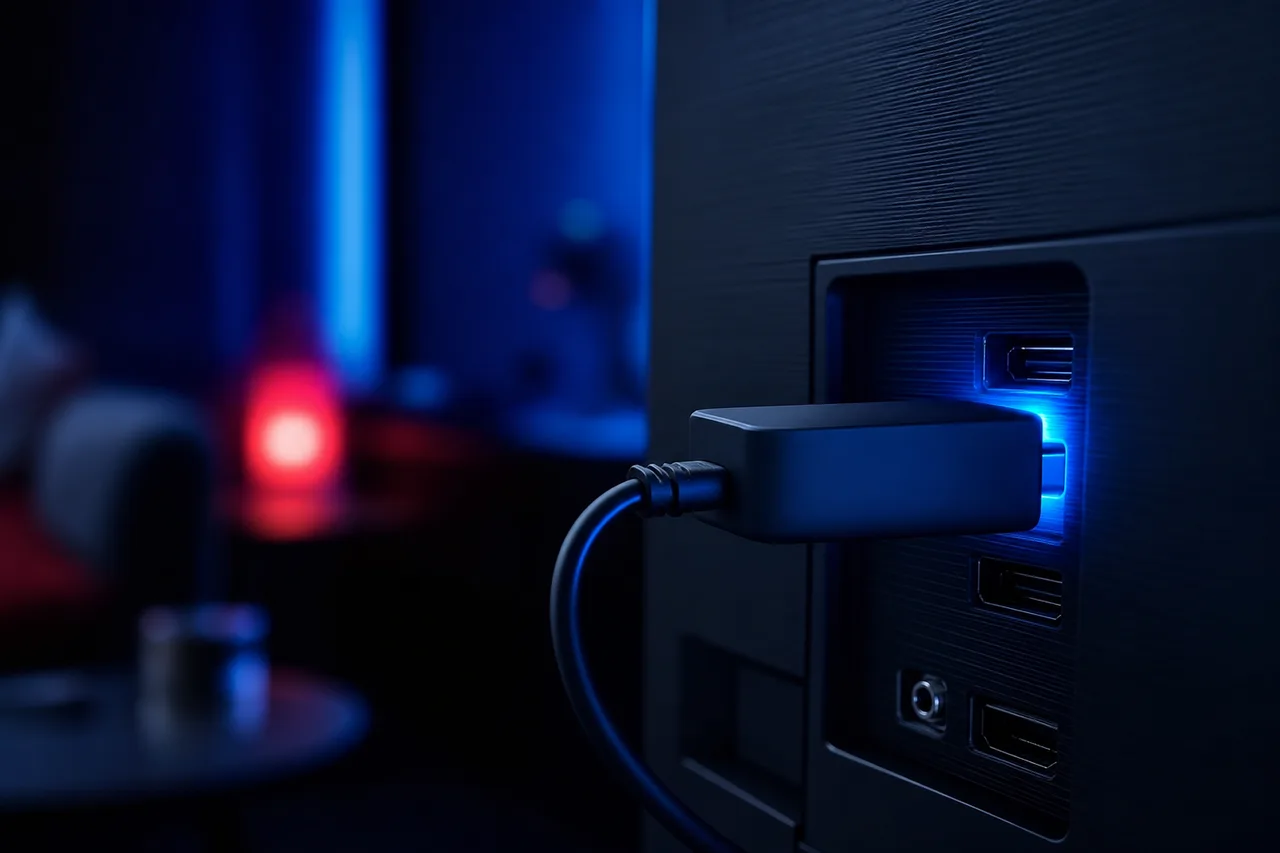
Port, extender, power
On a 4K TV, choose an HDMI port labelled for 4K. Some TVs accept a 4K signal only on one or two of their ports, and the label next to the socket tells you which. On a Full HD TV, any HDMI port works.
Then fit the extender between the port and the stick. It moves the stick a little away from the metal panel, which helps both the Wi-Fi antenna and the heat. Finally, plug the power cable into the wall adapter, not into a USB socket on the TV.
- 4K-labelled HDMI port on a 4K TV
- Extender fitted between port and stick
- Power from the wall adapter, not the TV
- Stick not touching the back of the panel
Why the wall adapter matters: the USB sockets on many TVs give less power than a stick wants, and some switch off when the TV goes to standby. The result is a stick that restarts at random, shows a power warning or loses its Wi-Fi when the TV is turned on. The adapter that came in the carton avoids all of that.
If your TV is wall-mounted with almost no gap behind it, pick a side-facing port when there is one, so the stick points sideways instead of being squeezed against the wall. If the router sits in the same room and your model supports it, an Ethernet adapter that combines power and a network port is worth considering. Check the support pages of the stick maker for compatible adapters before you buy one. Our page comparing Wi-Fi and Ethernet for a box explains how to test which one your room needs.
The Fire TV remote, button by button
You will press these buttons hundreds of times a week, so it pays to know what each one does, including the hidden long presses. The layout is close to identical on most recent remotes. Older remotes may lack the TV power and volume keys, but the core buttons are the same.
| Button | Short press | Long press or combination | When it helps with IPTV |
|---|---|---|---|
| Home (house icon) | Back to the home screen | Hold it to open the quick menu with Sleep, Settings and Apps | Leaving the player cleanly, reaching your apps fast |
| Back (arrow) | One screen back | Hold to leave some apps quickly | Closing the on-screen keyboard during login |
| Menu (three lines) | Opens options for the highlighted item | None on most models | Moving an app to the front row, player options |
| Ring and centre | Move and select | Hold left or right in some players to scroll faster | Browsing long channel lists and the guide |
| Play/Pause | Pause and resume | Hold with Select for a few seconds to restart the stick on many models | Restarting without reaching behind the TV |
| Voice button | Opens voice search | Hold and speak | Searching the Appstore for a player by name |
| Power, volume, mute | Controls the TV | Set up under Equipment Control | One remote for the whole evening |
If the TV keys do nothing, open Settings, then Equipment Control, and run the setup: the stick tests a few signals and asks you whether the volume changed. It takes a minute and it means the TV remote can go away for good. If the remote stops responding altogether, take the batteries out, put them back, then hold Home for several seconds near the stick until it pairs again. For more shortcuts that work in the players themselves, see our remote control tips for IPTV.
First power-on: pairing, Wi-Fi and updates
Switch the TV on, press Input or Source on the TV remote and choose the HDMI port you used. The stick shows its logo, then asks you to press Home on its remote to pair. From there, follow this order. It is the same order we use when we set one up ourselves, and it avoids the classic first-night trap of installing a player on an out-of-date system.
- Step one
Pair and pick a language
Press Home when asked, then choose English or French for the menus. You can change it later in Settings, then Preferences.
- Step two
Join the right Wi-Fi
Choose your 5 GHz network name if the router shows two. Type the Wi-Fi password slowly; capitals matter.
- Step three
Sign in to the stick account
The Appstore needs it. If you prefer, the stick shows a code you can confirm on your phone instead of typing on the TV.
- Step four
Let the system update
A new stick often installs updates during setup. Leave it alone until it lands on the home screen.
- Step five
Check for more updates
Settings, then My Fire TV, then About, then Check for Updates. Install anything listed and let it restart.
Skip the optional offers during setup if you only want IPTV on this stick. Every app you add now takes storage the player will want later. You can always add things in the future; removing them is the step most people forget.
Once the home screen appears, open Settings, then Network, highlight your Wi-Fi name and press Play/Pause. On many models this shows the signal details for the connection. Note what it says now, with the stick in its final position. If it already reads weak, fix placement before going further: a player cannot make up for a signal that is not there.
Settings to change before you install anything
A stick ships with a few settings tuned for showing off the home screen rather than for long evenings of live TV. Change them once and the stick feels lighter. Names shift a little between system versions, so if a label differs, look for the closest match in the same menu.
| Setting | Path with the remote | What we suggest | Why it matters for IPTV |
|---|---|---|---|
| Video autoplay on the home screen | Settings, then Preferences, then Featured Content | Turn off video and audio autoplay | Less work for the stick each time you press Home |
| Display resolution | Settings, then Display and Sounds, then Display | Auto, or the highest your TV accepts | Lets a 4K model on a 4K TV actually output 4K |
| Notifications | Settings, then Preferences, then Notification Settings | Turn off the ones you do not need | Fewer pop-ups over the picture |
| Equipment control | Settings, then Equipment Control | Run the setup once | Remote controls TV power and volume |
| Sleep | Hold Home, then Sleep | Use it at night instead of leaving the player paused | The player starts fresh the next evening |
| Data usage options | Settings, then Preferences, then Data Monitoring | Leave off unless your plan has a cap | Avoids quality being held back on purpose |
Leave the audio settings alone to start with. Most TVs handle the default output well, and changing it before you have heard a stream can create problems that are hard to trace later. If you use a soundbar and hear no sound on some channels, that is the moment to visit Settings, then Display and Sounds, then Audio.
Installing your IPTV Firestick player from the Appstore
Everything goes through the Appstore built into the stick. Our packs work with IPTV Smarters Pro, TiviMate, Smart IPTV, IBO Player, XCIPTV and GSE Smart IPTV. Each publisher decides where its app is offered, so the list you see on your stick depends on your model and your region. That is normal. Search before you decide, and if your first choice is not there, take the next one on the list.
- Press Home and move to the search icon or the Find tab on the top row, then press the centre button.
- Type the player name with the on-screen keyboard, or hold the voice button and say it clearly.
- Open the result and read the publisher name and the description. Make sure it is the player you were looking for, not a look-alike.
- Press Get or Install and wait until the button changes to Open. Do not unplug the stick while it installs.
- Pin it to the front row: open your apps, highlight the player, press Menu (three lines), choose Move and slide it to the front.
- Open it once to check that it starts, then press Home. The login comes next.
Official Appstore only. If a website or a video tells you to change the stick’s security settings or to add a player some other way, close it. We only support players installed from the official store on your device, and so should you: the store version receives updates and is the one we can help you with.
Some players ask for a licence or offer a premium version after setup. When that happens, check the current price on the app’s official website. BoxReady IPTV is independent from app publishers: we do not sell their licences and we cannot activate them for you. Our player guides go deeper on each one, for example TiviMate on a box and IPTV Smarters Pro on a box.
Picking the right player for a stick
All six supported players read your access, so this is a matter of taste and of what your Appstore lists. On a stick, two extra factors count: how heavy the player is on storage, and how well it handles a long guide with a small remote. Here is how we steer people who ask us which one to install first.
Search for TiviMate first. It opens on a programme grid and suits people who zap the way they did with a cable box.
Then: read our TiviMate box guideIPTV Smarters Pro uses large tiles for Live TV, Movies and Series. Children and grandparents find their way quickly.
Then: build one favourites group for everyoneXCIPTV lets you change the video engine and buffer. Useful on a stick whose Wi-Fi is borderline.
Then: see the XCIPTV settings guideTake another supported player that is listed. The login fields are the same in all of them.
Then: keep your welcome e-mail open on your phoneAvoid installing three players to compare them side by side for weeks. Each one keeps its own cache of the channel list, posters and guide, and on a stick that adds up fast. Try one for a few evenings, and if it does not click, uninstall it before trying the next. The box apps hub compares all six in more depth, and the XCIPTV guide covers the engine and buffer switches if you need them.
Typing your login with the stick remote
Your access arrives by e-mail within minutes of your order. It holds either Xtream Codes details, meaning a server URL, a username and a password, or an M3U link. Most players offer both routes on their first screen. Choose Xtream Codes when it is offered: the channel groups, the guide and the movie and series libraries usually arrive in a tidier form.
The fields look like this in most players. The order may differ, the content does not.
The on-screen keyboard on a stick is slow with the ring, so take your time. A few habits make the difference between logging in at the first attempt and hunting a typo all evening.
- Open the welcome e-mail on your phone and keep it beside you, zoomed in.
- Type the server URL exactly, with every dot, colon and slash, and nothing extra at the end.
- Username and password are case-sensitive: switch the keyboard to capitals only for the letters that need it.
- Press Back to close the keyboard, then move down to the Add or Login button.
- If the player offers a show-password eye icon, use it to check before you confirm.
A phone makes this easier. The stick maker publishes an official remote app for phones; if your phone’s store lists it, install it, connect it to the stick on the same Wi-Fi and use the phone keyboard when a text field opens on the TV. If the login fails, compare each field with the e-mail again, letter by letter. Our Xtream Codes setup guide explains each field and the usual mistakes, and the M3U playlist guide covers the link route.
The first evening: let the player settle in
After the login, the player fetches the channel list, the movie and series libraries and, where it is available, the programme guide. On a stick this first load takes a little longer than on a big box, because everything is being written to modest storage for the first time. Resist the urge to press buttons while it works. Pressing Back during the first load is the most common reason a guide comes up half empty.
Our first-evening routine
Let the first load finish completely. Open one channel you know, and watch it for a few minutes so the player can show you its normal picture. Then open the guide and scroll a day ahead to check the listings line up with the clock. Finally, mark your usual channels as favourites. A short routine like this makes every later evening quicker.
If the guide shows the right programmes at the wrong times, the time zone is off, not the service. Check that the stick has the right time zone for your province under Settings, then Preferences, then Time Zone, and then look for a guide time-shift option in the player. Our TV guide setup page goes through both. If some channels have no listings at all, that is normal: not every channel carries guide data.
The catalogue includes French-language and international content. If you are after a specific language, ask support before ordering rather than after, so you know what to expect on your stick.
Stick plugged in and ready
Pick a pack and a duration, pay once in Canadian dollars, and type in the access we e-mail you within minutes.
IPTV Firestick limits, stated plainly
A stick is clever hardware squeezed into a small shell. Knowing where it shines and where it runs out of breath keeps your expectations right, and tells you when the fix is a setting and when the fix is different hardware.
Where the stick is strong
- Bedrooms, kitchens and second living rooms
- HD and Full HD viewing on a solid 5 GHz signal
- 4K on 4K models with a 4K port and 25 Mbps for that screen
- Travel to the cottage or a second home
- Households that want one simple remote
Where it struggles
- Weak Wi-Fi behind a large wall-mounted TV
- Storage filled with apps that are never opened
- Long evenings in a hot, closed TV cabinet
- Players your Appstore simply does not list
- Being the only box for a busy family room far from the router
Most of the struggles have a hardware answer that costs nothing but a few minutes: the extender, the wall adapter, a cleaner app list, an open cabinet door. When those are done and the stick still struggles, it is usually the network and not the stick. Test that next. Only when the network checks out and the stick still feels slow is it worth looking at a full-size Android TV box with an Ethernet port and more room to work.
A stick on a good signal beats a big box on a bad one. Fix the room first, then judge the hardware.
Storage housekeeping on a stick
Why space runs out
The system keeps space for its own updates. Each player keeps a cache of channel logos, posters and guide data, and a large catalogue means a large cache. Add a few games and apps that came along during setup and the stick runs low without you noticing.
When storage is tight, the menus slow down first, then the player takes longer to open, then the guide starts to drag. A regular tidy keeps all three quick.
- Uninstall apps you have not opened in a month
- Keep only one IPTV player installed
- Clear the player cache when the guide drags
To see what takes space, open Settings, then Applications, then Manage Installed Applications. Each app shows how much room it uses. To clear a player’s cache, select it and choose Clear Cache. That removes temporary files only: your login and favourites stay. Clear Data is a different button. It wipes the player back to its first screen, so you would have to log in again. Use Clear Data only when support asks you to or when the player refuses to start at all.
Deep dive: cache, data and why they behave differently
The cache is a scratchpad. The player stores pictures and guide pages there so it can show them again without fetching them. Clearing it is safe and the player simply rebuilds it during the next evening, which is why the first guide load after a clear feels a little slower.
Data is the player’s memory: your profile, the server details, your favourites, your guide settings. Clearing data is the same as installing the player fresh. Write down your settings before you do it, keep the welcome e-mail at hand, and expect a full first load afterwards.
Wi-Fi tuning for a stick behind the TV
A stick has no network port of its own, so everything depends on the signal that reaches the back of the TV. That spot is surrounded by the metal of the panel, the wall bracket and often a cabinet. Before you change anything in the player, check what the network can actually deliver where the stick lives.
Speed to plan for each screen
These figures are per screen. If the stick plays Full HD while a tablet in the kitchen plays HD on another of your services, the house needs 25 Mbps for the two together. Run a speed test on your phone, standing right in front of the TV, on the same Wi-Fi name the stick uses, at the time of evening you usually watch. That number, not the one on your internet bill, tells you what the stick can do.
- Use the 5 GHz network if your router broadcasts two names. It carries more and suffers less from neighbours, though it reaches less far through walls.
- Fit the extender so the stick hangs away from the panel, not flat against it.
- Raise the router off the floor and out of cupboards. Head height in the open is best.
- Open the cabinet door during a test. If the picture improves, the cabinet is the problem.
- Restart the router and the stick after any change, then test again in the evening.
If none of that brings the speed up to what your resolution needs, look at an Ethernet adapter compatible with your stick, or at moving the router closer. The box buffering fixes page goes further, with buffer settings inside the player.
Heat and power: two quiet troublemakers
A stick has no fan. It gets rid of heat through its shell, and behind a TV that has been on all evening there is not much cool air to give it to. When it gets too warm, it slows itself down to protect its parts. Power works the same way: a weak supply makes the stick unstable in ways that look like network or app problems. Here is how the symptoms usually line up.
Feel the stick after a few hours. If it is hot, give it air: extender fitted, cabinet open, nothing resting on it.
Then: use Sleep at night instead of leaving it onCheck that power comes from the wall adapter in the carton, plugged into a wall outlet or a decent power bar.
Then: replace a worn power cableThe stick is probably powered from a TV USB socket that switches off. Move it to the wall adapter.
Then: test again with the TV cycled off and onThe stick is not getting enough power. Swap to the original adapter and cable.
Then: avoid long thin extension cablesOur page on a box running hot or slow covers airflow and restarts for every box family. For a stick, the short version is simple: give it air, give it proper power and give it a rest at night.
Which pack fits an IPTV Firestick
Every pack runs on every supported device, the stick included. What changes is how much content you get, and therefore how much the stick has to cache and scroll through. On a stick that is also your only box, the guide size is worth a thought.
Premium Pack
- 20,000+ channels
- 24,000+ series
- 100,000+ movies
- HD, Full HD and 4K
VIP Premium Pack
- 27,000+ channels
- 61,000+ series
- 155,000+ movies
- HD, Full HD and 4K
Ultimate 4K Pack
- 57,000+ 4K channels
- 47,000+ series
- 179,000+ movies
- 20 servers in Europe
The Premium Pack is the comfortable match for most sticks: a big catalogue that loads quickly and scrolls easily with a small remote. The VIP Premium Pack suits a stick with a strong signal and storage kept tidy, when you want the largest series library. The Ultimate 4K Pack makes sense on a 4K stick plugged into a 4K port, with 25 Mbps reaching that screen all evening.
All packs run for 1, 3, 6 or 12 months, with a one-time payment in Canadian dollars by card or PayPal, no contract and no automatic renewal. See current prices on the plans page. If you are not sure the stick and your Wi-Fi are a good pair, the 1-month plan lets you test it on your own network before you commit to longer.
One login, the stick and your other screens
Each pack includes one simultaneous connection. You can type the same credentials into the player on your stick, your phone and the living-room box, and use whichever is handy, one at a time. If the stick is playing and someone starts a stream on the tablet, one of the two will stop. That is not a fault; it is how a single connection works.
Several screens at once
If your household wants the stick and another device playing together, ask through the contact page before you order. Support explains the conditions and the price for extra simultaneous screens. Credentials are for your own household only and are not to be shared with another home.
A stick is also the device people most often carry to a second home. The login travels with it: plug the stick into the TV there, join the local Wi-Fi in Settings, then Network, and the player picks up where it left off. Just remember the same one-at-a-time rule, so switch off the player at home before you watch at the cottage. Some networks in rentals and hotels show a sign-in page before the internet works; a stick cannot always display that page, so check with the host before you count on it.
Troubleshooting table for an IPTV Firestick
When something goes wrong, start with the cheapest check. Most problems on a stick come from the same few causes, and the first fix is usually a button press, not a support ticket. Work down the table from left to right.
| What you see | Most likely cause | First thing to try | If that fails |
|---|---|---|---|
| Spinning circle on many channels | Weak Wi-Fi behind the TV | Fit the extender, switch to 5 GHz | Speed test at the TV, then router placement |
| Login refused | Typo in one field | Compare every character with the e-mail | Try the M3U link in the same player |
| Guide empty or shifted | Time zone or guide not loaded yet | Check Time Zone in Preferences | Refresh the guide in the player settings |
| Menus slow, player slow to open | Storage nearly full | Uninstall unused apps, clear player cache | Restart from Settings, then My Fire TV |
| Random restarts | Weak power | Use the original wall adapter | Replace the power cable |
| No 4K option in Display | Port, cable or model | Move to the 4K-labelled port | Confirm the stick is a 4K model |
| Remote not responding | Batteries or pairing | Fresh batteries | Hold Home near the stick to pair again |
If you have worked through the table and the problem remains, write to us. Tell us the stick model, the player name and what you see on screen, and send a photo if you can. That lets support answer on the first reply instead of asking questions. The box troubleshooting hub has longer step-by-step fixes for every symptom.
Where to go next with your stick
Your stick is set up. These are the guides people read next, depending on what they want to improve: a cleaner remote routine, a better guide, a steadier picture or a different player.
Stick still giving you trouble
Write to support by e-mail or WhatsApp, 7 days a week, in English or French. Include the stick model and a photo of the screen.
FAQ
Does IPTV work on every Fire TV Stick?
It works on models whose Appstore lists one of the supported players. Availability depends on the device and the region, so search the store on your own stick before you decide on a player.
Can I watch 4K on a Fire TV Stick?
Yes on 4K models plugged into a 4K-capable port on a 4K TV, with 25 Mbps available for that screen and a stream offered in 4K. We do not promise HDR on any device.
Which player should I install first on my stick?
TiviMate if you like a grid guide, IPTV Smarters Pro if the whole family shares the stick, XCIPTV if you want to adjust the video engine. Install one that your Appstore lists and keep only one installed at a time.
Why does my stick buffer in the evening?
Usually weak Wi-Fi behind the TV at a busy time. Fit the extender, use the 5 GHz network, run a speed test at the TV and check the router placement before changing anything in the player.
Can my stick and my phone share one login?
Yes, one at a time. Each pack includes one simultaneous connection. If you want both playing together, ask support about extra screens before ordering.
Should I choose Xtream Codes or the M3U link?
Xtream Codes when the player offers it, using the server URL, username and password from our e-mail. The M3U link works too and is a useful second route if a login is refused.
Will clearing the cache delete my login?
No. Clear Cache removes temporary files only. Clear Data is the button that resets the player and asks you to log in again.
Can I power the stick from the TV’s USB port?
We advise against it. Many TV USB sockets give too little power or switch off in standby, which causes restarts. Use the wall adapter from the carton.
Can I take the stick to the cottage?
Yes. Plug it in, join the local Wi-Fi and open the player. Use one device at a time with your login, and check whether the network needs a sign-in page first.
Who helps me if the stick will not connect?
Support answers 7 days a week by e-mail and WhatsApp at +33 6 44 65 43 13, in English and French. Send the stick model, the player name and a photo of the error.