
Menus that drag, a remote that seems to answer a beat late, a player that takes ages to open or closes by itself: an IPTV box slow to respond is one of the most common complaints we hear once a box has been in the house for a few months. Most of the time, nothing is broken. The box is warm, cluttered or simply overdue for a proper restart. At BoxReady IPTV we always start with the hardware, so this guide stays hands-on: where the box sits, what it is plugged into, which menu clears what, and which habits keep it quick.
Everything here is safe and reversible. You will not open the case, change anything risky or install extra tools. You will move the box, tidy its storage, clear a cache, restart it properly and adjust a couple of player settings. If your problem is a picture that pauses while the menus stay snappy, that is a network question, and our box buffering fixes are a better place to start. For anything else, the box troubleshooting hub sorts problems by symptom.
IPTV box slow: the usual suspects
A streaming box is a small computer, very often with no fan. It relies on the air around it to stay cool, on memory to juggle open apps, and on storage for the caches each app builds as you use it. When any one of those runs short, the whole box feels heavy. The pattern of the slowdown usually points at the cause.
| What you notice | Likely cause | Safe first step |
|---|---|---|
| Box warm to the touch, menus lag after a long evening | Poor airflow around the box | Move it into the open, away from other devices |
| Slow from the moment you switch on | Storage almost full | Remove apps nobody uses |
| Quick at first, slower after an hour or two | Heat building up, or memory filling | Restart from Settings and improve airflow |
| Player opens slowly, lists take ages to appear | Player cache very large | Clear the player’s cache |
| Random restarts or freezes | Weak power supply or heat | Use the original wall adapter |
| Everything slow after weeks without a restart | Apps left running in standby | Restart from Settings, not just the power button |
Notice that most rows have a first step you can do in under a minute, with nothing more than your hands and the remote. Try them one at a time, in the order that matches your symptom, and check after each one whether the box feels quicker. Changing everything at once works too, but then you never learn which habit made the difference, and the slowdown tends to come back.
The rest of this page takes each cause in turn: heat first, because it affects everything else, then power, cache, storage, memory, restarts, settings and updates.
Slow box or slow stream: tell them apart
Before you spend an evening on housekeeping, make sure the box is really the slow part. Two very different problems can look alike from the couch, and they have very different fixes.
Signs the box is slow
- The home screen lags before you open any app
- Remote presses take a moment to register
- The player takes a long time to open
- Scrolling the guide stutters
- Apps close on their own
Signs the stream is slow
- Menus are instant, but playback pauses
- A spinning circle appears mid-programme
- Pauses are worse in the evening
- 4K pauses while Full HD plays smoothly
- A network cable makes the pauses vanish
If your symptoms sit mostly in the left column, keep reading. If they sit in the right column, the network is the bottleneck, and no amount of cache clearing will help. Read our comparison of Wi-Fi or Ethernet for an IPTV box and the buffering guide instead.
Some homes have both at once: a warm, cluttered box on a weak Wi-Fi link. In that case, fix the box first. A box that is struggling for memory also struggles to keep its stream buffer full, so cleaning it up sometimes reduces the pauses too. Then deal with the network.
A quick rescue routine for an IPTV box slow tonight
Sometimes you do not want a full maintenance plan. You want the box quicker before the film starts. This short routine strings together the habits from the sections above in the order that gives the biggest result for the least effort.
Start by pressing Back until you are out of the player, so nothing is running in the background. Then look at where the box sits. If it is in a closed cabinet, on top of another device or hanging against the back of the TV, move it into open air now; even a temporary spot on top of the TV stand helps. If it feels warm, give it a few minutes to cool while you do the next step.
Go to Settings, then Apps, select your player, choose Force stop and then Clear cache. While you are in the app list, uninstall anything nobody has opened in months. Then restart the box from Settings, not from the power button, and let it come back up on its own.
Open the player and give it a moment to rebuild its guide and logos. Scroll the guide and change a few channels. In most cases the box now feels noticeably lighter. If it is still slow straight after this routine, with the box cool and in open air, the cause is more likely storage, settings or the age of the hardware, and the sections on lighter settings, updates and the factory reset are your next stops.
Signs of heat you can check with your hands
You do not need a thermometer to know when a box is running warm. A few plain observations tell you whether heat is part of your slowdown.
The touch test
After an evening of viewing, rest your palm on the box. Warm is normal; too hot to keep your hand on is not.
The time pattern
Quick for the first part of the evening, then gradually sluggish. Heat builds slowly.
Recovery after rest
Unplugged for a while, it comes back quick, then slows again later. A classic heat pattern.
The spot
Closed cabinet, stacked on a receiver, against the back of the TV or in a sunny window.
Why does heat slow a box down? Its processor protects itself by running slower when it gets too warm. Nothing breaks; the box simply does less work per second, and the first things you notice are slow menus, stuttering guides and channels that take longer to start. Once the box cools, it speeds up again.
A little warmth after a long evening is completely normal for any electronic device. What you are looking for is a box that is clearly hotter than it used to be, or one that slows down in a predictable way as the evening goes on. Either is a strong hint that the spot, not the box, needs to change.
Give the box room to breathe
Heat is the quiet enemy of small electronics, and better airflow is the cheapest fix there is. It costs nothing but a few minutes of rearranging the TV stand.

A good spot for the box
Think of the box as needing a little personal space. It should sit in moving air, not in a pocket of warm, still air.
- On an open shelf, not inside a closed cabinet or drawer
- Space on every side, with nothing covering the top
- Not stacked on a console, receiver or router
- Out of direct sunlight and away from heaters
- Standing on a hard surface, not on a rug or cushion
The closed cabinet is the most common culprit. Media furniture often has doors to hide cables, and that is exactly where boxes get put. With the doors shut, warm air has nowhere to go. If the box has to live in a cabinet, leave the door open while you watch, or move the box to the top of the furniture and run the HDMI cable down behind it.
Stacking is the second culprit. A box sitting on top of a receiver, a games console or a router takes in the heat those devices give off. Give each device its own spot, even if it means a slightly longer cable. A shelf box placed in the open is also better for Wi-Fi, so you often fix two problems in one move.
Dust is the slow third. Every few weeks, unplug the box, wipe it and the area around it with a dry cloth, and plug it back in. Never spray anything onto it and never push anything into the vents.
Sticks behind the TV: a special case
A streaming stick has the hardest life of any IPTV box. It is small, it has very little surface to shed heat, and it usually hangs straight off the back of the TV, where the panel itself gives off warmth.
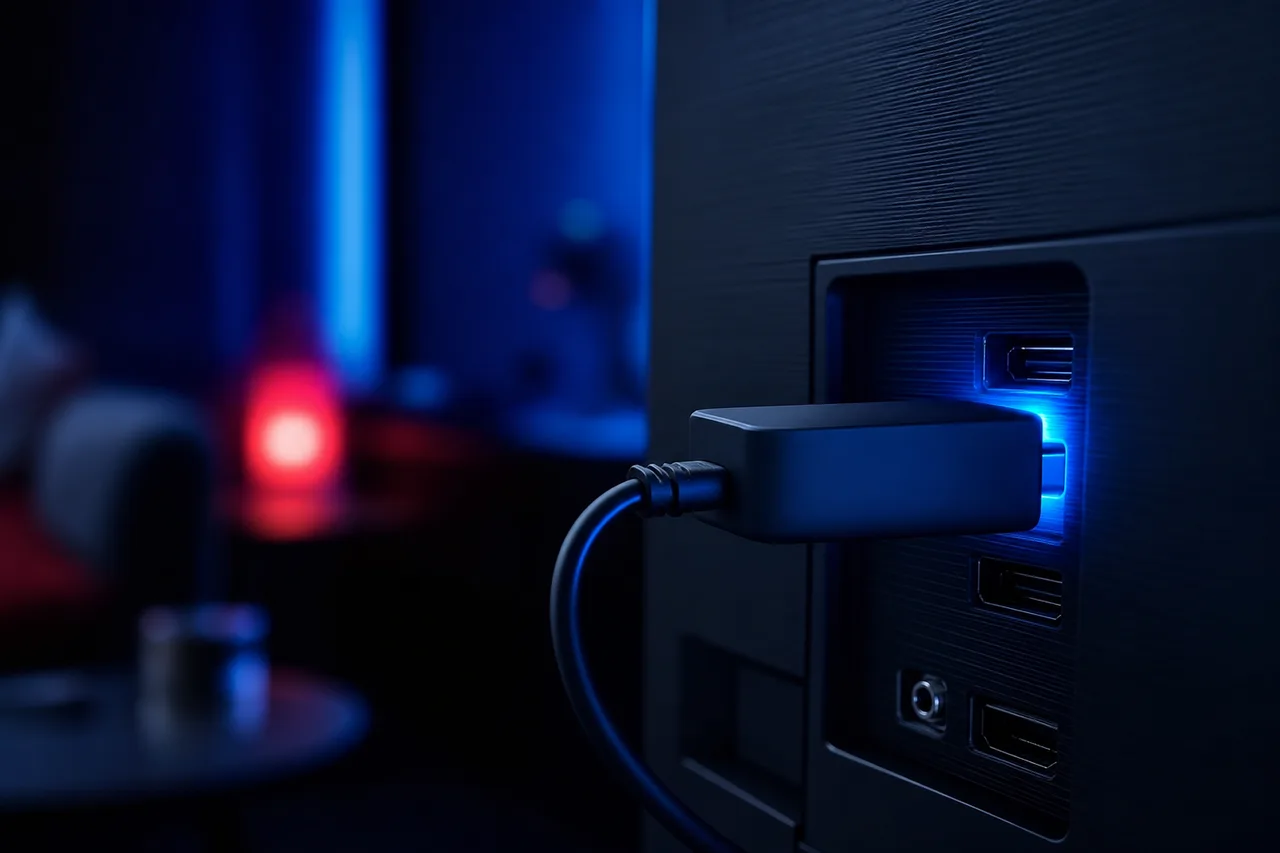
Three moves for a cooler stick
Use the HDMI extender that came in the carton so the stick hangs away from the panel. Power it from its wall adapter, not a TV USB port. Keep its app list short, because a stick has the least storage of any box.
Our guide to IPTV on Firestick covers the stick’s other limits and how to work around them.
If the stick still slows down after an hour of viewing, look at the TV’s HDMI ports. Some TVs have ports on the side and others at the back, facing the wall. A side port usually leaves the stick in freer air. If the router is close to the TV, an official Ethernet adapter for the stick also moves the power supply to a separate block and gives you a steadier network link at the same time.
For a main living-room TV that is used every evening, a full-size shelf box with room around it is often the more relaxed choice. Our page on the Android TV box for IPTV explains that family.
Power: the wall adapter matters
Power problems are easy to mistake for overheating. A box that does not get enough power slows down, freezes or restarts, especially when it is working hardest, such as when a guide is loading or a 4K stream starts.
Stay on the safe side. Use the wall adapter and cable that came with the box. Never open the case, block the vents or place the box near water. If it becomes very hot to the touch, shuts down again and again, or gives off a burning smell, unplug it at the wall straight away, let it cool, and contact the manufacturer or the seller for advice before using it again.
The usual mistake is plugging the box’s power cable into a USB port on the TV because it is closer than the wall socket. Many TV ports supply too little power, and some switch off when the TV goes into standby, which restarts the box without warning. Use the wall adapter, even if it means a short extension lead along the baseboard.
A crowded power strip can also play a part. If the box shares a strip with a heater, a fridge or other heavy appliances, try a different socket. And if you have replaced the original adapter with one from another device, go back to the original, or to a replacement from the box’s maker.
One more check is worth a glance: the cable between the adapter and the box. A cable that has been bent sharply behind furniture for months, or squeezed under a heavy speaker, can become unreliable. If the box restarts when you nudge the cable, replace it with one from the box’s maker and route it so it hangs loosely.
Clear the cache without losing your login
Every app keeps a cache: temporary files that help it load faster next time. An IPTV player caches channel logos, film posters and programme guide data. With a large catalogue and a full guide, that cache can grow large over weeks and start slowing the player down. Clearing it is safe and does not remove your login.
The app info screen on an Android-based box. Choose Clear cache, not Clear data.
- Open the app list. Press Home, go to Settings, then Apps. On some boxes it is called Applications or Manage installed applications.
- Select your player. Scroll to IPTV Smarters Pro, TiviMate, XCIPTV or whichever player you use, and press OK.
- Force stop first. Select Force stop so the app is not running while you clean it.
- Clear the cache. Select Clear cache and confirm. Leave Clear data alone unless you are ready to log in again.
- Reopen the player. Give it a moment to rebuild the guide and logos on first launch.
The first launch after clearing the cache is a little slower, because the player rebuilds what it needs. From the second launch on, it should feel lighter than before. Apple TV handles app caches differently and gives you fewer controls; there, a restart and removing unused apps do most of the same job.
Make space: storage housekeeping
A box with nearly full storage slows down across the board. Apps have no room for their caches, updates struggle to install, and the system itself has less space to work with. Keeping a healthy margin is one of the most effective habits there is.
| What fills the box | Where to see it | What to do |
|---|---|---|
| Apps nobody opens | Settings, then Apps | Uninstall them; you can reinstall from the official store any time |
| Player caches | Settings, then Apps, then the player | Clear cache, as in the steps above |
| Two or three players installed for testing | The app list | Keep the one you use and one spare; remove the rest |
| Recordings or saved files, if your player stores any | The player’s own settings | Delete what you have watched |
| Leftover games and pre-installed extras | Settings, then Apps, including system apps | Uninstall or disable what the maker allows |
To see how much room is left, look in Settings for Storage, Device storage or About. Aim to keep a comfortable margin rather than running the box close to full. There is no magic figure; what matters is that the number stays steady over time instead of creeping towards zero.
Testing several players is a common way to fill a small box without noticing. Many people install three or four to compare, settle on one and forget the others. Each one keeps its own cache and may run in the background. Once you have chosen, uninstall the rest. Our box apps hub helps you pick one player and stick with it.
Box cleaned up, ready for more
Pick a pack and a duration, pay once in Canadian dollars, and your access arrives by e-mail within minutes.
Background apps and memory
Memory is the box’s short-term workspace. Every app you open takes a share, and many apps keep their share even after you press Home. After a few days, the workspace is crowded with leftovers, and the app you actually want has to squeeze in.
Each one stays partly loaded in memory after you leave it.
Then: hold Home on many boxes to see recent apps, and close the ones you are not usingThe player may keep the stream and its memory running in the background.
Then: press Back until you leave the playerSome home-screen extras refresh constantly and keep memory busy.
Then: turn off widgets or extras you never look atThe power button often only puts it into standby, with memory still in use.
Then: restart from Settings every few daysThe Back habit is worth teaching everyone at home. Pressing Back until you leave the player closes the stream properly, releases memory and frees your single connection for another device. Pressing Home only hides the player, and that hidden stream can keep the box busy and stop another room from playing.
Some Android-based boxes also let you reduce animations in their settings, often in a developer or accessibility menu. Menus then feel quicker on older hardware. It is an optional touch; the cache, storage and restart habits matter more.
Live wallpapers and screensavers that play video are another quiet drain on an older box. If your home screen shows moving pictures, switch it to a still image or a plain screensaver in the display settings. The box then spends its effort on the player instead of on decoration, and it also runs a little cooler when idle.
Restart habits that keep an IPTV box slow-proof
Most boxes never truly switch off. When you press power on the remote, they drop into standby, and apps keep their pieces of memory. After days or weeks of standby, those leftovers add up and the box feels tired. A proper restart clears them all in one go.
- Every evening
Leave the player with Back
Close the stream properly before switching off. It frees memory and your connection.
- Every few days
Restart from Settings
Settings, then System or Device, then Restart. Let the box come back up on its own.
- When it freezes
Power cycle at the wall
If the box ignores the remote, unplug it at the wall, wait about thirty seconds and plug it back in.
- After updates
One extra restart
Once a system or player update has installed, restart so every app starts cleanly.
Prefer the restart in Settings over pulling the plug. The menu restart lets apps close properly and save what they need. Pulling the power is for a box that has stopped responding; used every day, it risks interrupting something the box was writing to storage.
If your household forgets, tie the restart to something you already do, such as the evening you put the recycling out. It takes less than a minute and is the single most effective habit on this page.
Lighter player settings for a big catalogue
The size of the catalogue you load has a direct effect on how hard the box works. A player that fetches every channel group and a full guide for all of them has much more to hold in memory than one that loads only what you watch.
Those are big lists for a small device. You keep access to everything in your pack; the trick is to tell the player not to load everything at once. Most players let you do some of the following in their settings:
- Hide channel groups you never watch, so the list and guide shrink.
- Build a favourites group and open the player straight on it.
- Set the guide to update once a day rather than at every launch.
- Limit how many days of guide the player keeps.
- Turn off channel previews or thumbnails if the player offers them.
On a small stick, this makes a noticeable difference to how quickly the player opens and how smoothly the guide scrolls. On a recent shelf box it matters less, but it still helps. If you are choosing a pack for an older box, the Premium Pack has the lightest list; the VIP Premium Pack and the Ultimate 4K Pack are happiest on a recent box. See current prices on the plans page.
Updates: system and player
Updates often bring speed and stability fixes, and a box that has missed several can feel slower than it should. Check both kinds once a month.
Two places to check
System: Settings, then System or About, then the software update option. Let the box restart if it asks. Player: open your device’s official app store, find your player and install any update. Only ever update from the official store; versions from anywhere else skip the store’s checks and receive no fixes.
Give updates room to finish. A system update can take a while, and the progress bar sometimes seems stuck. Leave it alone and never pull the power mid-update. If an update keeps failing, clear some storage first, because a nearly full box often cannot unpack a new version.
After a player update, check that your settings survived. Some updates reset the player engine, the buffer or the guide options to default. If the player feels different, go back through the lighter settings above. Our pages on TiviMate on a box and IPTV Smarters Pro on a box show where those settings live in each app.
Seasons, rooms and other quiet heat sources
Sometimes a box that behaved all winter starts slowing down in summer, or a box that was quick in the living room struggles in a bedroom. The box has not changed; its surroundings have.
Afternoon sun on a dark box warms it before you even switch on.
Then: move the box into shade or close the blind on sunny daysSmall rooms without air movement warm up, and the box is often tucked away.
Then: give it open air and power it from the wallAir may be still, and the box often sits low next to other electronics.
Then: raise it onto a shelf with space around itEven a gentle heat source next to the stand adds up over an evening.
Then: move the box to the other side of the TVA box that travels with you also meets new power sockets, new shelves and new Wi-Fi. When you set it up somewhere else, apply the same basics: wall adapter, open air, a spot away from heat. If the connection there is modest, plan on HD or Full HD and leave 4K for home; a box that keeps refilling a buffer on a weak link also works harder.
Seasonal habits help as well. At the start of the warm months, take a minute to look at where every box in the house sits, wipe away the dust of the winter and check that nothing new has been stacked on or around them. A box that had room in January may have gained a pile of game cases, a speaker or a plant pot by July.
Booster apps and other things to skip
When a box slows down, it is tempting to look for a quick fix in an app. Most of the tools that promise to speed up a box do the opposite.
The box’s own Settings menu already holds every tool you need to keep it quick.
Skip the “booster” apps. Cleaner, memory booster and speed-up apps often run constantly in the background, show notices and use the very memory they claim to release. Clearing caches and restarting from Settings does the job safely, with no extra software on the box.
The same caution applies to anything offered outside the official store: “optimised” builds of players, tweaked system files, boxes sold “already loaded” with apps. They add unknown software to a device on your home network and make troubleshooting impossible, because nobody knows what is really running. Keep the box plain: the maker’s system, your player from the official store, your own login.
Also skip the urge to open the case, add stick-on fans or stand the box on improvised supports that block its underside. Open air and a sensible spot are all a box needs.
The factory reset, as a last resort
If the box is still slow after a clean spot, the original adapter, a cleared cache, spare storage, a restart routine and up-to-date software, a factory reset is the final step before you consider new hardware.
Deep dive: doing a factory reset without losing track of anything
A factory reset returns the box to the state it left the factory in and erases every app, login and setting. Before you start, find your welcome e-mail with your access details, note your Wi-Fi password and write down any player settings you care about, such as the engine or guide options. The reset usually lives under Settings, then System or Device Preferences, then Reset. Afterwards, run the first setup, install system updates, install only your chosen player from the official store, log in and apply the lighter settings from this page. Install nothing else for a few days, so you can judge the box on its own.
Before you reset, try one gentler step: uninstall the player completely, restart the box, then install it again from the official store and log in. That clears everything the player had built up without touching the rest of the box, and it is often enough when the player alone feels slow while other apps behave.
A reset often brings an older box back to something close to its first-day speed, because years of leftovers disappear at once. If it does not, the hardware has simply reached its limit for the way you use it, and that is useful to know too.
When an IPTV box slow to respond has reached its limit
Every box has a ceiling. An older stick asked to scroll a guide for a large catalogue on a 4K TV may be at the edge of what it can do, however well you look after it. Here is how to tell whether to keep tuning or to move on.
Keep the box if
- It speeds up after a restart and a cache clear
- Moving it into open air made a clear difference
- It is quick with a lighter channel list
- It still receives system updates
Consider a new box if
- It lags even straight after a factory reset
- Storage fills again within days
- It no longer receives system updates
- Your player is no longer listed in its store
A box that no longer suits your main TV often still has a useful life elsewhere: a guest room, a kitchen screen or the cottage, playing in HD with a light list. If you do look for new hardware, our guide to the best IPTV box in Canada and the IPTV box buying checklist focus on what matters for staying quick: memory, storage, a network port and room to breathe.
What to tell support about a slow box
If you write to us about a slow box, a few details let us skip the usual back-and-forth and go straight to the likely cause. Collect them before you send your message.
- The box model, and whether it is a stick or a shelf box.
- The player you use and roughly how long it has been installed.
- Where the box sits: open shelf, cabinet, behind the TV, near a window.
- Whether it runs on its wall adapter or a TV USB port.
- Whether the menus are slow, the picture pauses, or both.
- When it happens: from switch-on, after a while, or only at certain hours.
- What you have already tried from this page, in order.
A phone photo of the box in its spot, with the cables visible, is often the most useful attachment of all. It shows at a glance whether heat, power or the HDMI chain is involved. We are independent from box makers and app publishers, so for a hardware fault or a safety concern, the manufacturer or the seller is the right contact; for anything to do with your pack, your login or the player settings, we are glad to help.
Related guides for a quicker box
A quick box is only half of a smooth evening. These pages cover the other half, from the network to the settings that keep everything in step.
If your box is still slow after everything on this page, write to us with the box model, the player and what you have tried. Support answers 7 days a week by e-mail and WhatsApp at +33 6 44 65 43 13, in English and French, and the contact page has every way to reach us.
Still slow after the routine
Tell us your box model, your player and what you have already tried. We answer every day in English and French.
FAQ
Is it normal for my box to feel warm?
Yes, some warmth after an evening of viewing is normal. If it becomes very hot, shuts down repeatedly or smells of burning, unplug it at the wall, let it cool and contact the manufacturer.
Why is my IPTV box slow only after an hour or two?
Heat builds up gradually, and a warm box slows itself down to protect its parts. Move it into open air, away from other devices and out of closed cabinets.
Will clearing the cache delete my IPTV login?
No. Clear cache keeps your profile. Clear data removes it, so only use that option if you have your welcome e-mail and are ready to log in again.
How often should I restart the box?
Every few days is a good rhythm. Use Restart in the Settings menu rather than leaving the box in standby for weeks.
Should I install a cleaner or booster app?
No. The box’s own Settings menu clears caches safely. Booster apps often run in the background and slow the box down.
Can I power my stick from the TV’s USB port?
It is better not to. Many TV ports supply too little power, which causes slowdowns and random restarts. Use the wall adapter from the carton.
Why is my box slow only in the evening?
If the menus are quick but the picture pauses, the network is busy, not the box. Our buffering fixes and a network cable are the better route.
Does a bigger pack make my box slower?
A bigger catalogue means a longer list and guide to load. Hide groups you never watch and set the guide to update once a day, and most boxes stay quick.
Does a factory reset help?
It can, as a last step. It erases all apps and data, so keep your access details handy and reinstall only your player afterwards.
When should I replace the box?
When it stays slow even after a factory reset, no longer receives updates or no longer lists your player. It may still serve well in a guest room with a light list.