Most setup problems have nothing to do with the service. They come from a box jammed behind the TV, a player installed from the wrong place, or a password typed with one letter off. This page is your workbench. It walks you through a complete IPTV box setup in the order that works on the couch: hardware first, player second, login last. Keep the remote in one hand and your access e-mail open on your phone, and follow along.
We wrote it the way we would talk you through it on the phone: what to plug where, which menu to open, which button to press and what you should see on the TV after each press. Every section stands on its own, so you can jump to the part where you are stuck. When a single screen deserves more detail, we send you to one of the four focused guides below.
The four setup guides in this section
This page is the overview. Each guide below zooms in on one screen of the setup, with the buttons to press and the mistakes we see most often. Open the one that matches the step you are on, or read them in order if this is your first box.
If you have not chosen your hardware yet, start one step earlier with the IPTV boxes overview. It explains the difference between a stick, a full-size Android TV box and an Apple TV, so you arrive here with the right device in hand.
IPTV box setup in three layers
Every working setup is a stack of three layers, and each one rests on the one below it. The box and its network are the base. The player app sits on top of the box. Your access sits inside the player. When the picture is right, all three are doing their job at once.
The order matters because faults travel upward. A box that overheats in a closed cabinet makes the player stutter, and no setting inside the player can cure it. Weak Wi-Fi behind a wall-mounted panel makes the login look broken, even when every character is right. So when something goes wrong, work from the bottom up: box first, then network, then player, then login. It feels slower, but it is the shortest path to the real cause.
The good news is that you do the full setup only once per device. After that, the player remembers your login, and turning on the TV takes you straight back to your channels. The few minutes you spend on the base layer now are the reason the next hundred evenings start without a hitch.
Fix the shelf before the settings. A box that breathes and hears the router well hides most setup mistakes.
What to gather before setup night
Lay everything out on the coffee table before you start. Hunting for a cable halfway through is how people end up skipping a step. Here is the kit that makes a calm first evening.
The box and its adapter
Use the wall adapter from the carton, not a USB socket on the TV.
An HDMI cable
The one in the carton is usually enough. For 4K, use a cable sold as high speed.
Network details
Your Wi-Fi name and password, or an Ethernet cable long enough to reach the router.
Your phone
With the access e-mail open, and later as a keyboard for long fields.
Fresh batteries
A tired remote drops presses, which looks like a frozen player.
Unhurried time
Pick an evening with no match or show you must catch live.
One more thing to have ready: the account details for your device’s own app store. Android TV and Google TV boxes, Fire TV Sticks and Apple TV all ask you to sign in to their store before you can install a player. That sign-in belongs to the device maker, not to us, and it is worth doing before the evening rather than during it.
- Access e-mail found, and checked for both the Xtream Codes details and the M3U link.
- Spam and promotions folders checked if the e-mail has not appeared within minutes of payment.
- Router within reach, so you can restart it once before you begin.
- Any other device using the same access switched off for the evening.
Placing the box: shelf, cabinet or behind the TV
Where the box should live
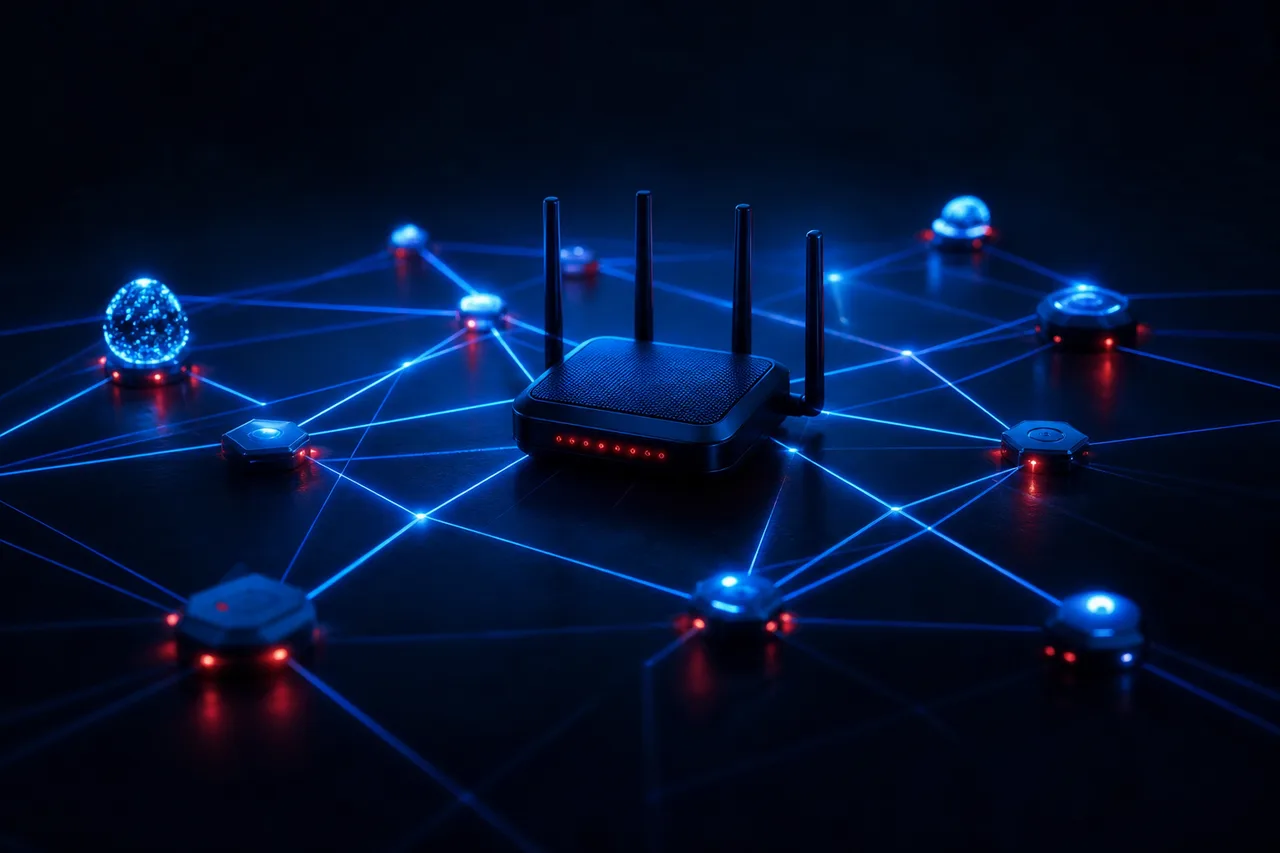
A box needs two things from its spot: air around it and a clear path to the router. An open shelf under the TV gives both. A closed cabinet with glass doors gives neither: heat builds up and the wood and hinges soak up the Wi-Fi signal.
A stick has no choice, it hangs off the HDMI port. Give it the short HDMI extender often supplied in the carton. It moves the stick away from the metal back of the panel, which is the worst place in the room for Wi-Fi.
- Shelf open at the front and the sides
- Nothing stacked on top of the box
- Router reachable by cable, or in line of sight
Rooms are never perfect, so here is how to handle the three layouts we hear about most.
Run the HDMI cable down to a small shelf below the panel, and set the box there in the open rather than taping it behind the screen.
Then: check Wi-Fi strength at the shelf, not at the routerLeave the door ajar during viewing, keep a hand-width of space around the box and never stack the router on top of it.
Then: read our page on a box running hot or slowTry the 5 GHz network first. If the picture still drops in the evening, a cable or a wired adapter is the next step.
Then: compare options in the Wi-Fi or Ethernet guideHeat is the quiet troublemaker. A box that runs smoothly on Saturday morning can slow down after two hours of viewing in a closed cabinet. If yours restarts on its own or menus crawl late in the evening, our page on a box running hot or slow lists the safe habits that keep it cool.
Cables, ports and power, one by one
Every cable in this setup has a single job. If you know what each one does, you can tell in seconds which one is letting you down. Work through the table with the box in front of you.
| Piece | Its job | What to check | Sign it is wrong |
|---|---|---|---|
| HDMI cable | Carries picture and sound to the TV | Plugged firmly at both ends; 4K-capable port for 4K | No signal, flickering, or no 4K option in the box display menu |
| HDMI port on the TV | The input the TV listens to | Note its name, such as HDMI 1 or HDMI 2 | Black screen with a “no signal” message |
| Power adapter | Feeds the box steadily | Wall socket, original adapter | Random restarts, red warning about power |
| Ethernet cable | Wired link to the router | Click at both ends, lights near the port | Box still says Wi-Fi in its network screen |
| HDMI extender | Moves a stick away from the panel | Seated fully into the TV port | Weak Wi-Fi bars behind the TV |
Once everything is plugged in, press Input or Source on the TV remote and select the port you noted. If the TV shows “no signal”, unplug the HDMI at both ends and push it back until it clicks. Ports at the side of the TV are often the easiest to reach, but on some sets only one port is labelled for 4K. If you plan to watch 4K, the guide to a 4K IPTV box and what it needs explains how to spot that port.
Hands-on tip: restart the router and the box once before your first setup. Unplug both, count to ten, plug the router in first and wait for its lights to settle, then plug in the box. It clears stale network settings and gives you a clean start.
Network check at the box, not at the router
The speed printed on your internet bill is the speed at the router. What the player gets is the speed that reaches the shelf, after walls, floors and the TV’s metal back have taken their share. Measure there. Stand in front of the TV with your phone on the same Wi-Fi name the box uses, at the hour you usually watch, and run a speed test.
Speed to plan for each screen
These figures are per screen and they add up with everything else on the line. Picture a Friday evening: the living-room box plays Full HD while a teenager watches HD on a phone through another app. That is 25 Mbps for the two together, before anyone starts a video call or a game update. If your phone test at the TV shows less than the total, the stream will feel it first.
On the box itself, open Settings, then Network or Network and Internet, and select your connection. Most boxes show the signal strength and the band. If you see 2.4 GHz and the router offers 5 GHz, switch. The 5 GHz band carries more and suffers less from neighbours, at the cost of shorter range. If the router is two rooms away, a cable is still king, and our comparison of Wi-Fi or Ethernet for an IPTV box goes through every option, including wired adapters.
First power-on: language, Wi-Fi, account and updates
A new box walks you through a welcome sequence the first time it powers on. It is tempting to rush it. Do not: two of these screens decide how smooth the box feels for months.
- Screen 1
Pair the remote
Many boxes ask you to hold a button until the remote pairs. Keep it close to the box and follow the picture on screen.
- Screen 2
Language and region
Pick English or French and Canada. The region decides which apps the official store shows you.
- Screen 3
Network
Choose the 5 GHz name if your router offers it, or confirm the cable. Type the Wi-Fi password slowly.
- Screen 4
Store account
Sign in to the device maker’s store. You need it to install the player.
- Screen 5
Updates
Let the box install anything pending, then restart it before you go further.
- Screen 6
Date and time
Turn on automatic time and pick your province’s zone. The TV guide depends on it.
Skipping the update screen is the classic shortcut that costs an evening later. A box that updates itself in the middle of your first login can drop the player back to its home screen and leave you wondering what went wrong. Let it finish first, restart, and only then move on.
The date and time screen deserves a second look too. If you skip it, the box may keep the time zone it shipped with, and every listing in the TV guide will slide by an hour or more. Our guide to the TV guide on your box explains how to line the grid up with any Canadian zone, including Newfoundland’s half-hour offset.
Choosing a player for your IPTV box setup
The player is the app you will see every evening, so pick one whose menus suit your remote and your household. Our access works with IPTV Smarters Pro, TiviMate, Smart IPTV, IBO Player, XCIPTV and GSE Smart IPTV. All of them read the same catalogue; they differ in layout, in how you add your access and in the extras they offer.
| Player | How you add your access | Feels like | Our guide |
|---|---|---|---|
| IPTV Smarters Pro | Xtream Codes option on the first screen | Big tiles, easy for the whole family | IPTV Smarters Pro on a box |
| TiviMate | Add playlist, then pick Xtream Codes or M3U | A channel grid like a cable guide | TiviMate on a box |
| XCIPTV | Login fields at launch | Plenty of playback settings | XCIPTV on a box |
| Smart IPTV and IBO Player | Playlist added through the player’s own setup process | Simple, playlist-first | M3U playlist guide |
| GSE Smart IPTV | Playlist or Xtream Codes source | Flexible menus | Box apps hub |
Labels change with app updates, so treat the middle column as a pointer rather than an exact menu name. Not every player is offered on every device or in every region. If you cannot find one in your store, pick another from the list rather than looking elsewhere: we only support players installed from your device’s official app store.
Independent from the app publishers
We do not make or sell any of these players. Their publishers maintain the menus, the updates and any paid features. Some players ask for a licence after a while; check the current price on the app’s official website before you settle on one. If you are unsure where to start, choose a player that offers an Xtream Codes login: three short fields are easier to type with a remote than one very long link.
Installing the player on each kind of box
The store has a different name and a different spot on every device, but the routine is the same: open the store, search by the player’s name, press Install, then open the app once to see its login screen. Here is where to look on the hardware we see most often.
| Device | Where the store is | Network menu | Where to manage the player |
|---|---|---|---|
| Fire TV Stick | Home screen, Find or Appstore | Settings, then Network | Settings, then Applications |
| Android TV and Google TV boxes | Apps row or Google Play on the home screen | Settings, then Network and Internet | Settings, then Apps |
| Apple TV | App Store icon on the home screen | Settings, then Network | Long-press the app icon on the home screen |
| Samsung and LG smart TVs | The TV’s own app store from the Home button | Settings, then General or Connection | Apps section of the TV menu |
Each device has its own quirks. On a Fire TV Stick, storage is modest, so keep a single player installed. An Android TV box usually has an Ethernet port: use it. On an Apple TV, an iPhone can act as a remote with a keyboard, which helps a lot when you type your login. Smart TVs can play the role of a box without extra hardware, and our comparison of an IPTV box vs smart TV app shows when that is enough.
Deep dive: why a player can be missing from your store
Each publisher decides which devices, system versions and regions it supports. A player that appears on an Android TV box may not appear on a smart TV, and a store set to another country may show a different list. Check that the box’s region is set to Canada during the welcome screens.
If the player you wanted is not there, do not hunt for it elsewhere. Pick another player from our list that your store does offer. The catalogue and the login are the same in all of them; only the menus differ.
The full sequence, from carton to first channel
Here is the whole setup on one card. If you have followed the sections above, you have already done half of it. If you jumped straight here, do not skip the first three steps.
- Connect the box. HDMI to the TV, power adapter to the wall, Ethernet to the router if possible. Press Input or Source and select the right HDMI port.
- Join the network. On the box, open Settings, then Network or Network and Internet. Pick your 5 GHz Wi-Fi and type the password, or confirm the wired connection.
- Update the box. In Settings, look for System or About, then Software update. Install anything pending and restart.
- Set the clock. In Date and time, switch on automatic time and choose the zone for your province or territory.
- Install the player. Open your device’s official app store, search for the player by name, select it and press Install. Open it from the home screen.
- Choose the login type. Select Xtream Codes or M3U, matching the details in your access e-mail. Xtream Codes first, when offered.
- Type your access. Enter the server URL, username and password, or the M3U link, exactly as written. Mind capitals, dots and slashes. Press OK, Add User or Connect.
- Let it load, then test. Put the remote down during the first load. Then open a channel, wait a few seconds, and try a movie to check both sections.
If step seven feels slow with arrow keys, the phone keyboard trick further down turns a long address into a short job. And if step eight shows channels but an empty guide, give it a minute: the programme data usually arrives last.
Logging in: the screen you will see
Every player has its own colours, but the login screen nearly always asks for the same few things. Here is what it looks like in a typical box player when you choose Xtream Codes. Nothing on it is secret until you fill it in, and every value comes from your access e-mail.
The order of the fields changes from one player to the next. The content does not.
Your access e-mail contains Xtream Codes details or an M3U link. Both open the same catalogue. The difference is in how you type them and in what the player does with them afterwards.
| Point | Xtream Codes | M3U link |
|---|---|---|
| What you enter | Server URL, username, password | One long link |
| Typing with a remote | Three short fields, easier | One long field, slower |
| Series and movies | Usually sorted into their own menus | Depends on the player |
| TV guide | Often loads with the login | May need a separate guide setting |
| Best for | Most boxes and players | Players built around playlists |
When the player lets you choose, start with Xtream Codes. Our guide to Xtream Codes on your box goes through each field and the characters people mix up. If your player only accepts a playlist, the M3U playlist guide shows how to get a long link onto the TV and tidy the result.
Box connected, player installed
All you need now is your access. Pick a pack and a duration, pay once in Canadian dollars, and the login arrives by e-mail within minutes.
The phone keyboard trick for long fields
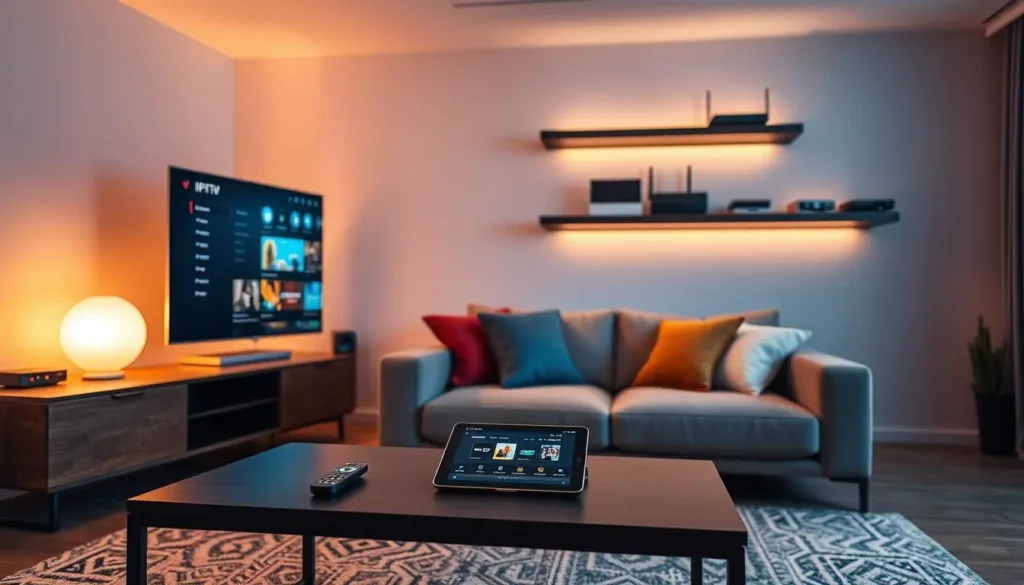
The on-screen keyboard on a box is a grid of letters you cross with the arrow ring. It copes with a short search and painful for a server URL. Most boxes can be driven from a phone app made by the device maker. When a text field opens on the TV, the phone shows its own keyboard, and you can paste straight from the access e-mail.
Three habits that stop typos
Put the phone on the same Wi-Fi as the box, otherwise the remote app cannot find it. Open the field on the TV first, then tap the keyboard icon in the app.
After pasting, look at the TV, not the phone. Scroll to the end of the field and compare the last characters with the e-mail. That is where a stray space or a missing character hides.
- Same Wi-Fi for phone and box
- Field open on the TV before you paste
- Last characters checked on screen
The full routine, including how to pair the phone and what to do when the app cannot see the box, lives in our remote control tips for IPTV. The same page covers the long-press shortcuts that save you dozens of presses every evening, such as adding a channel to favourites without leaving full screen.
Getting the TV guide right on day one
Once channels appear, open the guide. Press Guide on the remote if it has one, or find TV Guide or EPG in the player’s main menu. Then compare the programme marked as “now” with what is actually playing on one or two channels you know.
The guide is often the last thing to load. Wait a minute, then use Update EPG or Refresh guide in the player’s settings.
Then: restart the player and look againThe box clock is in the wrong zone, or a manual clock missed the spring or fall change.
Then: switch on automatic time and pick your zoneNot every channel carries guide data. If most rows are filled, the guide works.
Then: tell support which channel group is emptyFix the clock on the box before you touch any shift setting in the player. Stacking a manual shift on top of a wrong clock creates a problem that comes back the next time either one changes. The guide page explains the order step by step and includes a table of every Canadian zone, with the Saskatchewan and Yukon entries that people often miss.
First-evening checks after your IPTV box setup
A setup is not finished when the first channel appears. It is finished when an ordinary evening runs without you touching a setting. Run this short check list on the first night, while the remote is still warm.
- One live channel plays for several minutes without a spinning circle.
- A movie and an episode of a series both open and play.
- The guide shows the right programme at the right time on two channels you know.
- Favourites hold your usual channels, so tomorrow starts with a short list.
- The player reopens on its own profile after you press Home and come back.
- The box stays cool to the touch after a long session.
A five-minute routine for the second evening
Turn the TV on from standby, open the player and note how long the channel list takes to appear. Watch one channel at the hour your household is busiest online. If both feel normal, your IPTV box setup is done. If the second evening is slower than the first, the network is the usual suspect, not the login: run a speed test at the TV at that hour and compare it with the figures above.
The catalogue includes French-language and international content. If you are after a specific language, ask support before ordering rather than after, so you know what to expect on your box.
A second room and the one-connection rule
Setting up the bedroom box
Once the living room works, a second device takes a fraction of the time. Repeat the hardware and network steps, install the same player if your store offers it, and type the same access. Give the profile a different name, such as Bedroom, so you can tell them apart.
Each pack includes 1 simultaneous connection. You can enter the same credentials on several of your devices and use them one at a time. Before you press play in the bedroom, stop the stream in the living room.
Works well
- A box in the living room and a stick in the bedroom, used on different evenings
- A tablet for the cottage weekend while the home box stays off
- A spare device kept ready in case the main box fails
Plan ahead for
- Two people watching different channels at the same moment
- A household where screens are often on together
- Sharing the login with another home, which is not allowed
If your household needs more than one screen at once, write to support before you order. They give the conditions and the price for extra screens. The IPTV box guide also covers how one login, several devices and a busy household fit together.
Which pack to load on a freshly set-up box
Every pack works with the same boxes, the same players and the same setup steps. What changes is the size of the catalogue. Choose by how your household watches, and pick the duration that matches how long you really plan to use it.
VIP Premium Pack
- 27,000+ channels
- 61,000+ series
- 155,000+ movies
- HD, Full HD and 4K
Ultimate 4K Pack
- 57,000+ 4K channels
- 47,000+ series
- 179,000+ movies
- 20 servers in Europe
There is no contract and no automatic renewal. You pay once by card or PayPal in Canadian dollars; see current prices on the plans page. A short duration is a sensible way to test a new box on your own Wi-Fi, and our page on the 1-month IPTV plan suggests a simple test routine. The payment guide explains what to check from checkout to the access e-mail.
When IPTV box setup stalls: a symptom table
Find the line that matches what you see on the TV and start in the second column. The cheapest check comes first. Only move to the last column if the first fix did not work.
| What you see | Likely layer | First thing to try | If that fails |
|---|---|---|---|
| “No signal” on the TV | Box and cable | Select the right HDMI input, reseat the cable | Try another HDMI port and cable |
| Player missing from the store | Player | Check the box region is Canada | Pick another player from our list |
| Login refused | Access | Compare every character with the e-mail | Try the M3U link in the same player |
| Channels load, picture freezes | Network | Switch to 5 GHz or Ethernet | Speed test at the TV at viewing time |
| Guide empty or shifted | Player and clock | Automatic time, correct zone | Refresh the guide in the player |
| Menus slow late in the evening | Box | Open the cabinet, give the box air | Clear the player cache, restart the box |
| Stream stops when someone else watches | Access | Stop the other device first | Ask support about extra screens |
Watch out: in the player’s app settings, Clear cache and Clear data are not the same button. Clear cache is safe. Clear data erases your saved login, and you will have to type the server URL, username and password again. Keep your access e-mail where you can find it before you press anything.
For longer, step-by-step fixes, the box troubleshooting hub sorts every symptom by layer, and our page on box buffering fixes covers the spinning circle in depth.
Setup words you will meet on screen
Box menus and player menus borrow words from networking and broadcasting. You do not need to master them, but knowing what each one means makes the setup screens far less intimidating.
- HDMI input
- The socket on the TV the box plugs into. The Input or Source button chooses which one the TV shows.
- HDMI-CEC
- A TV setting that lets one remote drive both the TV and the box. Each maker gives it its own name.
- 5 GHz
- The faster Wi-Fi band, with shorter range. Better for streaming when the router is close.
- Xtream Codes
- A login made of three fields: server URL, username and password.
- M3U link
- One long address that hands the player the whole playlist at once.
- EPG
- The electronic programme guide, shown as a grid of channels and times.
- Cache
- Temporary files a player keeps to load faster. Safe to clear.
- Profile
- A saved login inside the player, named after the room or the person.
If a word on your screen is not in this list, take a photo of it. Support can tell you what it means for your box and your player in one reply.
Where to go after your IPTV box setup
Your box is set up and the first channel plays. These are the pages people read next, depending on what they want to improve.
Stuck on a step
Write to support by e-mail or WhatsApp at +33 6 44 65 43 13, 7 days a week, in English or French. Send your box model, your player and a photo of the screen where it stops.
FAQ
How long does an IPTV box setup take?
Once the box is connected, installing a player and typing your access usually takes a few minutes. Typing with the arrow keys is the slowest part, so a phone keyboard helps a lot.
Which player should I install first?
Pick one from IPTV Smarters Pro, TiviMate, Smart IPTV, IBO Player, XCIPTV or GSE Smart IPTV that your device’s official app store offers. One with an Xtream Codes login is the easiest to set up with a remote.
Do I need Ethernet?
No, but it is the steadiest option. On Wi-Fi, use the 5 GHz band, keep the box in the open and close to the router, and away from the TV’s metal back panel.
What speed does my connection need?
Plan 10 Mbps per screen in HD, 15 Mbps in Full HD and 25 Mbps in 4K, on top of anything else using the line at the same time. Measure at the TV, not at the router.
Can I set up the same access on several devices?
Yes, on your own devices, used one at a time. Each pack includes 1 simultaneous connection. For more screens at once, ask support for the conditions and the price.
Where do my login details come from?
They are e-mailed within minutes after payment: Xtream Codes details (server URL, username and password) or an M3U link. Check spam and promotions if you do not see them.
Should I update the box before installing a player?
Yes. Install pending system updates and restart first, so the box does not interrupt your first login with an update of its own.
Why does the TV say no signal after I plug in the box?
The TV is listening to another input. Press Input or Source and select the HDMI port the box is plugged into, then reseat the cable if the screen stays black.
Can I use a smart TV instead of a box?
Often, yes. Samsung and LG smart TVs can install supported players from their own app store. A separate box helps when the TV’s store lacks your player or the TV’s Wi-Fi is weak.
Who helps me if setup still fails?
Support answers 7 days a week by e-mail and WhatsApp, in English and French. Include your box model, your player and a photo of the screen where it stops.