If you grew up flipping through a printed TV listing, TiviMate will feel like home. It opens straight on a full-screen programme grid: channels down the left, time across the top, and a small preview of the current channel in a corner. Everything is designed for the remote. Up and Down change channel, Left and Right move through time, and OK opens whatever you have highlighted. This guide covers which boxes run it, how to add your access, how to read and trim the grid, what the premium version changes, the settings worth adjusting on day one, and what to do when the guide stays empty or a channel pauses.
Have your welcome e-mail open on your phone before you start. You will type the server URL, the username and the password from it. If you have not ordered yet, you can still install the app and explore the menus; the grid simply stays empty until a playlist is added.
What makes TiviMate different: the grid comes first
Most players open on a menu and make you choose a section before you see anything. TiviMate skips that step. The first thing on screen is the guide itself, already filled with what is on now and next. For people who choose by time slot, it removes a layer of menus and makes the box feel like a traditional TV service.
Timeline grid
Channels down the side, hours across the top. Scroll through the evening with Right.
Live preview
The highlighted channel plays in a small window, so you see before you commit.
Groups on the side
Jump to a category instead of scrolling a long list line by line.
Favourites on top
Move your favourites group to the top and your evening starts there.
Built for Android TV
Made for Android TV, Google TV and Fire TV devices and their remotes.
Optional premium
Extra features come with the publisher’s premium version, if you want them.
The trade-off is weight. A grid holds a lot of information at once: dozens of channels, each with several hours of programmes. On a recent box it glides. On an older stick with little memory it can feel heavy, especially right after a guide update. The good news is that you can lighten it a great deal by hiding groups you never watch, which we cover further down.
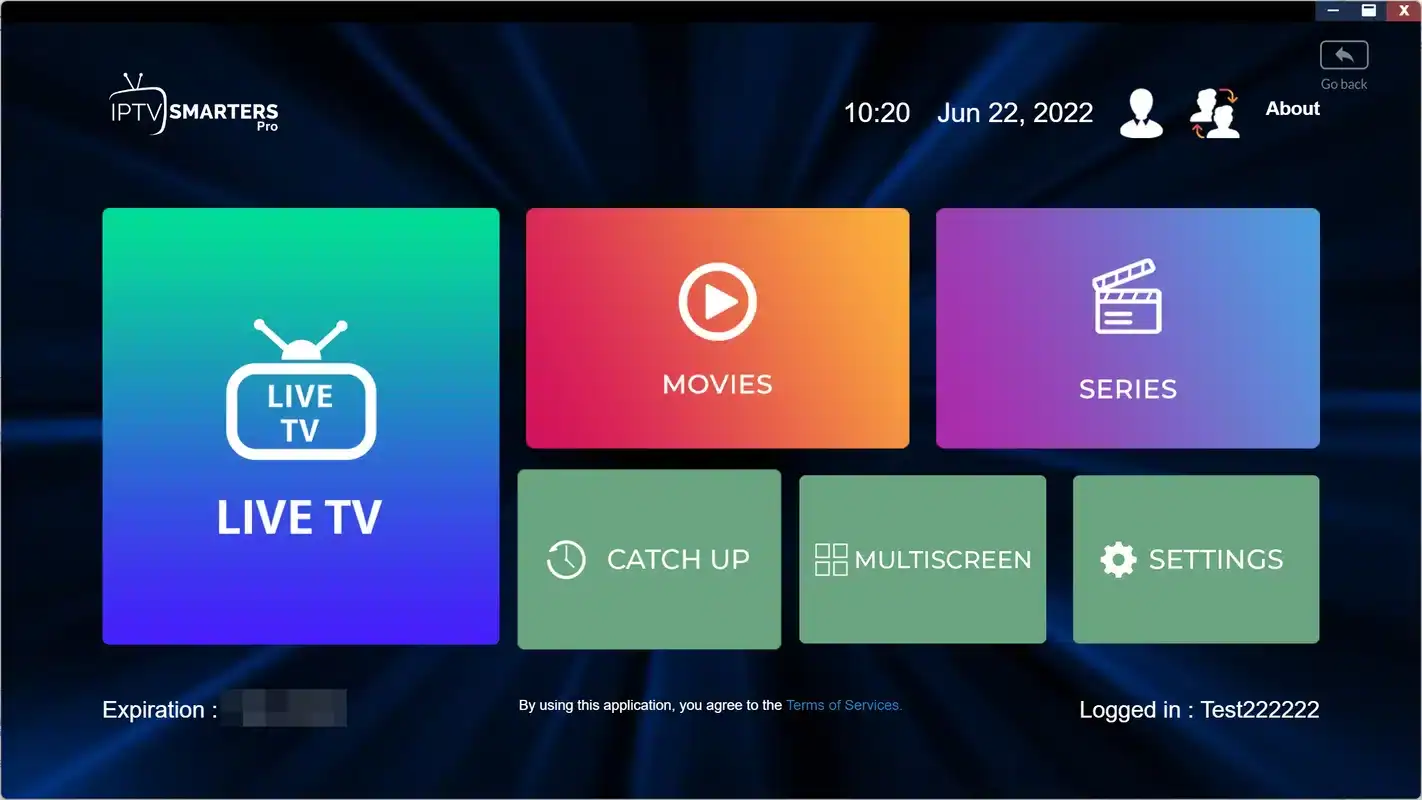
TiviMate is also more guide-focused than library-focused. It handles live channels beautifully. If your household spends most evenings in films and series, compare it with IPTV Smarters Pro on a box, whose poster pages suit that kind of browsing.
Which boxes run TiviMate
TiviMate is built for Android-based TV devices: Android TV boxes, Google TV boxes and Fire TV Sticks. You install it from your device’s official app store like any other app. It is not made for Apple TV, for the smart TV systems on Samsung or LG sets, or for phones. On those devices, pick another supported player.
| Device | Runs TiviMate | Store to use | Good alternative |
|---|---|---|---|
| Android TV or Google TV box | Yes | The official app store on the box | IPTV Smarters Pro |
| Fire TV Stick | Yes | The official Appstore on the stick | XCIPTV |
| Apple TV | No | Not applicable | IPTV Smarters Pro or GSE Smart IPTV |
| Samsung or LG smart TV | No | Not applicable | Smart IPTV or IBO Player |
| Phone or tablet | No | Not applicable | IPTV Smarters Pro or GSE Smart IPTV |
The publisher decides where the app is listed, and availability can vary by device and region. Before you plan around it, press Home, open the store and search for the name. If you are still choosing hardware and TiviMate is the player you want, read our guides to an Android TV box for IPTV and IPTV on Firestick; both families run it.
If you own an Apple TV or watch on a smart TV’s built-in apps, the rest of this page will not apply to your device. Our box apps hub shows which players suit those screens and how they compare.
Getting the box ready for a grid guide
Because TiviMate loads and holds a full guide, it leans on the box more than a simple player does. Ten minutes of preparation pays off every evening afterwards. The aim is a box with power, memory, storage and a steady connection to spare.
The pre-flight list
- Box powered from its own wall adapter, not a USB port on the TV
- Ethernet, or 5 GHz Wi-Fi with a clear path to the router
- System updated: Settings, then System or About, then update
- Unused apps removed to make room for the guide data
- Date, time and time zone correct in the box’s settings
- Welcome e-mail open on your phone
That last box setting deserves a second look. The guide compares programme times with the clock on your box. If the box thinks it is in the wrong time zone, every programme in the grid is shifted, and people often blame the app. Set the zone where you live in Canada before you add the playlist, and the guide will line up on the first try.
Storage matters more for TiviMate than for most players, because the guide data is kept on the box. When a box runs low on space, the grid is usually the first thing to slow down. Our page on a box running hot or slow has a short routine for clearing space and keeping the box cool.
Installing TiviMate and adding your playlist
Here is the full routine with the remote, from the Home screen to a filled grid. On a Fire TV Stick the store is the official Appstore; on an Android TV or Google TV box it is the box’s own app store. The steps are otherwise the same.
- Install. Press Home, open your device’s official app store, search for “TiviMate”, select it and press Install. Press Open when it is ready.
- Add a playlist. On the welcome screen, select Add playlist. TiviMate asks what type of playlist you have.
- Pick Xtream Codes. Select Xtream Codes rather than M3U. It sorts live channels, movies and series for you and brings in the guide.
- Type the server address. Enter the server URL exactly as written in your e-mail, including the port after the colon if there is one. Press Next.
- Type your username and password. Watch for look-alike characters such as a capital I and a lower-case l. Press Next.
- Check the count and name it. TiviMate shows how many channels it found. Give the playlist a short name and press Next, then Done.
- Wait for the guide. The first guide update can take a minute. Then press Back to land on the grid.
Remote tip: on the grid, press and hold OK on any channel to open its options menu. From there you can add it to favourites, hide it, or jump to its guide details. On a Fire TV remote, the three-line Menu button often does the same job.
If TiviMate shows zero channels at step six, your details did not match. Go back and compare each field with the e-mail, letter by letter. If it shows channels but the grid stays blank after a few minutes, the guide has not loaded yet; we deal with that in the section on filling the guide. Our Xtream Codes guide covers the three fields on every box if you want more detail.
The add-playlist screens, one by one
TiviMate asks for your details over several short screens rather than one long form. That is good news on a remote: each screen has one job, and you can check it before moving on. Here is the order you will see, and what the key screen looks like.
Each field may sit on its own screen in your version. The content is the same.
The playlist name is just for you. If you later add the same access on a second box, give it the same name there so the two setups look identical. Some people prefer the room name; others use the pack name. Either works.
You may notice an M3U option on the type screen. It works, but on a remote the single long link is slower to type and the guide may need an extra address. Keep Xtream Codes as your default and see our page on the M3U playlist on your box only if you have a reason to use the link instead.
Reading the TiviMate grid with a remote
Once the grid is filled, a handful of buttons do almost everything. It takes an evening to get used to them, and after that the grid becomes the fastest way to answer the question “what is on now”.
| Button | On the grid | While watching full screen |
|---|---|---|
| Up and Down | Move between channels | Change channel without opening the grid |
| Left | Move back in time, or open the side menu at the edge | Usually opens the channel list |
| Right | Move forward in time through the evening | Usually opens programme details |
| OK | Play the highlighted channel full screen | Show the info bar with now and next |
| Long press on OK | Channel options: favourite, hide, details | Options for the current channel |
| Back | Leave the grid toward the side menu | Return to the grid |
The exact actions can vary slightly between versions and between remotes, so treat this table as a map rather than a rulebook. On a Fire TV remote, the three-line Menu button often stands in for the long press. On some Android TV remotes, there is an extra Options button that does the same.
One habit makes the grid far quicker: use the groups on the left instead of scrolling. Press Left until the group list appears, choose a category, and the grid jumps straight to it. Our page of remote control tips for IPTV has more shortcuts that work across players.
Filling the TiviMate guide and lining up the times
An empty or shifted guide is the most common TiviMate question we get. It is almost never a problem with the app itself. Either the guide has not finished its first update, or the box clock and the guide disagree about the time.
Three checks, in this order
First, give it time. The very first guide update can take a minute or two with a large playlist. Second, open Settings, then EPG, and run an update by hand. Third, if programmes appear but are off by an hour, check the box’s own date, time and time zone before touching the app.
Only when the box clock is correct should you adjust the guide offset in TiviMate’s EPG settings. Changing both at once is how a one-hour gap becomes a two-hour gap.
Deep dive: why a guide can be off by exactly one hour
Guide data carries start times with a reference time zone. The app converts them to the time on your box. If the box is set to the wrong zone, or still on the wrong side of a seasonal clock change, every programme slides by the same amount. That is why the gap is usually a whole hour, not a few minutes. Fix the box first: Settings, then Device or System, then Date and Time, and set the zone where you live. Then set TiviMate’s offset to zero and update the guide. Our TV guide setup page covers the Canadian time zones in more detail.
Once the guide is right, set how often it updates. Under Settings, then EPG, once a day is a good rhythm. More frequent updates add load on older boxes without much benefit for most households.
Shaping the TiviMate channel list
A big playlist in a grid can feel overwhelming on the first evening. The fix is not to scroll faster but to show less. TiviMate lets you hide whole groups, hide single channels, reorder groups and build favourites. Done once, it transforms the experience, especially on an older stick.
- Step one
Hide whole groups
Open Settings, then Playlists, select your playlist and manage groups. Untick the categories nobody in the house watches.
- Step two
Build favourites
On the grid, press and hold OK on each channel you watch often and add it to Favourites.
- Step three
Put favourites on top
Back in the playlist settings, move the Favourites group to the first position.
- Step four
Hide the odd channel
On channels you never want to see, use the long press and choose to hide them.
- Step five
Check the result
Return to the grid and scroll. It should feel lighter and quicker.
Hiding is not deleting. If you change your mind, the hidden groups and channels are still in the playlist settings, ready to be shown again. That makes it safe to be ruthless on the first pass. Start by hiding more than you think, then bring back what you miss over the following week.
The VIP Premium Pack, with 27,000+ channels, 61,000+ series and 155,000+ movies, is where this step matters most. Nobody browses a list that size line by line, and a trimmed grid with a short favourites group on top is what makes it usable every evening.
TiviMate standard version vs premium: how to decide
The app comes in two forms. The standard version lets you add your access and watch live channels with the grid guide. The premium version unlocks extra features. Exactly which features are included is decided by the publisher and can change, so read the current list on the app’s official website before you decide.
We are independent from the publisher. We do not sell TiviMate premium, we cannot activate it and we do not set its price. If you want it, check the current price on the app’s official website and follow the purchase steps the publisher describes there.
Start with the standard version if
- You are new to grid guides and want to see if the style suits you
- You mostly watch a short list of favourite channels
- Your box is older and you want to keep things light
- You are still comparing players
Read about premium if
- The grid has become your household’s main way of watching
- A feature listed by the publisher matches how you watch
- You have used the standard version for a few evenings
- You are ready to buy through the publisher’s own channels
A sensible path: add your access to the standard version, use it for a few evenings, read the publisher’s own description of premium, then decide. Your IPTV access details stay the same whichever version you use, so there is nothing to redo if you upgrade later.
Only use the official app. Install TiviMate from your device’s official app store and buy any premium option only through the publisher’s own channels. Modified copies passed around online can carry unwanted software and put your box and your login at risk. They also miss the official updates that fix playback bugs.
Ready to fill the grid
Pick a pack and a duration, pay once in Canadian dollars, and add your playlist to TiviMate the same evening.
Your first evening with TiviMate
The first evening sets the tone. If the grid is crowded, the clock is off and nobody knows which button opens what, the household goes back to the old remote. If it is trimmed, accurate and the favourites are on top, people take to it straight away. Here is how we would spend the first hour with a new setup.
Spend the first ten minutes alone with the remote, before anyone else sits down. Add the playlist, let the guide load, and scroll the grid once from top to bottom. Note which groups you would never open. Then hide them. It feels drastic, but a short grid is the single biggest improvement you can make, and hidden groups come back with one tick.
Next, ask each person in the house for three or four channels they watch most. Add them to Favourites with a long press on OK and move the group to the top. When the family sits down, the first screen they see is their own line-up rather than a wall of unfamiliar names.
Finally, show everyone the three gestures that matter: Up and Down to change channel, Right to look ahead in the evening, and Back to return to the grid. Leave the side menu and settings for later. People learn a remote by using it, not by being told about every button.
For the less technical viewer
If someone in your home finds new remotes stressful, set TiviMate to open on the last channel watched, under General or Interface. They press the app icon, the TV starts playing, and Up and Down do what they always did. The grid is there when they want it, but it never stands in their way.
TiviMate settings to change on day one
Open the settings by pressing Left on the remote to reveal the side menu, then select Settings at the bottom. Names can shift between versions, so look for the closest match. These are the five areas we visit on every box.
| Area | What to change | Why it helps on a box |
|---|---|---|
| Playlists | Hide groups you never watch; move Favourites to the top | A shorter grid scrolls faster on older sticks |
| EPG | Set updates to once a day; check the offset is zero | Keeps the guide current without constant loading |
| Playback | Look for a buffer option; one step larger on Wi-Fi | Smooths small dips in speed |
| Appearance | Adjust guide text size and rows on screen | Everyone can read it from the couch |
| General or Interface | Choose whether to open on the last channel watched | The TV starts where you left off |
Work through them in that order and test after each one. Playlists first, because a lighter grid makes every later step quicker. Guide second, because a correct clock removes a whole class of confusion. Playback third, and only if you see pauses. Appearance and start-up are comfort settings; adjust them once the household has used the app for an evening and told you what they would like.
If you set up a second box with the same access, repeat these settings there. TiviMate keeps them on each device, so your living-room choices do not travel to the bedroom stick on their own.
Playback, buffer and the 4K question in TiviMate
The settings shape how TiviMate behaves, but speed sets the ceiling. Plan for about 10 Mbps per screen in HD, 15 Mbps in Full HD and 25 Mbps in 4K. A 4K channel on a crowded Wi-Fi network will struggle in any app, and no buffer setting can make up for a connection that cannot hold the speed.
Steady speed per screen
If a channel pauses every so often on Wi-Fi, raise the buffer one step and test again. If it still pauses, the buffer is not the answer. Move the box closer to the router, take it out of a closed cabinet, or run a network cable. Our comparison of Wi-Fi or Ethernet for an IPTV box covers each room, and the box buffering fixes go through the router side.
For 4K, check the box too. Open its display settings and make sure it outputs 4K to a 4K TV through a port that supports it. Our page on the 4K IPTV box: what you need runs through the box, cable and port. The Ultimate 4K Pack, with 57,000+ 4K channels, 47,000+ series and 179,000+ movies across 20 servers in Europe, is the one that rewards a wired 4K setup most.
Living with TiviMate and a large catalogue
A grid player changes how a big catalogue feels. Instead of a list you scroll, you get a timetable you scan. The trick is to keep the timetable short enough to scan comfortably, and to use groups to jump between areas of the catalogue.
With the Premium Pack‘s 20,000+ channels, a favourites group of a dozen or two is usually all a household needs on the grid, with the rest a group away. With the larger packs, hiding groups becomes essential rather than optional. Think of the grid as your personal channel line-up and the hidden groups as a library you visit when you want something new.
The catalogue includes French-language and international content. If you are looking for a specific language, ask support before ordering; we will tell you plainly what is and is not there. Durations are 1, 3, 6 or 12 months, paid once, with no contract and no automatic renewal.
Several boxes, one connection
You can install TiviMate on the living-room box and the bedroom stick, and add the same access to both. Your pack includes 1 simultaneous connection, so watch on one at a time. The situations below cover the moments when that rule usually trips people up.
The living-room box may still be streaming. Pressing Home there can leave the player running in the background.
Then: go back and press Back until you leave the playerAdd the same playlist with the same name, then repeat your day-one settings, because they do not travel between devices.
Then: hide groups and rebuild favouritesA single connection serves one screen at a time. Extra simultaneous screens are available only on request.
Then: ask support for the conditions and priceCredentials are for your household only. Using them in another home blocks your own screen.
Then: point them to the plans page insteadFor extra simultaneous screens, write to us through the contact page. Support will explain the conditions and the price; we do not publish them because they depend on your setup.
Setting up TiviMate room by room
The same app can be set up a little differently on each box in the house. A living-room box shared by the whole family, a bedroom stick used by one person, and a kitchen TV switched on for background viewing each have different needs. Since TiviMate keeps its settings per device, you can tailor each one.
Living room
A shared favourites group, larger guide text and the parental lock on. Ideally on Ethernet, because this is where 4K lives.
Bedroom stick
A personal favourites group, more groups hidden, and the app set to open on the last channel.
Kitchen TV
A very short line-up and Full HD rather than 4K if the Wi-Fi is weaker at that end of the house.
Wherever the box sits, keep in mind that the connection rule applies across all of them: one stream at a time. A kitchen TV left running while someone starts the living-room box is the most common reason the second screen refuses to play. Make leaving the player properly a household habit, and the different rooms coexist without fuss.
When the bedroom or kitchen is far from the router, test speed from the box’s own spot before deciding on quality. Plan 15 Mbps for a Full HD screen and 25 Mbps for 4K. If the figure at that spot is lower, either move the router, add a cable, or accept Full HD in that room.
Moving TiviMate to a new box
Sooner or later you will replace a box, or add one in a new room. TiviMate keeps its playlists, favourites and settings on each device, so a new box starts empty. The move takes about as long as the first setup, and the order below avoids the usual surprises.
- Note your current choices. On the old box, look at which groups are hidden, what is in Favourites and how the guide and buffer are set. A photo of each settings screen on your phone is enough.
- Prepare the new box. Wall power, network, system update, correct date and time zone, exactly as in the pre-flight list above.
- Install from the official store. Search for TiviMate and install it. If you use premium, follow the publisher’s own instructions for moving it to a new device.
- Add the same playlist. Use Xtream Codes with the same server address, username and password, and the same playlist name.
- Repeat the shaping. Hide the same groups, rebuild Favourites and move them to the top, then match the guide and playback settings from your photos.
- Retire the old box properly. Remove the playlist from it if it is leaving the house, so your login is not left on a device you no longer control.
That last step matters more than people think. A box given to a friend or sold with your playlist still inside it can use your one connection without you knowing. Removing the playlist takes ten seconds and closes that door.
When TiviMate misbehaves
Most TiviMate problems fall into a few patterns. Work through the first fix, then the second, before writing to us. If you get that far, a photo of the screen and the name of your box will help us answer on the first reply.
- Zero channels after adding the playlist: recheck the server address, port included, then the username and password.
- Channels listed but grid blank: wait a minute, then Settings, EPG, update.
- Guide off by an hour: fix the box’s time zone first, then set the app’s offset to zero.
- Grid scrolls slowly: hide groups you never watch and clear other apps from the background.
- Channel pauses on Wi-Fi: one step more buffer, then move the box or use a cable.
- Second box will not play: make sure the first one has left the player completely.
If one channel misbehaves in TiviMate but every other channel is smooth, open it in a second player such as XCIPTV on a box, which lets you swap the video engine. If it plays there, the issue is how the stream is decoded rather than your network. Our box troubleshooting hub has a fuller symptom table.
Mistakes we often see with TiviMate on new boxes
Most of the messages we receive about TiviMate come from a few habits that are easy to fall into on the first evening. None of them are serious, and all of them are quick to undo once you know what to look for.
The box clock was wrong, the app offset was changed to compensate, and later the clock was corrected too. Now the guide is off the other way.
Then: fix the box clock and reset the offset to zeroThe grid shows thousands of lines, the stick struggles, and nobody can find anything.
Then: hide generously; hidden groups come back with one tickA very large buffer fills the memory of a small stick and makes every channel change slow.
Then: medium on Ethernet, one step more on Wi-Fi, and fix the network if that is not enoughThe long link is typed once with a slip, and the guide never appears.
Then: use Xtream Codes and its three short fieldsIf one of these sounds familiar, there is no need to start over. Correct the one setting, update the guide, and the app usually settles in a few minutes.
TiviMate vs the other box players
TiviMate is the guide lover’s choice. If someone in your home prefers big tiles to a timeline, IPTV Smarters Pro may feel more welcoming. If you like adjusting buffers and player engines yourself, XCIPTV gives you plenty of switches. All three work with the same access, so you can keep two on the same box and choose by mood.
A grid guide shows you the whole evening at a glance. Trim it to the channels you watch and it becomes the quickest remote in the house.
- Playlist
- In TiviMate, the saved set of your access details and everything loaded from them.
- Group
- A category of channels, shown on the left of the grid. Can be hidden or moved.
- EPG
- The electronic programme guide that fills the grid with what is on now and next.
- Offset
- A correction applied to guide times. Keep it at zero once the box clock is right.
- Buffer
- Seconds of video kept in reserve to ride over small dips in speed.
- Premium
- The publisher’s paid version with extra features, bought through the publisher.
Guide still empty
Tell us your box, your TiviMate version and what the screen shows. We reply 7 days a week in English and French.
FAQ
Does TiviMate work on Apple TV?
No. TiviMate is made for Android TV, Google TV and Fire TV devices. On Apple TV, use IPTV Smarters Pro or GSE Smart IPTV from the App Store.
Do I need the premium version to watch?
No. You can add your access and watch with the standard version. Premium adds extra features chosen by the publisher; check the current price on the app’s official website.
Should I add Xtream Codes or M3U in TiviMate?
Choose Xtream Codes. It sorts your content and loads the guide on its own, and you type three short fields instead of one long link.
Why is the TiviMate guide empty?
The first update can take a minute. If it stays empty, open Settings, then EPG, run an update and check the time offset.
Why is the guide one hour off?
The box clock or time zone is usually the cause. Correct the date, time and zone in the box’s settings, set the app’s offset to zero, then update the guide.
Can I use TiviMate on two boxes in my home?
Yes, with the same access on both, as long as you watch on one at a time. Your pack includes 1 simultaneous connection.
How do I make the grid scroll faster?
Hide groups you never watch under Settings, then Playlists, move Favourites to the top, and close other apps running in the background.
Does hiding a group delete it?
No. Hidden groups and channels stay in the playlist settings, and you can show them again whenever you like.
Is TiviMate made by BoxReady IPTV?
No. We are independent from app publishers. TiviMate is one of several players that work with our packs.
Which pack suits TiviMate best?
All three work. Larger packs benefit most from hiding groups and building favourites, and 4K channels need about 25 Mbps of steady speed per screen.