Every box owner reaches this question sooner or later: IPTV WiFi or Ethernet? The short answer is that a cable wins on steadiness and Wi-Fi wins on convenience. The useful answer depends on your room, your walls, the distance to the router and the picture quality you expect on that particular TV. This guide puts the two side by side, then goes hands-on: which menu to open on the box, which port to use on the router, how to read the signal screen, where to move things, and what to try when a cable simply cannot reach. By the end, you will know which connection suits each TV in your home, and you will have a simple evening test to prove it.
We write this page from the box’s point of view. Your phone and your laptop may feel fast everywhere in the house, but they sit in your hand, close to you, and they rarely ask for a steady flow of data for three hours in a row. A box sits low, often behind a TV or inside a cabinet, and it has to keep the picture fed without a single gap. That is a different job, and it explains why the same Wi-Fi can feel great on your phone and shaky on the TV.
IPTV WiFi or Ethernet: the short verdict
If you only read one section, read this one. Most homes do not need to choose a single answer for every screen. They need the right link for each room. Here is the rule of thumb we use when we help someone set up a box over e-mail or WhatsApp.
Cable for the main TV
If the router is in the same room or one wall away, run Ethernet to the living room box. It removes most of the causes of pauses in one go.
5 GHz for close rooms
A bedroom or office near the router usually handles HD and Full HD on 5 GHz Wi-Fi, as long as the box is not buried in a cabinet.
In-between for far rooms
Basements and far bedrooms do better with a powerline pair or a mesh unit that has a network port, then a short cable to the box.
4K raises the bar
A 4K screen needs about 25 Mbps for itself. That is where a cable pays off most, and where weak Wi-Fi shows its limits first.
Notice that none of these rules mention the brand of box or the player app. IPTV Smarters Pro, TiviMate, XCIPTV and the other players all behave the same way here: they can only show what the network delivers. If the stream reaches the box in a steady flow, every player looks good. If it arrives in bursts with gaps, every player stutters, no matter which buffer setting you pick.
IPTV WiFi or Ethernet compared point by point
A live stream is not like opening a web page. A web page loads, and then the network can rest. A stream needs data every second, for the whole evening. That is where the two connections differ most, so the table below looks at the points you actually notice from the couch.
| What matters on the couch | Ethernet cable | Wi-Fi 5 GHz | Wi-Fi 2.4 GHz |
|---|---|---|---|
| Steadiness over a long evening | Excellent | Good when close to the router | Variable, especially in apartments |
| Comfort for 4K (about 25 Mbps per screen) | Excellent | Good in the same or the next room | Often too tight |
| Range through walls and floors | Limited only by cable length | Shorter | Longer |
| Affected by neighbours’ networks | No | A little | Often |
| Affected by microwaves and cordless gadgets | No | Rarely | Sometimes |
| Setup effort | Running and tidying a cable | Pick the network, type the password | Pick the network, type the password |
| Built into every box | Most full-size boxes; sticks need an adapter | Yes on recent boxes | Yes |
| Easy to move to another room | No | Yes | Yes |
Two things stand out. First, a cable simply removes most of the problems that cause pauses: distance, walls, neighbours and household gadgets all disappear from the equation. Second, 5 GHz Wi-Fi is perfectly capable in the right spot. The trouble starts when the box is far from the router, behind thick walls, inside a closed cabinet, or stuck on the crowded 2.4 GHz band because it cannot hear the 5 GHz signal well enough.
The 2.4 GHz band deserves a special word. It travels further, so your box may show a decent number of bars on it. But in a building full of other networks, it is shared with everyone around you. On a quiet afternoon it can look acceptable; on a Saturday night, when every unit on the floor is streaming, it is the first band to fall apart. If you live in a condo or an apartment block, treat 2.4 GHz as a last resort for the TV.
Why a stream is harder on Wi-Fi than browsing
To understand why the box behaves differently from your phone, follow the path the picture takes. Each link in that chain can slow things down, and Wi-Fi adds one link that a cable does not have: the trip through the air.
On a cable, the trip from router to box is a closed copper path. Nothing else uses it, and the signal does not weaken through walls. On Wi-Fi, the same trip shares the air with every other device in your home and with your neighbours’ networks. The router and the box also have to agree constantly on how fast they can talk. When a person walks between them, a door closes, or the microwave starts, that agreement changes for a moment.
Your phone hides those moments. A web page waits a fraction of a second and nobody notices. A messaging app sends a message a second later and nobody minds. A live stream cannot wait: the player has a small reserve, called a buffer, and if the network pauses longer than that reserve lasts, the spinning circle appears. That is why a Wi-Fi link that feels fast on a speed test can still produce pauses during a match or a film. The average speed looks healthy; the steadiness does not.
A stream does not need the fastest link in the house. It needs the most boring one: the link that delivers the same flow, minute after minute, all evening.
Keep that idea in mind for the rest of this page. Every fix we suggest, from moving the router to switching off Wi-Fi on a wired box, is about making the link more boring and predictable, not about chasing a bigger number on a speed test.
How much speed each screen needs
Before you decide on cable or air, check what your screens actually ask for. These are the figures we use for every pack, on every box:
Speed needed per screen
These figures add up. If the box plays in 4K while someone else in the house watches something in Full HD on another service, your line has to carry 25 plus 15, so 40 Mbps, at the same moment, on top of video calls, game consoles and phone backups. The number that matters is not the speed your plan advertises; it is what reaches the box at the busiest time of the evening.
Here is the catch with Wi-Fi: the speed that reaches the box can be much lower than the speed that reaches the router. A line that delivers plenty to the router can arrive at a box two floors away with only a fraction left, after walls, floors and distance have taken their share. A cable keeps almost all of it. So when you compare the two, compare them at the box, not at the router.
Hands-on check: install a speed test app on the box itself from your device’s official app store, then run it once on Wi-Fi and once on a cable, in the evening. Look at the incoming speed and how much it jumps around between runs. If the Wi-Fi reading stays well above what your screen needs and barely moves, Wi-Fi is enough for that room.
Remember too that each pack includes 1 simultaneous connection. In practice, one of our streams plays at a time in your home, so you plan the speed for one screen from us, plus whatever else the household does at the same moment. If you ask support for extra simultaneous screens later, simply add each extra screen’s figure to the total.
Reading your box’s network screen
Every box has a screen that tells you how it is connected and how strong the link is. Learning to read it takes a minute and saves hours of guessing. The exact names change from one box to another, but the path is nearly always the same: press Home, open Settings (the gear icon), then Network, or Network and Internet.
A typical network status screen on a box. Labels vary by brand and system version.
Here is what to look for on that screen, in order:
- Connection type. If you plugged in a cable but the screen still says Wi-Fi, the box has not switched over. Select Ethernet in the list or unplug and replug the cable.
- Network name. If your router broadcasts two names, check that the box is on the 5 GHz one, often marked with “5G” at the end.
- Signal strength. Excellent or good is what you want for a TV. Fair means the box will cope with HD on a quiet night but may struggle at peak time. Weak means move something before you go any further.
- Status. Connected with no warning. If you see “connected, no internet”, the problem sits between the router and your line, not in the box.
On a Fire TV Stick, the network screen also lets you highlight your network and press the Play/Pause button to see more details. On Android TV and Google TV boxes, select the network name to open its details. On Apple TV, go to Settings, then Network, where the connection and the signal are listed. Our device guides for the Fire TV Stick, the Android TV box and the Apple TV walk through these menus in more detail.
When Wi-Fi is the right call
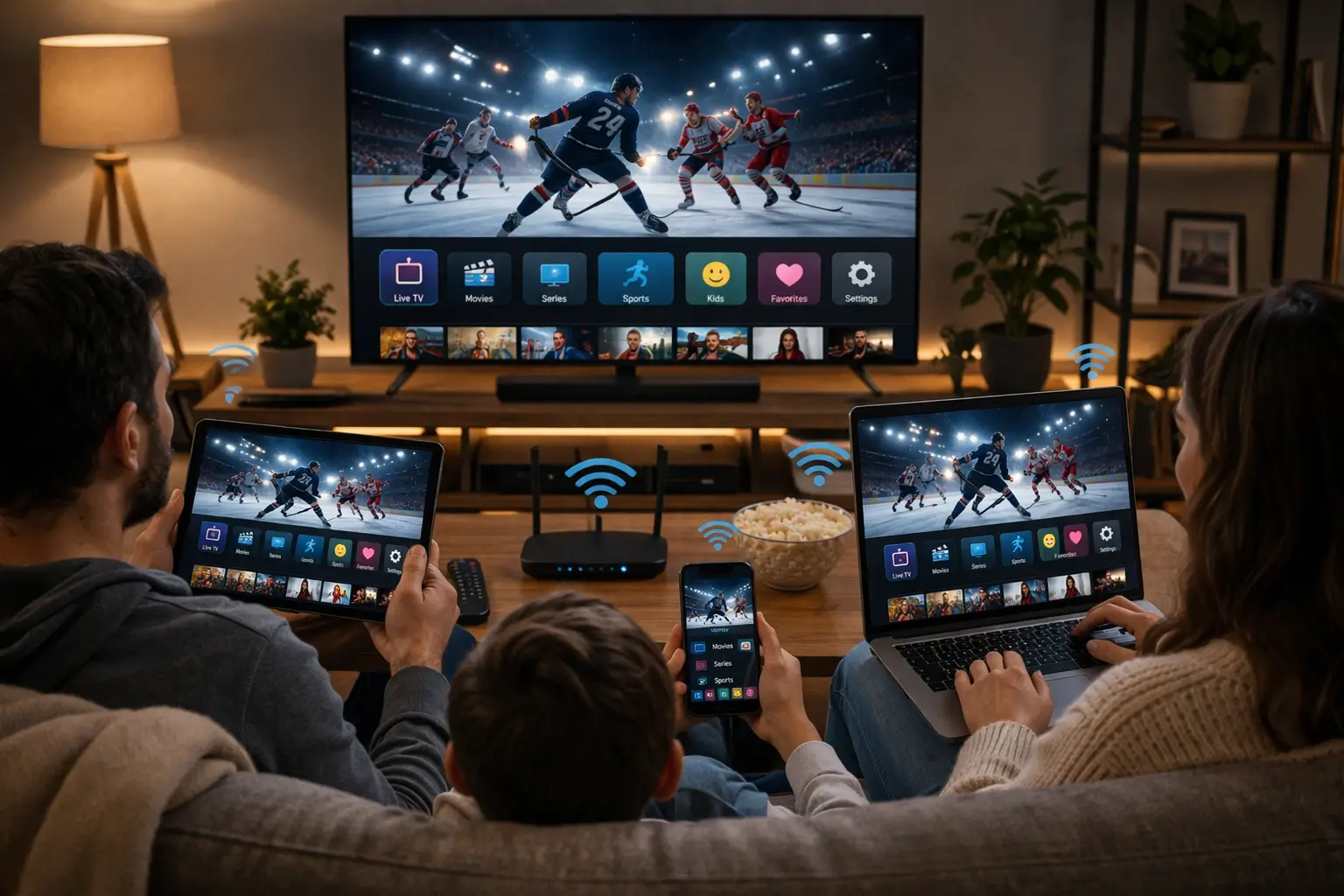
Wi-Fi is not the enemy. In many rooms it does the job very well, and nobody wants a cable across the hallway for a TV they use twice a week. Wi-Fi makes sense when most of the following are true.
Rooms where the air link holds up
Wi-Fi works best when the router and the box can almost see each other. One thin interior wall is usually no trouble. A concrete floor, a bathroom full of pipes or a metal cabinet between them is a different story.
- The box sits in the same room as the router, or one thin wall away
- You mostly watch in HD or Full HD, so 10 to 15 Mbps per screen
- A cable would mean drilling floors or crossing a hallway
- The device has no network port, like most sticks
- Your phone shows full bars where the box sits
To get the best from Wi-Fi, connect the box to the 5 GHz band. Many routers broadcast it under a separate name, often ending in “5G” or “5GHz”. Press Home, go to Settings, then Network, and pick that name. Type the password with the on-screen keyboard; if your box offers a phone keyboard through its companion app, that is much quicker than arrow keys. If your router uses a single name for both bands, the box usually picks 5 GHz on its own when the signal is strong enough, and drops to 2.4 GHz when it is not. That drop is a useful warning sign: if the box keeps landing on 2.4 GHz, it is too far from the router.
Placement is everything. Take the router out of any cabinet, stand it upright in the open, and keep it away from the floor. On the box side, use the short HDMI extender if your stick came with one, so it hangs away from the metal back of the TV, which blocks a surprising amount of signal.
Getting the most out of 5 GHz in a busy home
If Wi-Fi is your choice for a room, a handful of settings and habits make the difference between a link that holds all evening and one that wobbles at the worst moment. None of them require new hardware.
- Split or confirm the bands. Log in to your router’s settings from a phone or computer and check whether 2.4 GHz and 5 GHz share a name. If the box keeps choosing the wrong band, giving 5 GHz its own name lets you pick it by hand on the box.
- Let the router choose the channel. Most routers have an automatic channel option. Leave it on, and restart the router once so it scans the neighbourhood again and settles on a quieter channel.
- Lift the router. A router on the floor behind a sofa loses range in every direction. Put it on a shelf at chest height, antennas upright if it has them.
- Clear the line of sight. Move metal objects, aquariums, mirrors and thick books away from the space between router and box. Water and metal are the two worst obstacles for 5 GHz.
- Bring the box out. Take the box out of a closed TV cabinet and set it on top, front facing the room. If it is a stick, use the extender.
- Restart in the right order. Unplug the router and the box, count to ten, plug the router in first, wait until its lights settle, then plug in the box.
Good to know about newer Wi-Fi
Recent routers and boxes support newer Wi-Fi generations, such as Wi-Fi 6, and some routers add a 6 GHz band. These can help in crowded buildings, but only when both the router and the box support them. A newer router will not fix a box buried in a metal cabinet two floors away. Placement still comes first; new hardware comes second.
One more habit is worth adopting: after any change in the room, such as new furniture, a moved TV or a new router, check the signal screen on the box again. Wi-Fi changes quietly. What was excellent last month can be fair today because someone put a bookcase in the way.
Walking the house with the router in mind
Most homes in Canada have one router, placed wherever the line comes in: often a basement corner, a front hallway or a home office. The TVs, of course, are somewhere else. Here is how the typical spots behave, and what to do in each case.
Floors are thick and often hold ducts and pipes. Wi-Fi straight up through them is rarely steady for 4K.
Then: powerline or a mesh unit on the main floor, with a short cable to the boxThe cupboard door, the coats and any metal shelving all eat into the signal before it even leaves.
Then: move the router out to an open shelf, or run a cable from the cupboardThis is the best case. A cable along the baseboard is short and easy to hide.
Then: Ethernet to the box, and Wi-Fi off on the boxOutside walls are thick and insulated, and the distance is long.
Then: a mesh unit near the room, or a powerline pair if the wiring is on the same circuitIn condos and apartments the challenge is different. Distances are short, but the air is crowded with dozens of neighbouring networks. Here 5 GHz in the same room as the router often works well, while 2.4 GHz suffers in the evening. A short cable is still the safest choice if the TV is close to the router, which in a condo it often is.
Setting up Ethernet on your box, step by step
If your box has an Ethernet port, and most full-size Android TV boxes, Google TV boxes and many Apple TV models do, this is the setup we recommend for the main TV. Grab the cable and the remote.
- Pick the cable. A Cat 5e or Cat 6 cable is plenty for any IPTV stream. Measure along the walls, not in a straight line, and add a little for corners and slack at each end.
- Plug in at the router. Use an empty LAN port, usually numbered. Avoid the port marked WAN or Internet, which is for the line coming into your home.
- Plug in at the box. Push the connector in until it clicks. The small light next to the port on the box or router should come on or start blinking.
- Confirm the connection. Press Home, go to Settings, then Network. The box should show Ethernet as connected. If it does not, select Ethernet in the list.
- Turn off Wi-Fi on the box. In the same menu, switch Wi-Fi off so the box never falls back to it without you noticing.
- Restart the player. Close the player app completely, or restart the box, so the app picks up the new connection from scratch.
- Test a demanding channel. Open your player and play something in 4K if your TV supports it, or Full HD otherwise. Let it run for a good while.
Tidy the cable along the baseboard with clips, and leave a little slack at each end so a tug does not pull the connector out. A loose connector causes drops that look exactly like a network problem, and it is the last thing people think of checking.
Handle cables safely. Do not run network cables under rugs where people walk, through door hinges or next to heaters. Avoid pinching them behind furniture or bending them sharply. If you need to go through a wall, a floor or a ceiling, ask a qualified installer rather than drilling blind.
If the router has no spare LAN port, a small network switch solves it: one cable from the router to the switch, then one cable from the switch to each wired device. It is a plain, passive box that needs no setup. If you ever wonder whether a port is the problem, swap the cable to another LAN port on the router and test again.
Sticks and boxes without a network port
Some devices simply have no Ethernet socket. Most streaming sticks fall into this group, and so do a few compact boxes. You still have two good ways to make them steadier.
Two ways to steady a stick
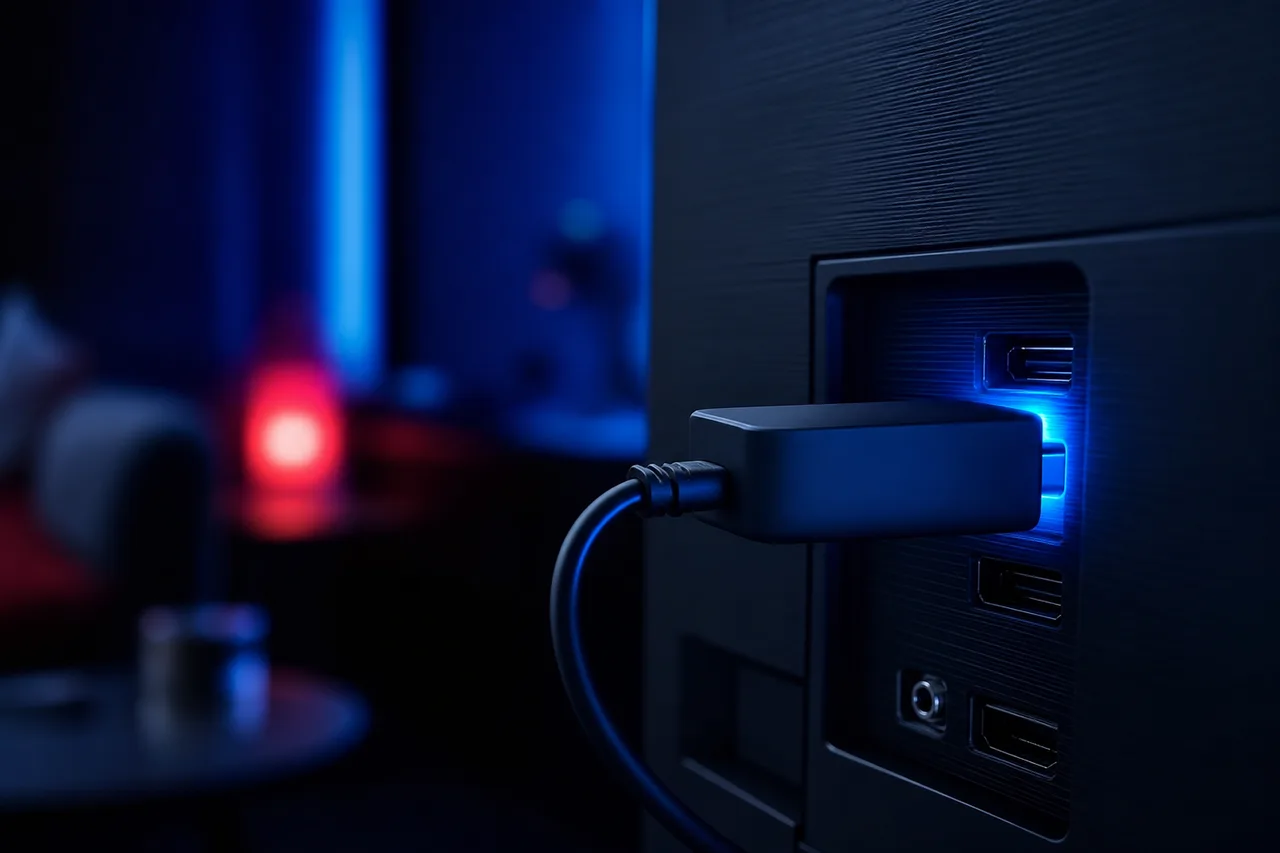
The first is the official network adapter that some stick models accept: it plugs into the power input and adds an Ethernet socket, so the stick gets a cable like a full-size box. Check the model of your stick in its settings before you look for one, because not every model takes one.
The second is better placement. Use the HDMI extender, power the stick from the wall adapter rather than a TV USB port, and connect it to the 5 GHz band.
- Check the stick model in Settings, then My Fire TV or About
- Use only the adapter made for that model
- Turn off Wi-Fi once the cable works
If neither option suits you, and the room is far from the router, it may be time to think about the device rather than the network. A full-size Android TV or Google TV box with a built-in port will usually give a steadier result in a far room than a stick on stretched Wi-Fi. Our page on choosing the best IPTV box in Canada compares network ports, storage and remotes, and the 4K IPTV box guide covers what you need for a solid 4K chain from router to screen.
Smart TVs are a related case. Most Samsung and LG smart TVs have a network port on the back, and many owners never use it. If your TV runs a player such as Smart IPTV or IBO Player through its own app store, plugging a cable straight into the TV gives it the same advantage as a wired box. See IPTV box vs smart TV app for when the TV’s own app is enough.
Powerline, mesh and other in-between options
Some rooms are simply too far from the router for a neat cable. You still have choices between plain Wi-Fi and a long cable run, and each one has its own character.
| Option | How it works | Best for | Watch out for |
|---|---|---|---|
| Powerline adapters | One adapter near the router, one near the box; data travels through the home’s electrical wiring | A basement or far room on the same electrical panel | Results depend on the wiring; plug straight into wall sockets, never into power bars |
| Mesh Wi-Fi with a network port | Several units spread around the home; the box plugs into the nearest unit with a short cable | Larger homes with several TVs on different floors | The link between units is still wireless unless you wire them together |
| Wi-Fi extender | Repeats the router’s signal further away | A quick fix for light HD use | Often adds delay and unsteadiness; the weakest of the options for a TV |
| Moving the router | Brings the router closer to the TV you use most | Homes where the line can be rerouted easily | May weaken coverage in other rooms |
| A longer cable run | A cable along baseboards, through a closet or by an installer through walls | The main 4K TV, for the long term | Effort up front; safety when going through walls |
Powerline adapters deserve a closer look because they surprise people in both directions. In some houses, they deliver a near-cable experience to a room two floors away. In others, an older wiring layout or a long path through the panel leaves them barely better than Wi-Fi. The only way to know is to test them in your house, in the evening, with the same channel you use for your other tests.
Powerline is a good fit if
- The box room and router room share the same electrical panel
- You cannot run a cable, and Wi-Fi is weak in that room
- You plug both adapters directly into wall sockets
- The box has a network port to receive the cable
Think twice if
- The adapters must go into a power bar or surge strip
- The rooms are on different panels or a separate building
- Large appliances on the same circuit start and stop often
- The box has no network port at all
Whichever option you pick, test it the same way: same channel, same time of day, same box. Only then can you compare like with like and keep the option that really works in your home.
Wired and ready for 4K
Once the main TV has a cable, the Ultimate 4K Pack has room to show what it can do: 57,000+ 4K channels, 47,000+ series and 179,000+ movies.
Choosing the IPTV WiFi or Ethernet setup for each room
Most homes end up with a mix: a cable where it is easy, Wi-Fi where it is good enough, and an in-between option for the awkward room. Here is how we would decide room by room, with the picture quality each room usually needs.
| Room | Typical screen | Our first choice | Plan B |
|---|---|---|---|
| Main living room | Large 4K TV | Ethernet to the box | Mesh unit or powerline with a short cable |
| Bedroom near the router | Full HD or 4K TV | 5 GHz Wi-Fi, box in the open | Ethernet along the baseboard |
| Basement den | Any size | Powerline or mesh with a cable | Long cable run by an installer |
| Kitchen or small second TV | Small HD screen | Stick on 5 GHz with the extender | Stick with its network adapter |
| Cottage or travel | Whatever is there | Whatever the local network allows | Player buffer set one step higher |
Remember that your pack includes 1 simultaneous connection. You can set up every room with the same access and then watch on one screen at a time. That makes the room-by-room choice easier than it looks: you do not need every room to handle 4K at once. Make the main TV rock-solid, make the others good enough for the way you use them, and switch rooms by stopping playback on one device before you start it on the next.
If you want more screens at the same time, support can give you the conditions and the price on request through the contact page. In that case, add each extra screen’s speed to your total and check that the router can carry them all at once.
Run the cable now. It is the single change that improves the evening most.
Then: set the player to its normal buffer10 Mbps is a modest need. Better placement on 5 GHz may be all it takes.
Then: run the evening test before buying anythingWire the main room, and give the second one a mesh unit or powerline pair.
Then: test each room on its own, one at a timeTesting your IPTV WiFi or Ethernet choice on a busy evening
An afternoon test proves very little. The home network is quiet, the neighbours are at work, and almost any link looks good. The real test happens on a weeknight or a weekend evening, when everyone is home and online. Here is a simple routine that gives you a clear answer.
- Before dinner
Note the setup
Write down the room, the connection type, the Wi-Fi band and the signal strength shown on the box. You will compare against this later.
- Early evening
Run a speed test on the box
Use a speed test app on the box itself, not on your phone. Run it a few times and note how much the incoming speed moves between runs.
- Peak time
Play a demanding channel
Open the resolution you really plan to use, 4K if that is your goal. Let it play while the rest of the household carries on as usual.
- During the test
Count the pauses
Do not chase each one. Simply note how many times the picture stops or drops in quality during the session.
- Next evening
Change one thing and repeat
Switch to the cable, move the box or try the other band. Same channel, same time, same length. Compare the two notes.
The rule is to change one thing at a time. If you move the router, plug in a cable and change the player’s buffer on the same evening, you will never know which change made the difference, and you may keep two that do nothing.
If your test shows pauses even on a cable, the network between router and box is probably not the problem. Look at the line itself, the router, or the box. Our buffering fixes page covers bandwidth and player buffers in depth, and the guide to a box running hot or slow covers storage, cache and ventilation, which can produce pauses that look exactly like a network fault.
Mistakes that make a good connection look bad
Many network problems we hear about are not really network problems. They are small slips in the setup that make a perfectly good link look shaky. Check these before you buy anything.
- Wi-Fi left on beside a cable. Some boxes quietly switch to Wi-Fi if the cable hiccups once. Turn Wi-Fi off on wired boxes.
- The cable in the WAN port. The box gets no network at all, or a strange one. Use a numbered LAN port.
- A stick behind a metal TV back. The TV acts as a shield. Use the HDMI extender.
- Powerline in a power bar. Surge protection filters the very signal the adapters use. Go straight to the wall socket.
- A second device still playing. With 1 simultaneous connection, a tablet left playing in another room can interrupt the box. Stop playback before switching rooms.
- A crowded box. Dozens of unused apps and a full storage slow the player and look like buffering. Tidy up first.
Deep dive: why the player buffer is not a network fix
Most players, including TiviMate and XCIPTV, let you raise the buffer size. A bigger buffer stores a few more seconds of picture before playing, so short network dips are hidden. That is useful on a cottage network or a busy Wi-Fi link. But it does not make the link any steadier. If the network drops for longer than the buffer lasts, the pause comes back, only later. Treat the buffer as a cushion, not a cure, and fix the link first.
Deep dive: cable quality and length
For a TV box, any standard Cat 5e or Cat 6 cable in good condition is enough. Flat cables are easier to hide under trim; round ones are tougher. What matters more than the category is the condition: a connector with a broken clip, a cable crushed under a chair leg or bent sharply around a door frame can drop the link without warning. If a wired box behaves strangely, try a different cable before you blame anything else.
Remote shortcut: on many Android TV and Google TV boxes, holding the Home button opens a quick panel with a network or settings shortcut. On a Fire TV Stick, holding Home opens a menu with Settings. Learn the shortcut on your own remote, and checking the connection becomes a two-second job. Our remote control tips cover more of these hidden presses.
What changes when you move the box later
A setup that works today can change when life does. You repaint and move the TV to another wall, you buy a new router, or you bring the box to a second home for the summer. Each of those changes resets part of what you tested, so it is worth a quick check.
A short routine after any move
When the box changes room or the router changes, go through the same order you used the first time. It takes a few minutes and avoids a frustrating evening.
- Plug HDMI, power and the network cable before switching on
- Check Settings, then Network, for the right connection type
- On Wi-Fi, confirm the 5 GHz name and the signal strength
- Open the player and play your usual test channel
- Repeat the busy-evening test within the first week
If you take the box away from home, keep expectations realistic. A cottage connection or a shared network in a rental is outside your control. Set the player’s buffer one step higher, choose HD or Full HD rather than 4K, and use a cable from the local router if there is a spare port. Your login details stay the same; only the network changes. Just remember the rule of 1 simultaneous connection: if the box at the cottage plays, nothing else on that access should play at home at the same time.
A new router is another common moment. It usually comes with new network names and a new password, so every box at home will lose its Wi-Fi until you reconnect it. Wired boxes keep working as soon as the cable goes into the new router’s LAN port, which is one more quiet advantage of Ethernet.
Wi-Fi and Ethernet words in plain language
Router menus and box settings are full of short terms. Here are the ones you will meet on this page and in your box’s network screen, explained without the jargon.
- Ethernet
- The wired network connection, using a cable with a clip-in plug that looks like a wide phone jack.
- LAN port
- A numbered socket on the router for your own devices, such as the box. The opposite of the WAN port.
- WAN port
- The router socket for the line that comes into your home. Never plug the box into it.
- 2.4 GHz band
- The older Wi-Fi band. Longer range, slower and crowded in apartment buildings.
- 5 GHz band
- The faster Wi-Fi band. Shorter range, much better for a TV in the same or the next room.
- Mesh
- A Wi-Fi system with several units placed around the home, passing the signal from one to the next.
- Powerline
- A pair of adapters that carry network data through your home’s electrical wiring.
- Buffer
- The few seconds of picture the player stores ahead, to hide short network dips.
- Network switch
- A small box that turns one router port into several, for more wired devices.
- Signal strength
- How well the box hears the router on Wi-Fi, shown as bars or words in the network screen.
Knowing these words helps when you write to support too. A message such as “Android TV box, 5 GHz Wi-Fi, signal fair, pauses in 4K in the evening” lets support point you to the right fix in one reply, instead of a long exchange of questions.
Where to go next
Your connection is one part of a smooth evening. These pages cover the others, from the box itself to the player and the plan.
When you are ready to choose a duration, the plans page lists current prices for every pack. If your connection is still giving you trouble after these steps, write to support through the contact page with your box model, the connection type and what you tested. Support answers 7 days a week by e-mail and WhatsApp (+33 6 44 65 43 13), in English and French.
Connection sorted, box in place
Compare the three packs and the four durations, then type your access into the player with the remote.
FAQ
Is Ethernet always better than Wi-Fi for IPTV?
It is steadier, because nothing else shares the cable and walls do not weaken it. But good 5 GHz Wi-Fi close to the router handles HD and Full HD well. For 4K, or for a box far from the router, a cable is the safer bet.
My Fire TV Stick has no Ethernet port. What can I do?
Some stick models accept an official network adapter that adds a cable socket. Otherwise, use the 5 GHz band, the HDMI extender and the wall power adapter to get the strongest signal possible.
Which cable should I buy?
A Cat 5e or Cat 6 cable is enough for any IPTV stream. Pick a length that follows the walls with a little slack at each end, and check that the clips on the connectors are intact.
Do powerline adapters work for IPTV?
Often, yes, but results depend on your home’s wiring. Plug both adapters straight into wall sockets, not power bars, and test with a Full HD channel on a busy evening before you rely on them.
How much speed does each screen need?
About 10 Mbps for HD, 15 Mbps for Full HD and 25 Mbps for 4K. Add them up if several screens play at the same time, and measure on the box itself, not on your phone.
Should I turn off Wi-Fi on a wired box?
Yes. Switching it off in Settings, then Network, stops the box from falling back to a weaker Wi-Fi link without you noticing.
Why does my phone stream well but my box does not?
Your phone is usually closer to the router and in the open, while the box sits low behind a TV or in a cabinet. Phones also hide short dips better. Check the signal on the box’s own network screen.
Is a mesh system worth it for one TV?
If that TV is far from the router and a cable is not possible, a mesh unit with a network port near the TV often gives a steadier result than an extender. Plug the box into that unit with a short cable.
Can a new router fix my buffering?
Sometimes, if the old one is very dated or badly placed. But placement, the 5 GHz band and a cable for the main TV usually help more. Try those first, then decide.
Does the connection type change how many screens I can use?
No. Each pack includes 1 simultaneous connection whatever the link. For more screens at once, ask support through the contact page for the conditions and the price.