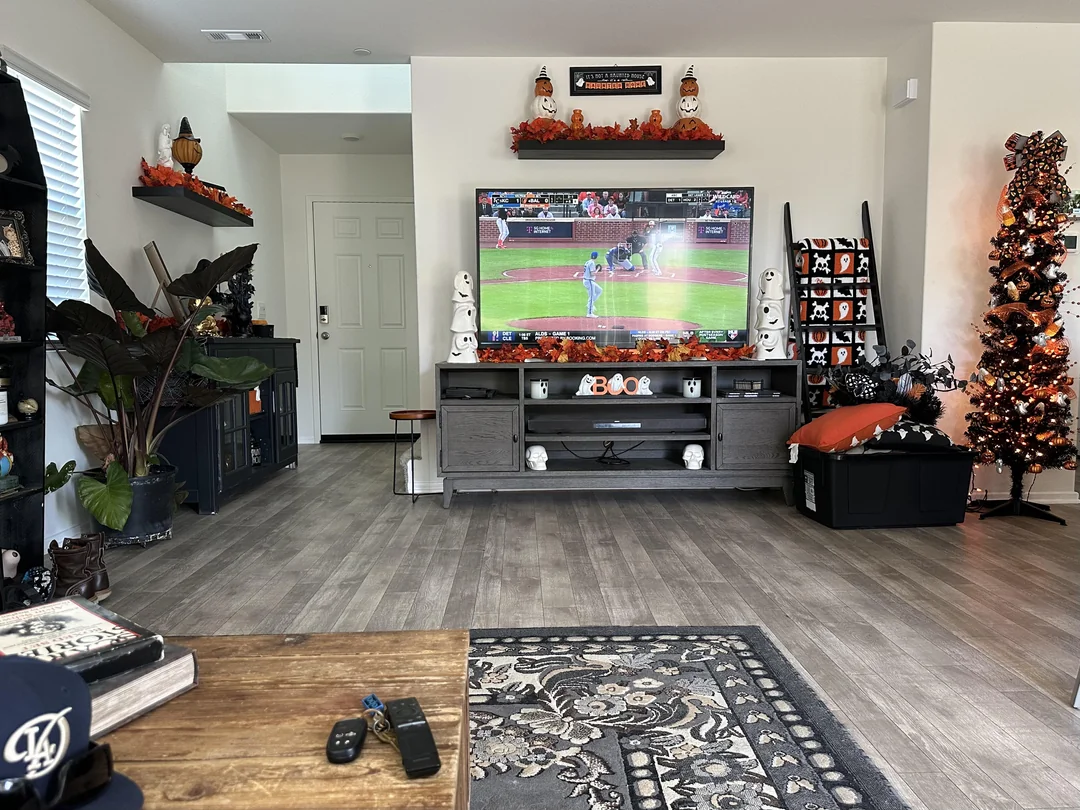
Before you plug in a single cable, it helps to know how the pieces fit together. This IPTV box guide is the starting point of our site: a calm walk through the hardware on your TV stand, the app that plays the channels, the subscription behind it, and the questions most people ask before they buy. It is written for the person holding the remote, not for engineers. You will find plain explanations, practical tips about cables and Wi-Fi placement, a quick way to tell which part is at fault when something goes wrong, and a clear reading order for the three detailed pages in this section.
Take it one part at a time. If you are completely new, read from top to bottom. If you already own a box and just want a refresher, jump to the triage table or the glossary. By the end you will know what to put under your TV, how it reaches your router, what to type when the player asks for a login, and what to expect when you press OK.
How to use this IPTV box guide
This section is built like a short course. The hub you are reading gives you the overview. Three detailed pages then go deeper into the questions that come up again and again in our inbox. Each one ends with a short FAQ, and each one links back here so you never lose your place.
Read them in the order shown if you are new to the topic: first the plain explanation of the box, then the legal question, then the comparison with a cable box. The order matters because each page assumes you know the one before. If you already understand the basics, go straight to the page that answers your question. And if something is still unclear after reading, a real person on our support team will pick it up any day of the week, in French or English, on e-mail or WhatsApp.
The rest of this hub gives you the overview that ties the three pages together: the layers of an IPTV setup, what happens between the remote and the picture, the hardware and network basics, the steps from carton to first channel, how the login works, and how packs and connections fit your household.
A reading order for every kind of reader
People arrive at this guide from very different places. Some have never heard the word IPTV before last week. Some are thinking of leaving a cable box behind. Some already own a stick and want to know why the guide is empty. Here is where we would start in each case.
Start with what an IPTV box is, then come back to the three layers on this page.
Then: read the legal question before choosing a serviceRead the comparison of an IPTV box and a cable box, then check your speed with the network section below.
Then: keep the old service until the box proves itselfRead the legal page first. It explains, neutrally, how to check a service before paying.
Then: come back for the hardware basicsJump to the triage table on this page to find which layer is causing your problem.
Then: open the troubleshooting hubRead the hardware section below, then the compare boxes hub for side-by-side tables.
Then: run the buying checklistRead the carton-to-first-channel steps and the login section.
Then: open the box setup hubWhichever path you take, the three layers below are worth a minute of your time. Almost every question we receive becomes simpler once you know which layer it belongs to.
IPTV box guide: the three layers
Everything in IPTV rests on three layers stacked on top of each other. Once you see them clearly, almost every question has an obvious home, and almost every problem has an obvious place to start looking.
The box
The hardware: a small case or stick connected to your TV through HDMI and to your router through Wi-Fi or Ethernet. On its own, it shows no channels.
The player
The app on the box that lists channels, shows the TV guide and plays streams. You install it from the device’s official app store.
The subscription
The service that supplies channels, series and movies. It sends you login details, which you type into the player.

How the layers depend on each other
The box must run before the player can open. The player must open before the login can be typed. The login must work before the channels appear. That order is also the order for setting up, and the order for troubleshooting.
- Box layer: power, HDMI, network, system updates
- Player layer: installed from the official store, settings, cache
- Subscription layer: login details, pack, connection in use
The box is the part you buy once and keep. The usual families on Canadian TV stands are Google TV and Android TV boxes, Apple TV and the Fire TV Stick; Samsung and LG smart TVs can also act as the box when their own store lists a supported player. The player is the part you choose to suit your taste: Our packs open in six of them: IPTV Smarters Pro, TiviMate, Smart IPTV, IBO Player, XCIPTV and GSE Smart IPTV. A few of those apps sell a licence or an upgraded edition: check the current price on the app’s official website. BoxReady IPTV has no tie to any of their publishers. The subscription is the part you renew when you decide to, for 1, 3, 6 or 12 months.
Keeping the layers separate in your head also keeps your options open. You can change the player without changing the box, move the subscription to a new box without buying a new subscription, and try another box family without touching your player habits, as long as the same player is listed in its store.
Which layer is at fault: a quick triage
When something goes wrong, the first job is to find the layer involved. This table covers the symptoms we hear about most. Read the left column, find what you see, and start where the table points. It saves a lot of random button pressing.
| What you see | Layer | Where to start |
|---|---|---|
| Black screen, no menu at all | Box | TV input, HDMI cable, box power adapter |
| Box menu works, player will not open | Player | Restart the box, update or reinstall the player from the store |
| Player opens, login refused | Subscription | Compare every character with the welcome e-mail |
| Channel list empty after login | Player or subscription | Wait for the first load, then refresh the playlist |
| Channels load but pause often | Network between router and box | Speed test at the box, cable or 5 GHz Wi-Fi |
| TV guide empty or shifted | Player | Refresh the guide, check the box’s time zone |
| A stream stops when someone else starts watching | Subscription | One simultaneous connection per pack |
| Box slow and warm late in the evening | Box | Open air, restart, clear old caches |
Notice how often the network row turns up in real life. Most pauses and spinning circles come from the path between the router and the box, not from the box itself or the service. The detailed fixes for each row live in the box troubleshooting hub, with dedicated pages on box buffering fixes and on a box running hot or slow. For the guide, the TV guide on your box page explains the time zone side for Canadian homes.
What happens between OK and the picture
It helps to picture the journey a channel takes when you press OK. Nothing in this section needs remembering; it simply makes the rest of the guide easier to follow, and it explains why the network gets so much attention on this site.
The player sends a request with your login details. The service’s server checks the login and starts sending the stream. The stream travels across the internet to your router, then from the router to the box, either through the air on Wi-Fi or along an Ethernet cable. The box keeps a small reserve of video, called a buffer, so short hiccups do not show. It decodes the video and sends the finished picture down the HDMI cable to the TV.
If the stream arrives more slowly than it plays, the reserve empties and the player has to stop and refill it. That is the spinning circle everyone dislikes. It is also why your speed at the box, in the evening, matters more than the speed printed on your internet bill. The box can only show what reaches it, and the last few metres between router and box are where most of the trouble happens.
The hardware on your TV stand
Almost any modern streaming device can act as an IPTV box, as long as its official store lists a compatible player. These are the usual candidates, with the points that matter for IPTV. There are no prices here: they change too often to be useful, and they tell you little about how a device behaves in your room.
| Device | Connection to TV | Network | Best suited to |
|---|---|---|---|
| Android TV or Google TV box | HDMI cable | Wi-Fi, Ethernet on many models | A main living-room TV, especially in 4K |
| Fire TV Stick | Plugs into HDMI directly | Wi-Fi, Ethernet with a supported adapter | A second TV, or a tidy setup with no visible box |
| Apple TV | HDMI cable | Wi-Fi, Ethernet on most models | Homes already using iPhone or iPad |
| Samsung or LG smart TV | Built in | Wi-Fi or Ethernet | People who want no extra device at all |
| Phone, tablet or PC | Own screen | Wi-Fi or Ethernet | Watching away from the TV |
When you compare boxes, look at the back before the front. An Ethernet socket is worth more than a fancy remote. Check that the box outputs 4K if your TV does, and that its official app store carries the player you want. Sticks are compact, but they sit right behind the TV, where heat builds up; the little HDMI extender packed with many sticks lets them hang lower, in cooler air.
The remote is the part you touch every day, so try it in your hand if you can. Clear arrow keys, a separate Back key and a Home key make long evenings easier. Many boxes can also be controlled from the maker’s official phone app, which is handy for typing logins. For side-by-side tables and head-to-head comparisons, the compare boxes hub goes much further, and the IPTV boxes section has a setup guide for each family.
Your home network: the part people forget
An IPTV box is only as smooth as the connection feeding it. Most buffering problems come from the network, not from the box or the service. Start with speed. These are the figures we suggest for each screen; when two or three screens run together, stack their figures.
Speed per screen
A Full HD box in the living room and an HD tablet in the kitchen, both streaming at once, need 25 Mbps between them. A 4K box plus a Full HD screen need 40 Mbps. Run your speed test where the TV sits, not next to the router, because that is the speed the box actually sees. Do it in the evening, when the household is online, and use your phone on the same Wi-Fi network the box will join.
Next, look at what else shares the connection. A game console updating, a laptop backing up to the cloud, or several phones streaming at the same time all draw from the same pipe. If the picture stutters at the same hour every evening, the cause is often traffic in the house rather than anything on the TV side. Scheduling big updates for the night is one of the simplest fixes there is.
Cables and Wi-Fi placement in plain terms
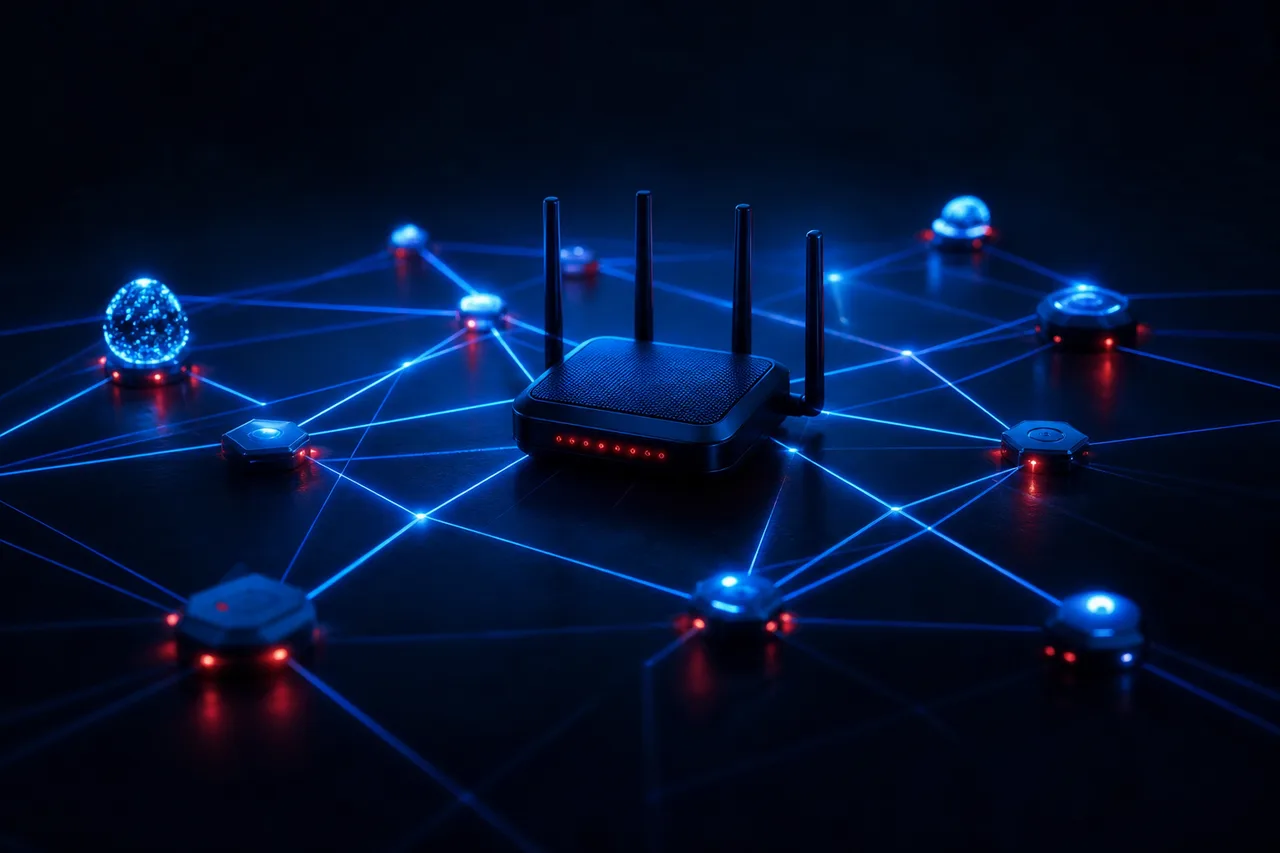
The path from router to box
A wired Ethernet cable is the steadiest option and the first fix to try for 4K. If you must use Wi-Fi, a few placement habits make a big difference.
- Keep the router in the open, raised off the floor
- Keep it away from metal shelves, mirrors and aquariums
- Join 5 GHz whenever box and router share a room or a wall
- Fall back to 2.4 GHz only if 5 GHz keeps dropping at that distance
- Keep the box out of closed cabinets
Every wall and floor between router and box takes a bite out of the signal. Think of 5 GHz as a wide road that ends quickly at walls, and 2.4 GHz as a narrow road that goes further but carries every neighbour’s traffic too. In a typical Canadian home with the router in a basement or an office, the living-room TV upstairs may be at the edge of the 5 GHz range. Raising the router, moving it closer to the centre of the home or running a cable are the three fixes that work most often.
A flat Ethernet cable slides under carpets and along baseboards and is barely visible once clipped in place. It is often the cheapest upgrade in the whole setup, and the one that changes the most. If you want to compare every option room by room, including adapters for sticks, our page on Wi-Fi or Ethernet for an IPTV box walks through them with diagrams.
From carton to first channel
Here is the full path from unboxing to your first channel. Keep the remote in one hand and your welcome e-mail open on your phone. The order matters: hardware first, player second, login last.
- Place the box. Choose an open spot near the TV with air around it, close to the router if possible.
- Connect HDMI and power. Plug the HDMI cable into the TV and note the port number, then plug the power adapter into a wall outlet.
- Add Ethernet if you can. Run a cable from the box to the router. If not, you will join Wi-Fi during setup.
- Select the input. Turn on the TV, press Input or Source on the TV remote, and pick the right HDMI port.
- Finish the box’s own setup. Choose your language, connect to the network, sign in to the store account and install system updates.
- Install a player. In the official app store, type the name of your chosen player and press Install on its listing.
- Enter your login. Open the player, choose Xtream Codes or M3U, and type the details from your e-mail.
- Let it load, then tidy. Wait for the channel list and guide to load fully, then add favourites and hide categories you never watch.
Most first setups go smoothly if you follow that order. The common stumbling blocks are a wrong TV input after step four, a store account not signed in at step five, and a mistyped character at step seven. The box setup hub breaks every step down further, with the buttons to press on each family, and its remote control tips page shows how to type from your phone instead of the on-screen keyboard.
Two ways to log in: Xtream Codes and M3U
Your access arrives by e-mail within minutes of ordering. It comes in one of two forms, and most players accept both. Knowing the difference helps you pick the right option when the player asks how you want to add your service.
The Xtream Codes screen in most players asks for three fields from your welcome e-mail, plus a name of your choice.
Xtream Codes
- Three short fields: server URL, username, password
- Easier to type with a remote
- Usually brings the TV guide along automatically
- Supported by most players on our list
M3U link
- One long address containing the whole list
- Harder to type without mistakes on a remote
- The guide may need a separate address in some players
- Handy in players that accept only playlists
If you have a choice, start with Xtream Codes. Type each field slowly and compare it with the e-mail before pressing OK; a refused login very often hides a swapped letter, an extra space after the last character, or an upper-case letter that should be lower case. The detailed pages on Xtream Codes on your box and the M3U playlist on your box show each player’s screens and what to do if the login is refused.
The legal question in a few lines
Many readers want this answered before anything else, and that is sensible. The technology is legal; whether a service is legal depends on the broadcasting rights it holds, so check before subscribing. Your box is a media player, like a computer or a phone. Your player app is a tool that reads a playlist. Neither one comes with content. The service is where content and rights meet, so that is where your questions belong.
In practice, that means asking a service what you are getting before you pay, reading the payment terms, and sticking to players from official app stores. Our detailed page on whether IPTV is legal in Canada gives you a simple routine for doing exactly that, written neutrally and without scare stories.
Watch out: avoid playlists and login codes passed around on forums or social media, and never install a player from a file someone sends you. Use your device’s official app store only. Shortcuts like these can put unwanted software on your box and leave you with no one to ask when things break.
Choosing a pack and a duration
Once the hardware is sorted, the next decision is the subscription. All three packs work on every supported device, with every player on our list. The difference is the size and focus of the catalogue.
Premium Pack
- Channel list of 20,000+
- Series library of 24,000+
- Movie library of 100,000+
- Plays in HD, Full HD or 4K
VIP Premium Pack
- Channel list of 27,000+
- Series library of 61,000+
- Movie library of 155,000+
- Plays in HD, Full HD or 4K
Ultimate 4K Pack
- 57,000+ channels in 4K
- Series library of 47,000+
- Movie library of 179,000+
- Served from 20 servers in Europe
The catalogue includes French-language and international content. If you are after a specific language, ask support before ordering. You pay once, in Canadian dollars, by card or PayPal. There is no contract and no automatic renewal, so nothing is charged again unless you choose to order. Amounts change from time to time, so see current prices on the plans page. If you are trying IPTV for the first time, the 1-month plan lets you test your box on your own network; once you are settled, the 12-month plan covers the whole year in one payment.
Know your layers, ready to choose
Pick a pack, pick a duration, settle it in one Canadian-dollar payment, and the login lands in your inbox shortly after.
One connection, many devices at home
Every pack includes one simultaneous connection. That means one stream playing at a time. You can type the same credentials on several of your own devices and use them one after the other: the living-room box tonight, a tablet in the kitchen tomorrow, a stick at the cottage on the weekend. If one device is playing and another starts, the first one stops.
How households make it work
Agree on a main device, usually the living-room box. Install the player on the others but only open them when the main one is off. When you leave for the cottage, stop playback at home first. When the household often needs two streams on the same evening, raise it with support through the contact page; they will set out the conditions and price.
The login belongs to your household and nobody else. Handing it to friends or relatives in another home is not how the packs are meant to be used, and it makes streams cut out for everyone involved. For extra screens at the same moment, the contact page is the place to start.
Watching beyond the living room
The box under the main TV is where most households start, but the same login opens the packs on other screens too. Our packs run on Samsung and LG smart TVs, Android TV and Google TV boxes, the Fire TV Stick, Apple TV, iPhone and iPad, Android phones and tablets, and PC. Each of those needs a supported player from its own official store, and each one uses the same Xtream Codes details or M3U link from your welcome e-mail.
Search the TV’s own store for a supported player first. If none is listed, a stick behind the TV is the tidiest answer.
Then: keep the stick on its wall adapterInstall a supported player from the tablet’s store and log in with the same details.
Then: plan 10 Mbps for an HD screenA player on the PC works the same way, with a keyboard that makes typing the login painless.
Then: close it before the TV goes onTake the stick, plug it into the cottage TV, join the local Wi-Fi and watch as at home.
Then: stop playback at home before you leaveTwo habits keep this smooth. First, remember the single connection: whichever screen starts last takes over, and the one that was playing stops. In a busy household, a quick word about who is watching where avoids a lot of confusion. Second, think about speed on each screen as you add it. A phone on HD needs far less than a 4K living-room box, but if both play while the household is online, the sums still apply. The device pages in the IPTV boxes section and the player pages in box apps cover the details for each screen.
Hands-on tip: when you add a second screen, give its playlist a clear label in the player, such as “Kitchen tablet” or “Cottage stick”. If support ever asks which device you were using, you will know at a glance.
Your first evenings with a box
The first few evenings with a new box are when habits form. A little attention here saves weeks of small annoyances later. This is how we suggest you spend them.
- Evening one
Set up and let it load
Follow the carton-to-first-channel steps. After login, let the channel list and guide load fully before judging anything.
- Evening two
Shape the list
Add favourites, hide the groups you never watch, and check the guide lines up with your local time.
- Evening three
Test the busy hour
Watch at the household’s busiest time. If the picture pauses, look at the network before anything else.
- After that
Teach the household
Show everyone the five buttons that matter: Home, Back, OK, the arrows and the guide key.
By the end of these evenings, the box should feel like part of the TV. If something still bothers you, the triage table above tells you which layer to look at, and support is there 7 days a week if you would rather ask a human.
Keeping your setup healthy over the months
A box that ran beautifully on the first evening can feel slower a few months later. Nothing is broken; it is simply carrying more than it used to. Players collect posters, guide pages and logos as you browse. Apps you tried once and forgot keep updating in the background. Dust gathers in the vents. A short routine every few weeks keeps the box as quick as the day you set it up.
Start with a proper restart. Most boxes never truly switch off; the standby button only dims them. Unplug the power adapter from the wall, wait a moment, and plug it back in. That clears the memory in a way standby does not. Next, open the box’s settings, find the list of installed apps and remove anything you no longer use. Then open the player’s own settings and look for an option to clear its cache; the guide will rebuild itself on the next load, and the menus usually feel lighter afterwards.
- Unplug the box from the wall for a moment, then power it back up
- Remove apps nobody in the house has opened lately
- Clear the player cache and let the guide rebuild
- Dust the vents and keep the top of the box clear
- Push every plug fully home: HDMI, power and network
- Install pending system and player updates
Look at the hardware too. Wipe dust from the vents with a dry cloth, check that nothing has been stacked on top of the box, and make sure the HDMI and network plugs are still pushed fully home; a cable nudged by a vacuum cleaner can cause odd flickers. Finally, check for system updates in the box settings and for player updates in the official store. Updates often fix small playback quirks you may have started to accept as normal.
If the box still feels sluggish after all of that, it may simply be short of room for the size of your catalogue, or nearing the end of its software life. That is the moment to look at the IPTV box buying checklist, not before. Most boxes have plenty of good evenings left once they get a little care.
Beginner mistakes this IPTV box guide helps you skip
Early frustrations tend to trace back to the same short list of habits. Each one is harmless on its own and simple to drop once you have seen it named.
Hardware first, player second, login last: the order fixes more problems than any setting.
- Running the speed test next to the router instead of where the TV sits
- Hiding the box in a closed cabinet, then wondering why Wi-Fi and heat cause trouble
- Running a stick on power from a TV USB socket rather than the wall adapter in its carton
- Installing a player from outside the official store
- Typing the login in a hurry and missing one character
- Judging the player before the first load has finished
- Starting a stream on a second device while someone watches on the first
Each of these has a detailed fix somewhere on the site, and most of them are covered in the sections above. If you spot yourself in more than one line, do not worry: that is how nearly everyone starts.
Beyond this IPTV box guide: the rest of the site
This guide gives you the overview. Each of the other hubs on the site goes deep into one part of the journey. Here is where to go once you know what you need.
If you ever lose your way, come back to this hub. The three layers and the triage table will usually point you to the right section in a single step.
IPTV box guide glossary
A few words come up constantly in setup menus and on our pages. Here they are in plain terms, the way we would explain them over WhatsApp.
- HDMI
- The flat lead, and the matching socket, that takes sound and picture from box to screen.
- Ethernet
- The wired network cable between the box and the router. Steadier than Wi-Fi.
- Player
- The app that shows channels and plays streams, installed from the official store.
- Xtream Codes
- The three-field login: the server address first, then your username, then your password.
- M3U
- One long web address that packs the entire channel list inside it.
- EPG
- The electronic programme guide: the TV listings shown inside the player.
- Buffer
- The small reserve of video the box keeps so short network hiccups do not show.
- Buffering
- The pause you see when the stream arrives more slowly than it plays.
- Mbps
- Megabits per second, the unit used to measure connection speed.
- Simultaneous connection
- One stream playing at a time. Each pack includes one.
A question this guide did not answer
Send a note by e-mail or WhatsApp, any day of the week, in English or French. Mention your box family and describe what the screen shows.
FAQ
Where should I start in this IPTV box guide?
Begin with “What is an IPTV box”, then read the legal page, then the comparison with cable. Each page builds on the one before.
Do I need a new TV to use an IPTV box?
No. Any TV with an HDMI port works. The box handles the apps, so an older TV is perfectly usable.
Which box should I choose for 4K?
Pick a box that outputs 4K and has an Ethernet socket, then connect it by cable. Plan 25 Mbps per 4K screen.
What is the difference between the box and the player?
The box is the hardware connected to your TV. The player is the app on it that lists channels and plays streams.
How quickly can I start watching?
The login reaches your inbox within minutes of the order. Getting the box ready rarely takes more than a single evening.
Which login type should I pick first?
Start with Xtream Codes: three short fields are kinder to a remote, and the guide usually comes with them. Keep the M3U link for players that only take playlists.
Can the same login go on my box, tablet and phone?
It can, as long as only one of them plays at any moment; every pack carries a single simultaneous connection. Support can discuss extra screens.
Will I be tied into a contract?
Never. Each order covers 1, 3, 6 or 12 months, settled once in Canadian dollars by card or PayPal, and nothing renews by itself.
Can I write to support in French?
Yes. The team replies in French or English, every day of the week, on e-mail and on WhatsApp.