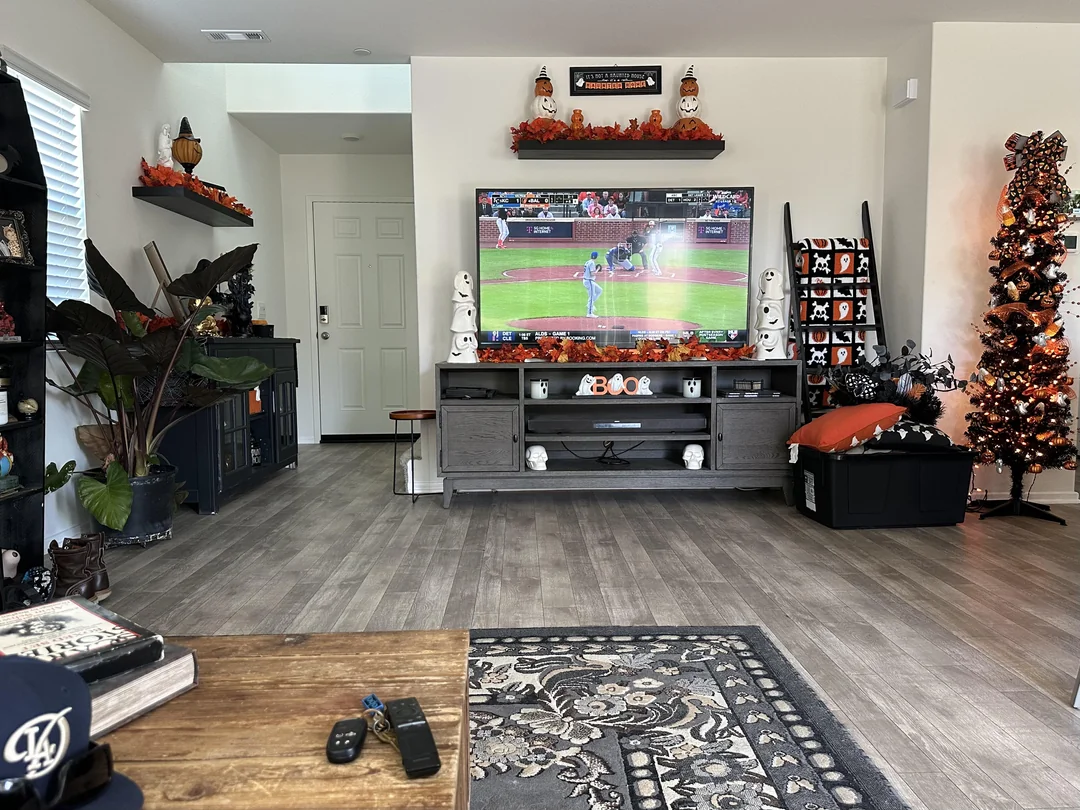
Turn the box over in your hand and you find a power socket, an HDMI port, often a network port, and not much else. So what is an IPTV box, really? It is a small computer built for one job: joining your home internet, running a player app and sending a clean picture to your TV, all driven by a remote the way a cable receiver would be. BoxReady IPTV is a hardware-first site, so this page treats the box as something you can hold, plug in and set up. We go through what is in the carton, what each port does, what happens inside when you press OK, the shapes the box comes in and the order of the first setup.
By the end, you will know what to look for on a shop shelf, what to plug where, and why a box on its own shows no channels until a player and a login are added. If you want the full reading order for the site first, our IPTV box guide lays it out, and the IPTV boxes section goes deeper into each family.
What is an IPTV box, in plain words
IPTV stands for Internet Protocol Television. The phrase sounds technical, but the idea is homely: the TV signal reaches your living room through the same internet line that brings e-mail and web pages, instead of a rooftop antenna, a satellite dish or a coaxial wall jack. The box is the piece of hardware that catches that signal and turns it into something your TV understands.
It does this in three moves. It connects to your router, by cable or Wi-Fi. It runs a player app that knows how to ask a service for channels and programme guides. And it outputs finished video and sound to the TV through an HDMI cable. Your TV becomes a plain screen; the box does the clever part.
The box
The hardware: processor, memory, storage, a network connection and an HDMI output.
The player
The app that lists channels, shows the guide and plays each stream. Installed from the official store.
The subscription
The service that supplies channels, series and movies through the login it e-mails you.
Take away any one of the three and nothing plays. A box without a player is an empty home screen. A player without a login is a blank list asking for details. A login without a box or another device has nowhere to go. Once you see the box as one layer of three, most of the confusion around IPTV disappears.
Three layers that work every time you press OK
Every press of the OK button sets off a short relay between the three layers. Picturing it helps you understand both how the box works and where to look when something misbehaves.
The player sends your login and the channel you picked to the service. The service replies with a stream: a steady flow of small chunks of video and sound. Those chunks cross the internet, reach your router, travel the last few metres to the box, and are decoded by the box into a picture. The box then pushes that picture through the HDMI cable to the TV, which displays it.
This relay is why the hardware matters so much on our site. The service end is out of your hands, but the router, the path to the box, the box itself and the cable to the TV are all things you can see, move and improve. A box hidden in a closed cabinet two rooms from the router has a harder job than a box wired straight into it. The same stream, the same login, the same app: a completely different evening.
It also explains why a box does not age the way a TV does. When a box feels slow after a few years, you replace a small device and keep the screen. When a smart TV’s own apps feel slow, the only fix is a new TV or, more often, a box plugged into it.
Unpacking the carton, piece by piece
Lay everything from the carton out on the coffee table before you plug anything in. Knowing what each piece is for saves a lot of fumbling behind the TV later.

What you should find
Most boxes ship with the same handful of items. Sticks add a small extender; full-size boxes usually add a short HDMI cable. Check them off before you start.
- The box or stick itself
- A remote, sometimes with a voice button, plus batteries
- A wall power adapter and its cable
- An HDMI cable, or an HDMI extender for a stick
- A quick-start leaflet with the pairing instructions
A few notes from experience. The power adapter is not optional. Some people plug a stick’s power cable into a USB port on the TV because it is closer, and the box then restarts at random moments because that port gives too little power. Use the wall adapter from the carton.
The HDMI extender that comes with many sticks looks like a throwaway piece of cable. It is not. It moves the stick a few centimetres away from the metal back of the TV, which helps both the Wi-Fi signal and the heat. Keep it, and use it.
Keep the carton and the leaflet for a while too. If you ever need to reset the remote or check which model you own, the details are printed there, and support will ask for the model name when you write in.
The ports on the back, one by one
Turn a full-size box around and you will see a short row of sockets. Each has one job. Here is what plugs where, and what to watch for with each.
| Port | What plugs in | What to watch for |
|---|---|---|
| Power (DC in or USB-C) | The wall adapter from the carton | Never a TV USB port: too little power causes random restarts |
| HDMI out | The cable to your TV | For 4K, use a port on the TV marked for 4K and a cable rated for it; HDMI 2.0 or newer on both ends is a good sign |
| Ethernet (LAN) | A network cable from the router | The steadiest link you can give a box; a small light usually shows it is active |
| USB | A keyboard, a mouse or a storage key | Handy for typing a login; not needed for watching |
| Audio out (on some models) | An older sound system | Only if your TV or soundbar cannot take sound over HDMI |
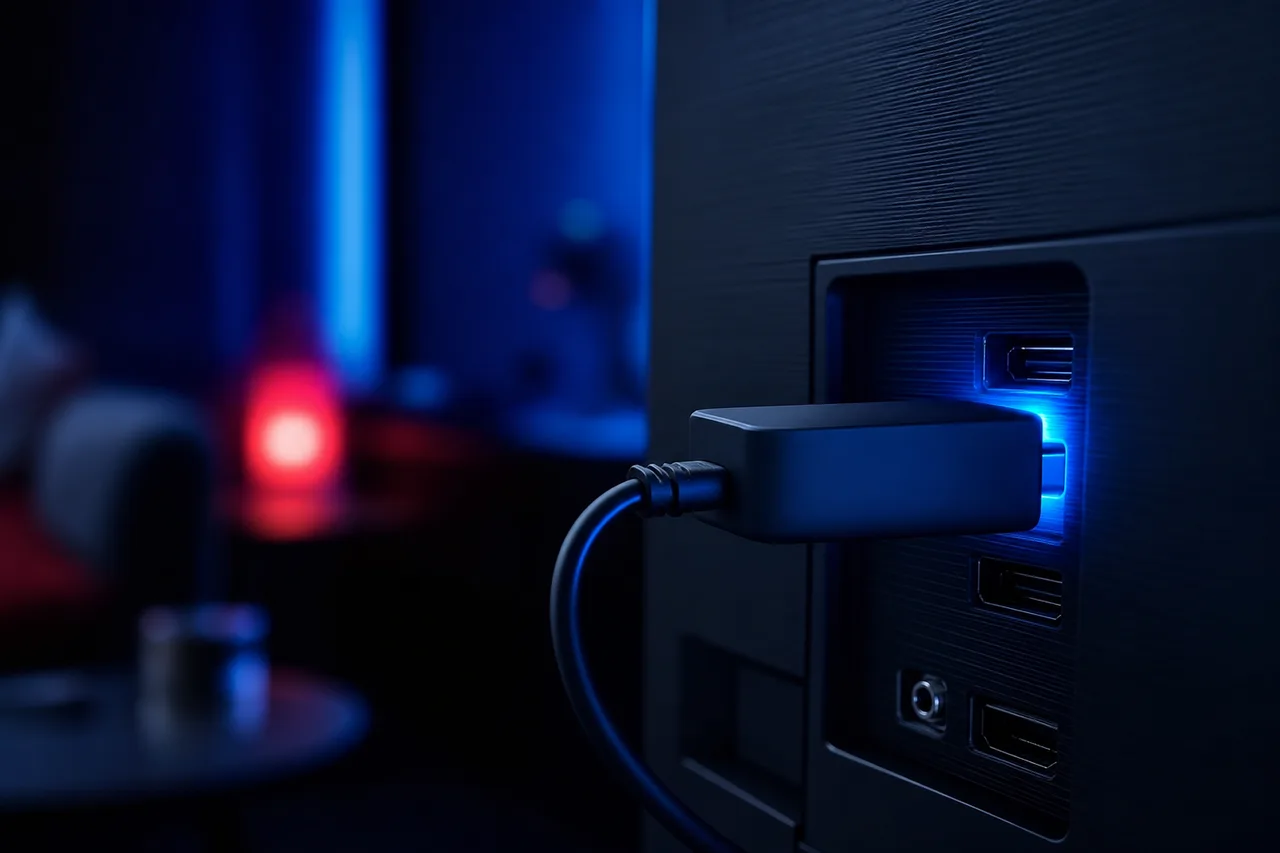
Sticks have fewer sockets. The HDMI plug is the stick itself, and a single small port takes power. Some stick models accept an official Ethernet adapter that combines power and network in one block, which is worth considering if the router sits close to the TV.
Hands-on tip: before you connect anything, look at the label printed beside each HDMI port on the TV, for example HDMI 1 or HDMI 3. Note the one you use. When you press Input or Source on the TV remote later, you will pick the right input first time instead of cycling through all of them.
The USB port is an underrated helper. Plug a basic wired keyboard into it and the long server address in your welcome e-mail becomes a minute’s typing instead of a slow hunt across an on-screen keyboard with arrow keys.
What is an IPTV box made of inside
You never need to open the case, and you should not. But knowing what the main parts do helps you read a shop label and understand why one box feels quicker than another.
Processor
Runs the menus and the player. A stronger one scrolls guides and changes channels faster.
Memory
Holds the apps that are open. Guide-heavy players and large catalogues like more of it.
Storage
Keeps apps and their caches of posters and guide data. Spare room keeps a box responsive.
Network radio and port
Wi-Fi on 2.4 GHz and 5 GHz, plus an Ethernet port on many full-size boxes.
Video decoder
Turns compressed streams into a picture. Decides whether the box can output 4K.
Passive cooling
Many boxes have no fan and rely on the air around them to stay cool.
Of those six parts, three change your evening the most: memory, the network link and the video decoder. Memory decides how comfortable the box feels with a big channel list. The network link decides whether the stream stays steady when the house is busy. The decoder decides whether 4K is possible at all.
The last tile is the one people forget. A box with no fan relies on open air. Put it in a closed cabinet or stack it on a warm receiver and it slows itself down to protect its parts. Nothing is broken; it is just too warm. Our page on a box running hot or slow covers the simple habits that keep it cool and quick. And if you want to compare boxes part by part before buying, the best IPTV box in Canada guide turns these parts into a shop checklist.
How a stream travels through the box
A live channel is not one big file. It is a long series of short chunks that arrive one after another. The player keeps a small reserve of chunks, called a buffer, so the picture keeps going through tiny dips in speed. When chunks arrive slower than the box plays them, the reserve empties and the player pauses to refill it. That pause is buffering.
Steady speed each screen needs
Those figures are per screen, and they add up. One Full HD screen and one 4K screen in the same home at the same moment need 15 plus 25, so 40 Mbps of steady speed, on top of whatever else the household is doing online. The number that matters is what reaches the box at its own spot, not the headline speed on your internet bill.
When buffering happens, the box itself is rarely the culprit. Weak Wi-Fi behind the TV, a router on the floor of the next room, or a console installing a big update at the same time are far more common causes. That is why the first fix we suggest is nearly always physical: move the router into the open, use the 5 GHz network, or run an Ethernet cable. Our box buffering fixes go through the whole routine, and the comparison of Wi-Fi or Ethernet for an IPTV box helps you choose the link for each room.
Box, stick or smart TV: the shapes it comes in
“IPTV box” is a family name, not one product. Any device that can run a supported player and connect to your TV can do the job. Here are the shapes you will meet, and what each one feels like to live with.
| Shape | How it meets the TV | Network | Player store | Feels best for |
|---|---|---|---|---|
| Android TV or Google TV box | HDMI cable, box on the shelf | Wi-Fi, Ethernet on many models | Google Play Store | The main living-room TV and the widest player choice |
| Fire TV Stick | Plugs straight into the HDMI port | Wi-Fi; Ethernet with an adapter on some models | The official Appstore | Bedrooms, guest rooms, a TV at the cottage |
| Apple TV | HDMI cable, box on the shelf | Wi-Fi, Ethernet on some models | App Store on tvOS | Homes already using iPhones and iPads |
| Samsung or LG smart TV | Built into the TV | Whatever the TV offers | The TV’s own store | One screen, no extra device |
A stick is simply a box squeezed into the shape of a large USB key. It saves space and travels well, but its small body means less room for memory, a Wi-Fi radio pressed against the back of the TV and heat with nowhere to go. A full-size box sits on the shelf with air around it and, often, a network port. Neither is better everywhere; they suit different rooms.
The stick in practice
For a bedroom TV, a stick is often all you need. Power it from the wall, hang it on the extender so it clears the metal panel, keep its app list short, and it will handle HD and Full HD viewing on most models.
Our guide to IPTV on Firestick covers its setup and its honest limits in detail.
The smart TV route deserves a fair word. If your Samsung or LG TV is recent, its store lists a supported player and its menus feel quick, you may not need a box at all. Our comparison of an IPTV box vs smart TV app includes a one-evening test to find out before you spend anything. For the shelf-box family, the Android TV box for IPTV and IPTV on Apple TV pages go menu by menu.
Know your box, now pick the content
Three packs, four durations, one payment in Canadian dollars. Your access arrives by e-mail within minutes.
The player app: where channels appear
The player is the piece newcomers forget. A new box shows the maker’s home screen, a settings menu and an official app store. It does not show IPTV channels. You install a player from that store, open it, and sign in with the details your service sends.
A typical player login screen: four fields and one button, filled in with the remote.
The players our customers use most are IPTV Smarters Pro, TiviMate, Smart IPTV, IBO Player, XCIPTV and GSE Smart IPTV. Not every player is listed on every device. TiviMate and XCIPTV are built for Android-based boxes and the Fire TV Stick; IPTV Smarters Pro and GSE Smart IPTV are often found on Apple TV too; Smart IPTV and IBO Player are common on Samsung and LG sets. Before you settle on a box, open its store, type the player’s name in the search bar and see whether it comes up.
Some publishers charge for a licence or a premium version. If yours does, check the current price on the app’s official website. BoxReady IPTV is independent from app publishers, so we do not sell, activate or control their apps. Our box apps hub compares them, and the pages on TiviMate on a box and IPTV Smarters Pro on a box walk through each one.
Official store only. Install players from your device’s official app store and nowhere else. Files passed around on forums, in messaging apps or on USB keys skip the checks the store applies, may carry unwanted software, and never receive updates. If a player is missing from your store, choose another one from the list rather than looking for a workaround.
Your login: two formats, same content
When you order, your access details arrive by e-mail within minutes. They come in one of two formats, and most players accept both. Which one you use depends mainly on how comfortable you are typing with a remote.
Xtream Codes
- Three separate fields: server URL, username, password
- Shorter to type with arrow keys
- Usually brings categories and the programme guide along automatically
- Our first suggestion on any box
M3U link
- One long address that holds the whole channel list
- Easy to paste on a phone or PC, long to type on a TV
- Some players need the guide added separately
- Handy when a player only offers playlist login
Whichever format you use, type slowly and check every character. Usernames and passwords are case-sensitive, a capital I and a lower-case l look alike in many fonts, and on-screen keyboards sometimes slip a space onto the end of a word. A single wrong character is the most common reason a first login fails, far ahead of any problem with the box or the service.
Our pages on Xtream Codes on your box and the M3U playlist on your box show each field with the remote in hand, and what to do if the player refuses to connect.
From carton to first channel in one evening
This is the order that works on every box family. The menu names shift a little from one maker to another, but the sequence does not change: hardware first, player second, login last.
- Choose the spot. Put the box in the open, near the router if you can, not inside a closed cabinet and not on top of another warm device.
- Connect the cables. HDMI into the TV, power into the wall adapter, and an Ethernet cable to the router if one will reach.
- Select the input. Turn on the TV, press Input or Source, and choose the HDMI port you noted.
- Pair the remote. Follow the prompt on screen. On many boxes you hold Home, or Home and Back together, until a light blinks.
- Join the network. Pick Ethernet, or your 5 GHz Wi-Fi name, and type the Wi-Fi password with the on-screen keyboard.
- Update the box. Go to Settings, then System or About, and install any system update. Let it restart.
- Check display, date and time zone. Set the resolution to match your TV and the time zone to your own part of Canada.
- Install the player. Open the official store, search the player by name and install it.
- Enter your login. Open the player, choose Xtream Codes or M3U, and type the details from your welcome e-mail.
- Play and tidy. Let the list and guide load, press OK on a channel, then add a few favourites.
Two steps get skipped most often: the system update and the time zone. A box that has not been updated can behave in odd ways that look like stream problems, and a wrong time zone shifts the whole programme guide. Our box setup hub breaks each stage down further, and the TV guide on your box page fixes a guide that is out of step.
Your first week with a new box
The first evening gets you watching. The rest of the first week is where the box settles into the household. A little attention during those days saves most of the small annoyances people write to us about later.
- Evening one
Watch, do not tweak
Let the player finish loading its list and guide. Play a few channels in HD and Full HD, then 4K if your TV supports it, and note anything that pauses.
- Evening two
Build favourites
Add the channels each person watches most to a favourites group, and hide the categories nobody will open. A shorter list is lighter on the box.
- Mid-week
Test at peak time
Watch during the busiest hour of the evening, when phones, laptops and consoles are all online. If pauses appear only then, the network needs attention, not the box.
- End of week
Restart and review
Restart the box from Settings, check for player updates in the official store, and decide whether a cable or a router move is worth doing.
Two small things pay off during that week. First, show everyone at home the Back habit, so streams close properly when they stop watching. Second, keep the welcome e-mail somewhere easy to find. If a player ever needs to be reinstalled or a second device added, the details are right there, and you will not need to search an inbox at the moment you want to watch.
If the week reveals a weak spot, such as pauses in the evening or a guide that is an hour out, it is almost always a setup detail. Our box troubleshooting hub and the TV guide on your box page cover both.
The remote you will hold every evening
An IPTV box is driven almost entirely by its remote. Most remotes share the same core layout, and five buttons do nearly all of the work once the player is set up.
Move through lists and the guide, then press OK to play the highlighted channel.
Then: hold an arrow to scroll faster in long listsSteps out one level at a time. Pressing it until you leave the player closes the stream properly.
Then: use Back, not Home, when you stop watchingJumps to the box’s home screen but can leave the player running in the background.
Then: hold it on many boxes to see recent appsOpens extra choices in the player, such as adding a favourite or changing the audio track.
Then: try a long press on OK if your remote has no menu keyRemotes for older viewers deserve a moment of thought. Large, clearly labelled buttons and a dedicated Home key save many confused phone calls. If someone in your household struggles with tiny keys, try the remote in the shop before buying the box, and turn on HDMI control in the box settings so one remote can switch the TV and the box on together. Our remote control tips for IPTV page covers the hidden long-press shortcuts and how to type from your phone instead of the remote.
What is an IPTV box not: common mix-ups
A lot of the questions we receive come from a mix-up about what the box is. Clearing these up early saves frustration and, sometimes, money spent on the wrong thing.
| Mix-up | What is actually true |
|---|---|
| “The box comes with channels” | It comes with a home screen and a store. Channels appear only after you add a player and a subscription’s login. |
| “I need a smart TV” | Any TV with an HDMI port works. The box provides the smart part, so an older set is perfectly usable. |
| “A bigger box means a better picture” | The picture depends on the stream, your network and whether the box outputs your TV’s resolution, not on the size of the case. |
| “The box replaces my internet” | It uses your internet. Without a working connection at the box’s spot, it has nothing to play. |
| “Any box plays 4K on any TV” | You need a 4K TV, a box that outputs 4K, a suitable HDMI port and cable, and 25 Mbps for that screen. |
| “A box loaded with apps saves time” | Pre-loaded boxes run software you did not choose. A plain box with a player from the official store is safer and easier to support. |
The last line matters beyond convenience. A box is a computer on your home network, next to your phones and laptops. Starting from a sealed box, the maker’s own home screen and the official store keeps that network clean. For the neutral answer to the question people often ask next, our page on whether IPTV is legal in Canada separates the technology from the services.
If you are weighing a box against your current setup, the comparison of an IPTV box vs cable box lines the two up on hardware, installation and payment.
Who an IPTV box suits
A box is not for everyone, and that is perfectly reasonable. Run through the two lists below with your own living room in mind. If most of the left column sounds like you, a box will fit comfortably.
A box fits well if
- Your TV has a spare HDMI port
- The router is close enough for a cable, or 5 GHz Wi-Fi is strong at the TV
- Your internet covers 10, 15 or 25 Mbps per screen you plan to use
- You are happy learning a remote and a few menus
- You like the idea of moving the box between rooms
Think it through first if
- Your connection at the TV struggles with ordinary video
- Several people want different screens at the same moment
- Nobody at home wants to touch a settings menu
- Your smart TV already runs a supported player smoothly
- The only spot for the box is a closed, warm cabinet
Most items on the right have a fix. A weak connection at the TV often improves with a cable or a better router position. Several screens at once are available on request: write through the contact page and support will explain the conditions and price. A household that hates menus can still enjoy a box once one person sets it up and pins favourites to the top. Only the last item, the warm closed cabinet, has no workaround other than moving the box.
Matching the box to a pack
Every pack plays on every supported box. What changes is the size of the channel list and guide the box has to load, which matters more on a small stick than on a recent shelf box.
VIP Premium Pack
- 27,000+ channels
- 61,000+ series
- 155,000+ movies
- HD, Full HD and 4K
Ultimate 4K Pack
- 57,000+ 4K channels
- 47,000+ series
- 179,000+ movies
- 20 servers in Europe
As a rule of thumb, an older stick is most at ease with the Premium Pack’s lighter list. A recent Android TV box or Apple TV handles the VIP Premium Pack’s larger library without fuss. The Ultimate 4K Pack makes sense when the TV is 4K, the box outputs 4K, and the box is ideally wired to the router so each 4K screen gets its 25 Mbps.
The catalogue includes French-language and international content; for a specific language, ask support before ordering. Durations run for 1, 3, 6 or 12 months, paid once in Canadian dollars by card or PayPal, with no contract and no automatic renewal. See current prices on the plans page.
One login, several boxes in the house
Each pack includes one simultaneous connection. That does not mean one box. You can enter the same login on the stick in the bedroom, the shelf box in the living room and your tablet, as long as only one of them plays at any given moment.
The room-switch habit
When you leave one room for another, press Back on the first box until you are out of the player, then start watching on the second. Pressing Home alone can leave the stream running in the background, which uses your one connection, and the second box then refuses to play. It looks like a fault; it is just the first box still watching.
Keep your login within your own household. Entered on a box in another home, it competes with yours for the same connection and breaks the terms of the pack. If you give a box away, open the player, delete your profile, and only then hand it over.
When a box travels, to the cottage for example, check the speed available there before you pack. A modest connection is comfortable in HD or Full HD; save 4K for home, where the box can sit on a cable.
Looking after the box over the months
A box that felt instant on the first evening can slow down over time. The causes are ordinary: warmth, a growing cache, low storage and apps left running. A light routine keeps it quick.
- Keep the box in open air, away from other warm electronics and out of direct sunlight.
- Restart it from Settings every few days instead of leaving it in standby for weeks.
- Clear the player’s cache under Settings, then Apps; your login stays.
- Uninstall apps nobody opens, so storage keeps a good margin.
- Accept system and player updates from the official sources.
- Dust around it gently with a dry cloth, power unplugged.
If something stops working altogether, start with a full restart of the box and the router, then follow the symptom table in our box troubleshooting hub. It sorts problems into network, app and box, which is exactly the three-layer view from the top of this page.
Where to go after this page
You now know what the box is, what it is made of and how it gets from the carton to your first channel. These pages take each part further.
A sensible next step for most readers: choose your box family in the IPTV boxes section, pick a player in the box apps hub, then follow the box setup hub in order.
Questions about your box
Tell us which box you have and what you see on screen. Support answers 7 days a week by e-mail and WhatsApp, in English and French.
FAQ
What is an IPTV box used for?
It plays live television and on-demand content delivered over your internet connection and shows it on your TV through HDMI. You control it with a remote, much like a cable receiver.
Does an IPTV box come with channels?
No. The box is hardware with a home screen and an official app store. Channels appear once you install a player and sign in with a subscription’s login.
Do I need a smart TV to use an IPTV box?
No. Any TV with an HDMI port works. The box handles the apps and the network, so an older TV is perfectly usable.
What is the difference between a box and a stick?
A stick is a box in the shape of a large USB key that plugs straight into the TV. A full-size box sits on the shelf, has more room for cooling and often adds an Ethernet port.
Is Wi-Fi enough, or do I need a cable?
Wi-Fi works when the 5 GHz signal is strong at the box. An Ethernet cable gives a steadier stream, which matters most in 4K.
How fast should my internet be?
Plan 10 Mbps per screen in HD, 15 Mbps in Full HD and 25 Mbps in 4K, and add them up when several screens play at once.
Can I use the same login on several boxes?
Yes, on your own devices, one at a time. Each pack includes 1 simultaneous connection; more screens at once are available on request through support.
Where do I get the player app?
From your device’s official app store. If a publisher charges for a licence, check the current price on the app’s official website.
How long until I can watch after ordering?
Your access arrives by e-mail within minutes, as Xtream Codes or an M3U link, so most people go from carton to first channel in a single evening.
Do you sell boxes?
No. We provide the IPTV packs. You choose your own box from a regular retailer and install a player from its official store.